*This page
applies to **Apigee** and **Apigee hybrid**.*
*View [Apigee Edge](https://docs.apigee.com/api-platform/get-started/what-apigee-edge) documentation.*

This page describes how to connect the Apigee extension processor to an
[Agent Gateway](https://docs.cloud.google.com/gemini-enterprise-agent-platform/govern/gateways/agent-gateway-overview.md.txt),
so that Apigee policies are applied to the calls an AI agent makes to its model, its
tools, and the Model Context Protocol (MCP) servers it uses---without changing the agent.
An Agent Gateway is the network entry and exit point for an agent's traffic. It
isn't a load balancer, so it doesn't use a traffic extension. Instead, the gateway
[delegates
authorization](https://docs.cloud.google.com/gemini-enterprise-agent-platform/govern/gateways/delegate-authorization) to an **authorization extension**, and you configure the
extension processor as that extension. Once connected, the gateway sends each agent request
and response to Apigee for processing, and Apigee returns a verdict.
The following figure shows the resources you create on this page, and the path a single agent
request takes through them:
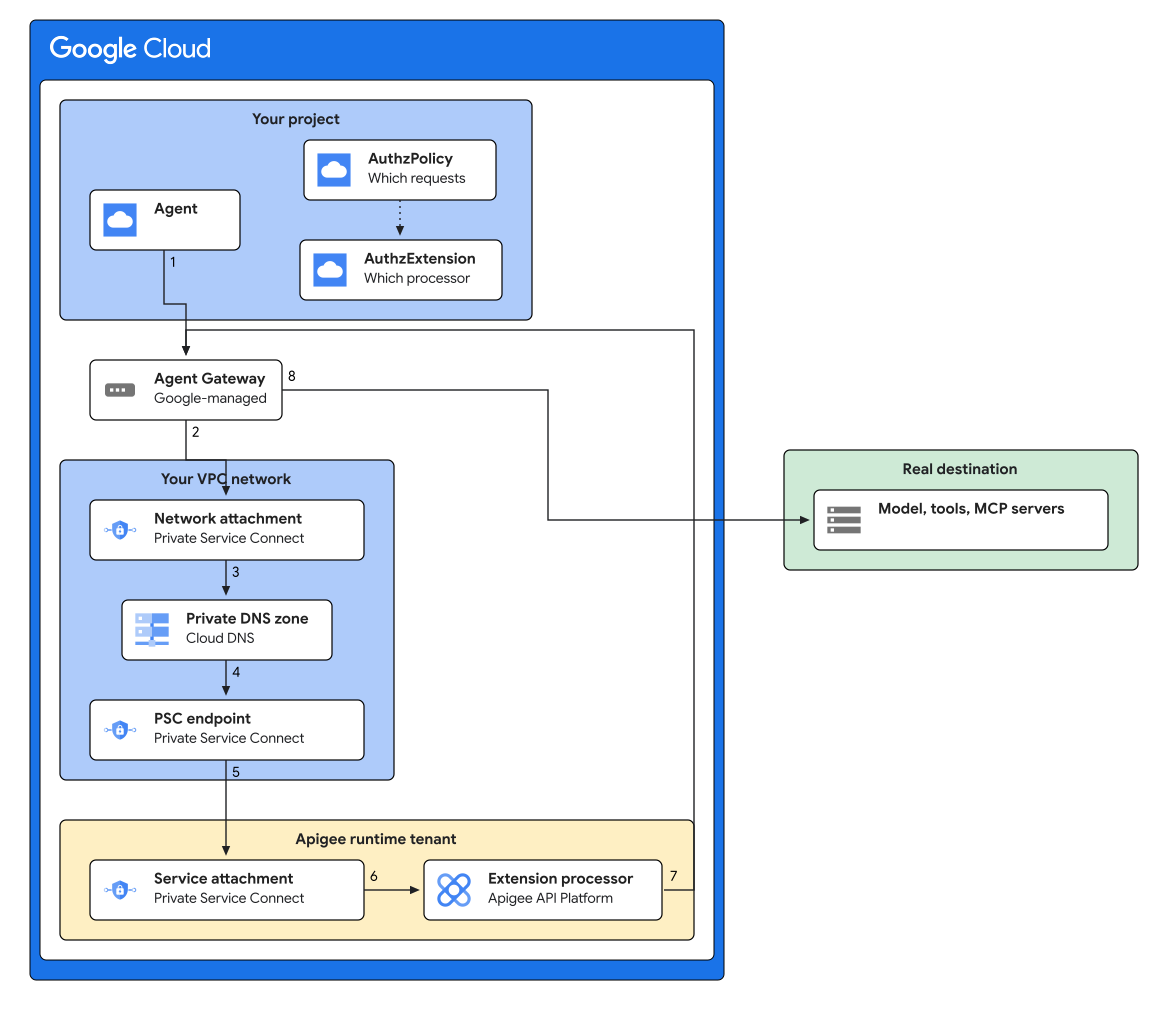 **Figure 1.** Components and request flow when the Apigee extension processor is the authorization extension for an Agent Gateway.
In figure 1, a request is handled as follows:
1. The agent makes an ordinary HTTPS request to its model, a tool, or an MCP server. The agent is bound to the gateway when it is created, and needs no changes.
2. The gateway holds the request and calls the authorization extension for a verdict.
3. The callout leaves through the network attachment, so it originates inside your VPC network.
4. Your private DNS zone resolves the callout hostname to the internal IP address of the Private Service Connect endpoint.
5. The endpoint forwards the callout to the service attachment of your Apigee instance.
6. The environment group routes the callout by its hostname to the no-target proxy, where your policies run.
7. The proxy returns a verdict to the gateway. Apigee never forwards the agent's traffic---the proxy has no target.
8. If the verdict allows the request, the gateway sends the original request on to its destination.
The `AuthzPolicy` and `AuthzExtension` in figure 1 are configuration
rather than traffic: the policy attaches the extension to the gateway, and the extension names
the extension processor proxy that runs. You create both in
[Configure the authorization extension](https://docs.cloud.google.com/apigee/docs/api-platform/service-extensions/extension-processor-agent-gateway.md.txt#configure-authz-ext).
To connect the extension processor to a load balancer instead, see
[Get started
with the Apigee extension processor](https://docs.cloud.google.com/apigee/docs/api-platform/service-extensions/extension-processor-quickstart).
The following sections guide you through the steps:
- [Configure the Apigee extension processor](https://docs.cloud.google.com/apigee/docs/api-platform/service-extensions/extension-processor-agent-gateway.md.txt#configure-ext-proc).
- [Connect the Agent Gateway to
Apigee](https://docs.cloud.google.com/apigee/docs/api-platform/service-extensions/extension-processor-agent-gateway#connect-gateway).
- [Configure the authorization extension](https://docs.cloud.google.com/apigee/docs/api-platform/service-extensions/extension-processor-agent-gateway.md.txt#configure-authz-ext).
- [Verify the connection](https://docs.cloud.google.com/apigee/docs/api-platform/service-extensions/extension-processor-agent-gateway.md.txt#verify).
## Before you begin
Before you begin, complete the following tasks:
1. Install the [Google Cloud CLI](https://docs.cloud.google.com/sdk/gcloud.md.txt).
After you install the Google Cloud CLI, run the `gcloud components update`
command to get the latest gcloud components.
2. Provision an [Apigee](https://docs.cloud.google.com/apigee/docs/api-platform/get-started/provisioning-intro.md.txt)
instance, if you have not already done so.
In the Google Cloud console, go to the **Apigee Instances** page.
[Go to Apigee Instances](https://console.cloud.google.com/apigee/instances)
3. Deploy an Agent Gateway in the same region as your Apigee
instance, with `governedAccessPath` set to `AGENT_TO_ANYWHERE` so that
the gateway governs the agent's outbound traffic. For more information, see
[Configure
Agent Gateway](https://docs.cloud.google.com/gemini-enterprise-agent-platform/govern/gateways/set-up-agent-gateway).
You update this gateway's network configuration later, in
[Update the Agent Gateway](https://docs.cloud.google.com/apigee/docs/api-platform/service-extensions/extension-processor-agent-gateway.md.txt#update-gateway), after the DNS zone
exists.
4. Confirm that you have a VPC and subnet that both the Agent Gateway and the
Private Service Connect endpoint can use.
[Go to VPC Networks](https://console.cloud.google.com/networking/networks/list)
### Required roles
To get the permissions that
you need to connect the Apigee extension processor to an Agent Gateway,
ask your administrator to grant you the
following IAM roles:
- Create and manage Apigee resources: [Apigee Org Admin](https://docs.cloud.google.com/iam/docs/roles-permissions/apigee.md.txt#apigee.admin) (`roles/apigee.admin`) on organization
- Create and manage service extensions: [Service Extensions Admin](https://docs.cloud.google.com/iam/docs/roles-permissions/networkservices.md.txt#networkservices.serviceExtensionsAdmin) (`roles/networkservices.serviceExtensionsAdmin`) on organization
- Create and manage authorization policies: [Network Security Admin](https://docs.cloud.google.com/iam/docs/roles-permissions/networksecurity.md.txt#networksecurity.admin) (`roles/networksecurity.admin`) on organization
- Create and manage networking resources, including Private Service Connect endpoints and DNS: [Compute Network Admin](https://docs.cloud.google.com/iam/docs/roles-permissions/compute.md.txt#compute.networkAdmin) (`roles/compute.networkAdmin`) on organization
For more information about granting roles, see [Manage access to projects, folders, and organizations](https://docs.cloud.google.com/iam/docs/granting-changing-revoking-access.md.txt).
You might also be able to get
the required permissions through [custom
roles](https://docs.cloud.google.com/iam/docs/creating-custom-roles) or other [predefined
roles](https://docs.cloud.google.com/iam/docs/roles-overview#predefined).
### Set environment variables
Set the following environment variables to identify the resources you created in
**Before you begin**. Each later section on this page defines the additional variables it
needs, at the point where you create the resource they name.
```bash
export PROJECT_ID=PROJECT_ID
export ORG_NAME=$PROJECT_ID
export REGION=REGION
export INSTANCE=INSTANCE
export VPC_NETWORK_NAME=VPC_NETWORK_NAME
export SUBNET=SUBNET
export GATEWAY=GATEWAY
```
Where:
- `PROJECT_ID` is the ID of the project that contains your Apigee instance.
- `REGION` is the Google Cloud region of your Apigee instance.
- `INSTANCE` is the name of your Apigee instance.
- `VPC_NETWORK_NAME` and `SUBNET` are the VPC network and subnet that the Agent Gateway and the Private Service Connect endpoint use.
- `GATEWAY` is the name of the Agent Gateway you deployed.
To confirm that the environment variables are set correctly, run the following command and
review the output:
```bash
echo $PROJECT_ID $ORG_NAME $REGION $INSTANCE $VPC_NETWORK_NAME $SUBNET $GATEWAY
```
### Choose the callout hostname
The gateway reaches Apigee at a private hostname that you choose. You choose it now,
before creating anything, because the first resource you create---the Apigee
environment group---uses it as its hostname, while the DNS zone that resolves it is not
created until [Create a private DNS zone](https://docs.cloud.google.com/apigee/docs/api-platform/service-extensions/extension-processor-agent-gateway.md.txt#create-dns).
```bash
export DNS_DOMAIN=DNS_DOMAIN
export EXTPROC_HOST=apigee-extproc.$DNS_DOMAIN
```
Where `DNS_DOMAIN` is a private DNS domain that does not have to be
resolvable on the public internet, written **without** a trailing dot, for example
`internal.example.com`. This gives an `EXTPROC_HOST` of
`apigee-extproc.internal.example.com`. You can use a label other than
`apigee-extproc`, as long as the hostname stays inside
`DNS_DOMAIN`.
> [!IMPORTANT]
> **Important:** `EXTPROC_HOST` is used in three places: the Apigee environment group hostname, the private DNS record, and the authorization extension's `authority` and `service` fields. All three must be identical, or the callout never reaches Apigee. The hostname must also sit inside `DNS_DOMAIN`, which is why the command above derives it from that variable.
### Configure an authentication token
```bash
export TOKEN=$(gcloud auth print-access-token)
echo $TOKEN
```
> [!NOTE]
> **Note:** If your organization uses data residency, replace `apigee.googleapis.com` in the commands on this page with the regional endpoint for your organization. For more information, see [Use regional
> endpoints for data residency](https://docs.cloud.google.com/apigee/docs/api-platform/get-started/drz-concepts#drz-regional-endpoint).
## Configure the Apigee extension processor
Name the Apigee resources that this section creates:
```bash
export EXTPROC_ENV=EXTPROC_ENV
export EXTPROC_ENVGROUP=EXTPROC_ENVGROUP
export PROXY_NAME=PROXY_NAME
```
Where:
- `EXTPROC_ENV` and `EXTPROC_ENVGROUP` are names you choose for an Apigee environment and environment group dedicated to the extension processor, for example `extproc-env` and `extproc-envgroup`. Each name must be 2 to 32 characters of lowercase letters, numbers or hyphens, must begin with a letter, and cannot end with a hyphen. The environment name must differ from every other environment name in your organization.
- `PROXY_NAME` is a name you choose for the extension processor proxy, for example `extproc-authz`.
The Apigee side of the configuration is the same as for a load balancer. Follow
[Configure
the Apigee extension processor](https://docs.cloud.google.com/apigee/docs/api-platform/service-extensions/extension-processor-quickstart#configure-ext-proc) in the quickstart to:
1. Create an Apigee environment with the property `apigee-service-extension-enabled` set to `true`, attach it to your instance, and create an environment group whose hostname is `$EXTPROC_HOST`.
2. Create and deploy a **no-target** extension processor proxy to that environment.
> [!NOTE]
> **Note:** The quickstart names these resources `ENV_NAME`, `ENV_GROUP_NAME` and `ENV_GROUP_HOSTNAME`. Use `$EXTPROC_ENV`, `$EXTPROC_ENVGROUP` and `$EXTPROC_HOST` respectively.
> [!NOTE]
> **Note:** If any policy in the proxy calls a Google Cloud API, deploy the proxy with a service account by appending `?serviceAccount=SERVICE_ACCOUNT_EMAIL` to the deployment request. Otherwise the deployment fails with `MISSING_SERVICE_ACCOUNT`.
Then list the deployments in the environment:
```bash
curl -s -H "Authorization: Bearer $TOKEN" \
"https://apigee.googleapis.com/v1/organizations/$ORG_NAME/environments/$EXTPROC_ENV/deployments"
```
The environment can have more than one proxy deployed, so in the response, find the entry whose
`apiProxy` is `$PROXY_NAME` and note its `revision`.
You can review the proxy in the Google Cloud console:
[Go to API Proxies](https://console.cloud.google.com/apigee/proxies)
Set the following variable to that revision, which you need in
[Verify the connection](https://docs.cloud.google.com/apigee/docs/api-platform/service-extensions/extension-processor-agent-gateway.md.txt#verify):
```bash
export REVISION=REVISION
```
## Connect the Agent Gateway to Apigee
The gateway reaches Apigee over a
[Private Service Connect](https://docs.cloud.google.com/vpc/docs/private-service-connect.md.txt) endpoint in your
VPC, which it finds by resolving `$EXTPROC_HOST` on a private DNS zone.
### Find the service attachment
Find the service attachment of your Apigee instance:
```bash
curl -s -H "Authorization: Bearer $TOKEN" \
"https://apigee.googleapis.com/v1/organizations/$ORG_NAME/instances"
```
Set the following variable to the `serviceAttachment` value of the instance in your
region:
```bash
export SERVICE_ATTACHMENT=SERVICE_ATTACHMENT
```
### Create a network attachment
The Agent Gateway egresses into your VPC through a network attachment. Choose a
name for it, for example `agent-gateway-attachment`, and create it:
```bash
export NETWORK_ATTACHMENT=NETWORK_ATTACHMENT
gcloud compute network-attachments create $NETWORK_ATTACHMENT \
--region=$REGION --subnets=$SUBNET --connection-preference=ACCEPT_AUTOMATIC
```
### Create the Private Service Connect endpoint
Reserve an internal IP address and create the
Private Service Connect endpoint:
```bash
gcloud compute addresses create apigee-extproc-psc-ip \
--region=$REGION --subnet=$SUBNET --purpose=GCE_ENDPOINT
gcloud compute forwarding-rules create apigee-extproc-psc-endpoint \
--region=$REGION --network=$VPC_NETWORK_NAME \
--address=apigee-extproc-psc-ip \
--target-service-attachment=$SERVICE_ATTACHMENT
```
In the Google Cloud console, go to the **Private Service Connect** page.
[Go to Private Service Connect](https://console.cloud.google.com/net-services/psc/list/consumers)
Confirm that the endpoint reports `pscConnectionStatus: ACCEPTED`, and set the
following variable to its IP address:
```bash
gcloud compute forwarding-rules describe apigee-extproc-psc-endpoint \
--region=$REGION --format="value(pscConnectionStatus,IPAddress)"
export PSC_IP=PSC_IP
```
If the status is `PENDING`, your project is not in the Apigee instance's
`consumerAcceptList`, and the connection cannot be accepted.
### Create a private DNS zone
Create a private DNS zone for `$DNS_DOMAIN` and an `A` record that
resolves `$EXTPROC_HOST` to the endpoint's IP address:
```bash
gcloud dns managed-zones create extproc-zone \
--dns-name=$DNS_DOMAIN. --visibility=private --networks=$VPC_NETWORK_NAME \
--description="Apigee extension processor callout host"
gcloud dns record-sets create $EXTPROC_HOST. --type=A --ttl=300 \
--rrdatas=$PSC_IP --zone=extproc-zone
```
### Update the Agent Gateway
Update the Agent Gateway from **Before you begin** so that it egresses through
your network attachment and can resolve the zone you created.
> [!CAUTION]
> **Caution:** Importing an Agent Gateway replaces the entire resource. Always start from the exported configuration and edit it, rather than writing a new file, or fields that you omit---such as `protocols` and `registries`---are removed from the gateway.
1. Export the current configuration:
```bash
gcloud network-services agent-gateways export $GATEWAY \
--location=$REGION --destination=agent-gateway.yaml
```
2. In `agent-gateway.yaml`, add the following `networkConfig` block,
replacing each placeholder with the value of the corresponding environment variable. The file
is edited directly, so shell variables are not substituted here:
```yaml
networkConfig:
egress:
networkAttachment: projects/PROJECT_ID/regions/REGION/networkAttachments/NETWORK_ATTACHMENT
dnsPeeringConfig:
domains: [ DNS_DOMAIN. ]
targetProject: PROJECT_ID
targetNetwork: projects/PROJECT_ID/global/networks/VPC_NETWORK_NAME
```
Leave the rest of the file, including `googleManaged.governedAccessPath`,
`protocols` and `registries`, as exported.
3. Import the edited configuration:
```bash
gcloud network-services agent-gateways import $GATEWAY \
--location=$REGION --source=agent-gateway.yaml
```
For the full set of Agent Gateway fields, see
[Configure
Agent Gateway](https://docs.cloud.google.com/gemini-enterprise-agent-platform/govern/gateways/set-up-agent-gateway).
## Configure the authorization extension
Two resources connect the gateway to your extension processor proxy: an authorization
extension that points at Apigee, and an authorization policy that attaches the extension
to the gateway.
### Create the authorization extension
Choose a name for the authorization extension, for example `apigee-authz-extension`.
The `metadata` fields select which Apigee proxy runs and whether the message
bodies are sent to it:
```bash
export AUTHZ_EXT=AUTHZ_EXT
cat > authz-extension.yaml <
### Create the authorization policy
Choose a name for the authorization policy, for example
`apigee-content-authz-policy`. The policy attaches the extension to the gateway and
determines which traffic is sent to Apigee:
```bash
export AUTHZ_POLICY=AUTHZ_POLICY
cat > authz-policy.yaml < [!IMPORTANT]
> **Important:** The example above matches every request with `prefix: "/"`, which sends all of the agent's traffic to Apigee---including its session, telemetry, and tool calls. Narrow the scope with `to.operations.paths`, or with a [Common Expression Language
> (CEL)](https://docs.cloud.google.com/service-extensions/docs/cel-matcher-language-reference) expression in a `when` field, so that only the traffic you intend to govern is processed.
## Verify the connection
To generate traffic, you need an agent whose egress is governed by this gateway. An agent is
bound to a gateway when the agent is created, by setting its Agent Gateway
configuration to `$GATEWAY`; you cannot exercise the connection with a direct HTTP
request to the gateway. For more information, see
[Configure
Agent Gateway](https://docs.cloud.google.com/gemini-enterprise-agent-platform/govern/gateways/set-up-agent-gateway).
Start an Apigee [debug session](https://docs.cloud.google.com/apigee/docs/api-platform/debug/trace.md.txt) on the
extension processor proxy, then send one request through the agent:
```bash
curl -s -X POST -H "Authorization: Bearer $TOKEN" -H "Content-Type: application/json" \
"https://apigee.googleapis.com/v1/organizations/$ORG_NAME/environments/$EXTPROC_ENV/apis/$PROXY_NAME/revisions/$REVISION/debugsessions?timeout=600" \
-d '{"count":15,"tracesize":5120,"filter":"(request.uri Like \"*generateContent*\")"}'
```
> [!NOTE]
> **Note:** A single agent turn produces several transactions, because the agent's session and telemetry calls also pass through the gateway. Use the `filter` field to capture only the traffic you want to inspect, or the buffer may fill before the request you are looking for arrives.
In the captured transactions, confirm that:
- the request URL is the address the *agent* called, such as the model endpoint or a tool host, rather than an Apigee base path;
- `request.content` and `response.content` are populated, which confirms that the body metadata on the authorization extension is working.
If no transactions appear, check that the environment group hostname, the DNS record, and the
extension's `authority` and `service` fields are all
`$EXTPROC_HOST`, that the
Private Service Connect endpoint reports `ACCEPTED`, and that the
gateway's `governedAccessPath` is `AGENT_TO_ANYWHERE`.
## What's next
- Read the [Apigee extension processor
overview](https://docs.cloud.google.com/apigee/docs/api-platform/service-extensions/extension-processor-overview).
- Get started with the [Apigee extension processor
on a load balancer](https://docs.cloud.google.com/apigee/docs/api-platform/service-extensions/extension-processor-quickstart).
- [Configure
Apigee policies with the extension processor](https://docs.cloud.google.com/apigee/docs/api-platform/service-extensions/extension-processor-policies), which covers the policy configuration that is specific to the extension processor.