*This page
applies to **Apigee** and **Apigee hybrid**.*
*View [Apigee Edge](https://docs.apigee.com/api-platform/get-started/what-apigee-edge) documentation.*

> [!NOTE]
> For information about editing, previewing, and publishing portal pages, and managing the audience for the pages in your portal, see [Developing portal
> content using the page editor](https://docs.cloud.google.com/apigee/docs/api-platform/publish/portal/page-editor).
Manage the pages in your portal, as described in the following sections.
## About the reserved URL paths
The following URL paths are reserved for use by the developer portal and
cannot be specified as the page path (or as the prefix of a nested page path,
such as `docs/...` or `apis/...`) when creating pages:
- `a`
- `accounts/create`
- `apis`
- `consumers/api`
- `create`
- `docs`
- `files`
- `login`
- `logout`
- `logos`
- `my-apps`
- `portals/api`
- `siteid`
- `sites`
- `smartdocs`
- `teams`
The reserved path `/create` can be used as the target URL of a `MenuItem` or
be linked to from a Page.
The `/create` reserved path will redirect to the
[accounts creation page](https://docs.cloud.google.com/apigee/docs/api-platform/publish/portal/configure-register-sign-in.md.txt).
## Exploring the Pages page
To access the Pages page:
1. In the Apigee in Cloud console, go to the **Distribution \> Portals** page.
[Go to Portals](https://console.cloud.google.com/apigee/portals)
The list of pages in your portal is displayed.
> [!NOTE]
> **Note:** For a list of the default pages provided with the sample portal, see [About the sample portal](https://docs.cloud.google.com/apigee/docs/api-platform/publish/portal/build-integrated-portal.md.txt#sample-portal).
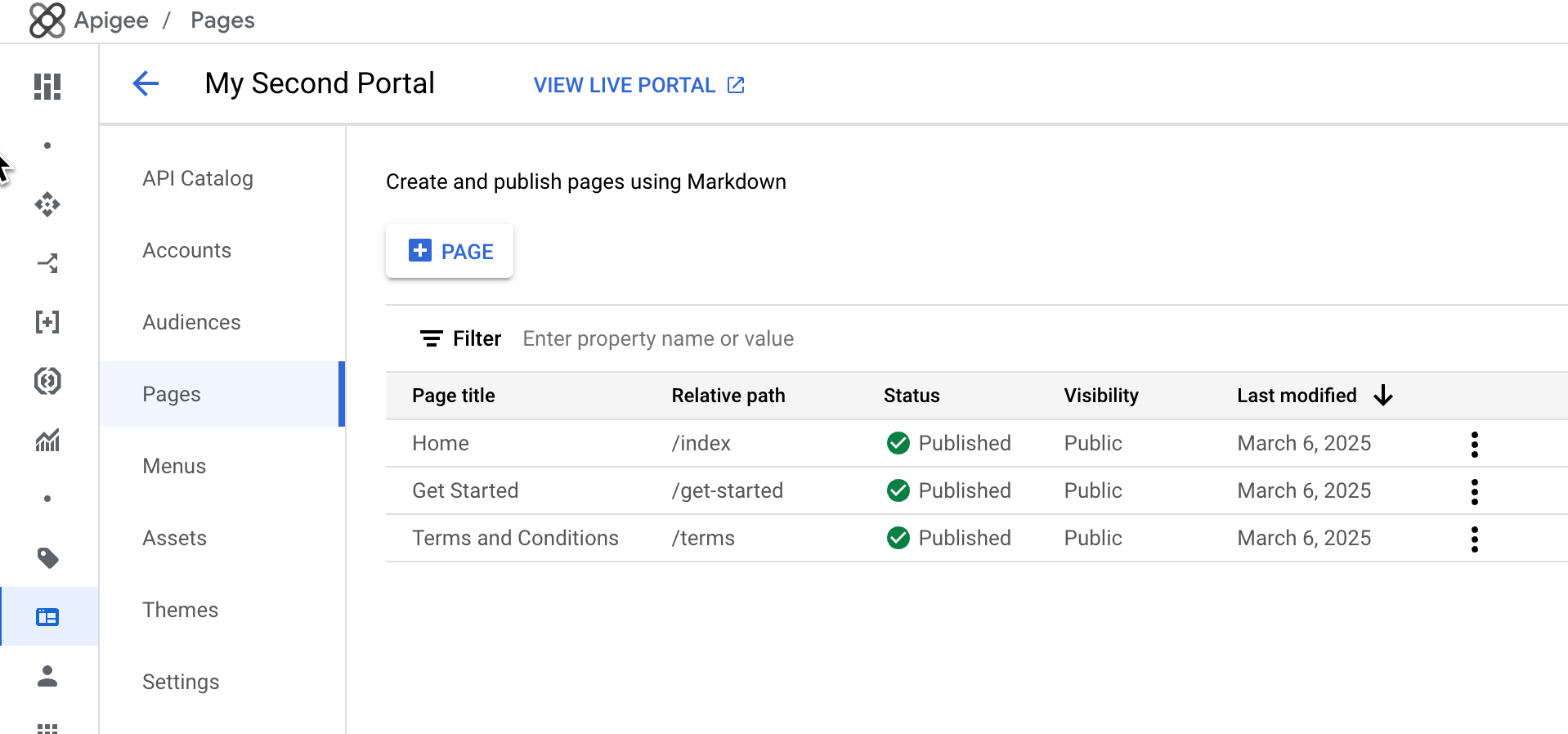

The Pages page lets you:
- [Create a page](https://docs.cloud.google.com/apigee/docs/api-platform/publish/portal/portal-pages.md.txt#create-page)
- View page details, including name, relative path, status, visibility, and amount of time since the page was last modified
- Edit page [content](https://docs.cloud.google.com/apigee/docs/api-platform/publish/portal/portal-pages.md.txt#edit-page-contents) and [details](https://docs.cloud.google.com/apigee/docs/api-platform/publish/portal/portal-pages.md.txt#edit-page-details)
- [Manage the visibility](https://docs.cloud.google.com/apigee/docs/api-platform/publish/portal/portal-pages.md.txt#visibility) of a page in your portal
- [Delete](https://docs.cloud.google.com/apigee/docs/api-platform/publish/portal/portal-pages.md.txt#delete-page) pages in your portal
- Sort the list of pages by column (the arrow indicates the active column and direction of the sorted content)
## Creating a page
> [!NOTE]
> **Note** : You can create a **maximum of 1000 pages** in your portal.
To create a new page:
1. [Access the Pages page](https://docs.cloud.google.com/apigee/docs/api-platform/publish/portal/portal-pages.md.txt#explore-ui).
2. Click **+Page**.
3. In the Create a Page dialog, enter the following details:
| Field | Description | Required? |
|---|---|---|
| Name | Name of the page. The page name must be unique within the portal. The name is used in the portal page header and browser tab. | Yes |
| Path | User-friendly relative URL to use for the page (up to 255 characters). For best practices, see [Implement search engine optimization (SEO)](https://docs.cloud.google.com/apigee/docs/api-platform/publish/portal/portal-best-practices.md.txt#seo). Defaults to the page name with spaces converted to dashes. The path must meet the following requirements: - Use lowercase letters (`a-z`), numbers (`0-9`), dashes (`-`), and forward slashes (`/`) only. Forward slashes can be used to create nested page paths (for example, `guides/getting-started`). Spaces and other special characters are not allowed. - Start and end with a lowercase letter or number (do not include a leading or trailing `/` or `-`). - Do not include consecutive dashes (`--`), consecutive forward slashes (`//`), or adjacent dashes and forward slashes (`/-` or `-/`). **Note** : Avoid specifying a reserved URL path (or a path starting with `/`) when creating a page. For a list of reserved URL paths, see [About the reserved URL paths](https://docs.cloud.google.com/apigee/docs/api-platform/publish/portal/portal-pages.md.txt#reserved-paths). | Yes |
4. Save the page.
Click **Save**.
## Editing the contents of a page
To edit the contents of a page:
1. [Access the Pages page](https://docs.cloud.google.com/apigee/docs/api-platform/publish/portal/portal-pages.md.txt#explore-ui).
2. Click the name of the page that you want to edit.
3. Edit the contents of the page. See [Developing portal content using the page editor](https://docs.cloud.google.com/apigee/docs/api-platform/publish/portal/page-editor.md.txt).
## Editing the page details
To edit the details for a page, including the name, description, and relative path:
1. [Access the Pages page](https://docs.cloud.google.com/apigee/docs/api-platform/publish/portal/portal-pages.md.txt#explore-ui).
2. Open the editor.
On the row for the page you want to edit, click
**More** ,
**Edit**.
3. Edit the page details.
4. Save the page.
Click **Save**.
## Managing the visibility of a page in your portal
> [!IMPORTANT]
> **Note:** To use all of the features described in this section, you must have [enrolled in the Preview release of the audience management feature](https://docs.cloud.google.com/apigee/docs/api-platform/publish/portal/portal-audience.md.txt#enroll).
To manage the visibility of a page in your portal:
1. [Access the Pages page](https://docs.cloud.google.com/apigee/docs/api-platform/publish/portal/portal-pages.md.txt#explore-ui).
2. Open the visibility editor:
1. On the row for the page you want to modify, click **More** , **Edit**.
2. In the **Visibility** area, click **Edit**.
3. Select one of the following options:
- **Public (visible to anyone)** to allow all users to view the page.
- **Authenticated users** to allow only registered users to view the page.
- **Selected audiences** to select the specific audiences that you want to be able to view the page. For information about managing the audiences defined for your portal, see [Managing the audiences for your portal](https://docs.cloud.google.com/apigee/docs/api-platform/publish/portal/portal-audience.md.txt).
> [!NOTE]
> **Note:** If you set the visibility to **Authenticated users** or **Selected audiences**, the page won't be indexed by search engines.
4. Save the visibility settings.
Click **Apply**.
## Deleting pages from your portal
> [!NOTE]
> **Notes** :
>
> - You cannot delete the Home page. The `index` URL path serves as the default landing page for your portal.
> - To avoid having an orphaned navigation menu or menu item with a broken link to a page that has been removed, it is recommended that you delete any relevant navigation menus or menu items items first, then delete the page.
To delete a page from your portal:
1. [Access the Pages page](https://docs.cloud.google.com/apigee/docs/api-platform/publish/portal/portal-pages.md.txt#explore-ui).
2. Delete the page.
1. Click **More** , **Delete**.
2. Type **Delete** and then click **Delete page** to confirm.