*This page
applies to **Apigee** and **Apigee hybrid**.*
*View [Apigee Edge](https://docs.apigee.com/api-platform/get-started/what-apigee-edge) documentation.*

Using the page editor, you define your portal content using Markdown or HTML.
## Exploring the page editor
Access the page editor by clicking the name of a page when viewing the list of pages, as described in [Managing the pages in your portal](https://docs.cloud.google.com/apigee/docs/api-platform/publish/portal/portal-pages.md.txt).
The page editor opens:
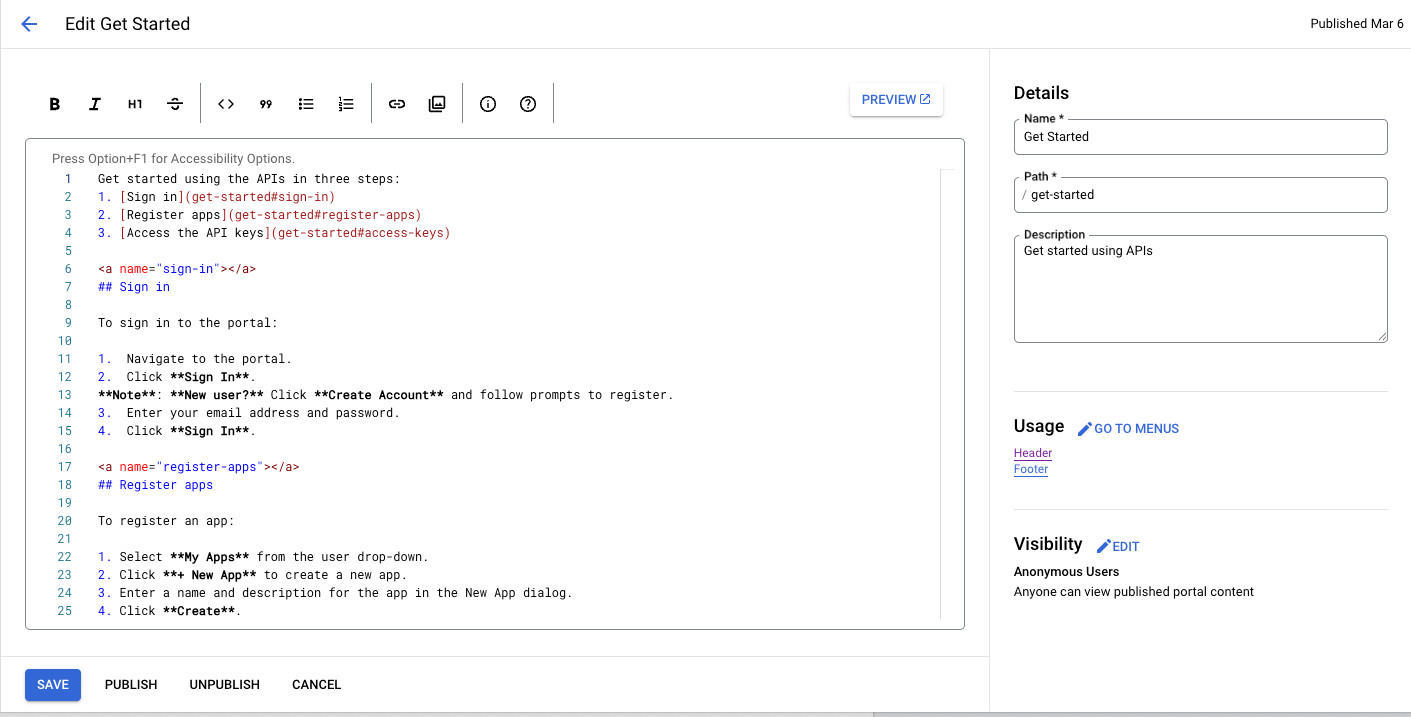

The page editor lets you:
- [Edit portal content](https://docs.cloud.google.com/apigee/docs/api-platform/publish/portal/page-editor.md.txt#edit-content) and [add Angular Material components](https://docs.cloud.google.com/apigee/docs/api-platform/publish/portal/page-editor.md.txt#angular-material) in the left pane
- Use the quick edit toolbar to apply formats or insert Markdown tags quickly
- Edit page details, such as name, path, and description, in the right pane
- [Manage the visibility for a page](https://docs.cloud.google.com/apigee/docs/api-platform/publish/portal/page-editor.md.txt#visibility) in the right pane
- [Preview the portal content](https://docs.cloud.google.com/apigee/docs/api-platform/publish/portal/page-editor.md.txt#preview)
- Publish or unpublish a page (see [Publish your portal content](https://docs.cloud.google.com/apigee/docs/api-platform/publish/portal/portal-publish.md.txt))
- Manage the page in your navigation menus (see [Set up navigation](https://docs.cloud.google.com/apigee/docs/api-platform/publish/portal/portal-menus.md.txt))
- View the amount of time since the page was last published
- [Delete a page](https://docs.cloud.google.com/apigee/docs/api-platform/publish/portal/portal-pages.md.txt#delete-page)
## Editing content in the page editor
Markdown is a simple formatting language that uses plain text markup that is both easy to read and write. Its syntax is specified using punctuation characters. Markdown is converted to HTML before rendering in your browser.
The **quick edit toolbar** at the top of the page editor provides shortcuts for applying formats (such as bold, italic, and so on) or inserting Markdown tags (such as lists, images, links, and so on).
For a quick summary of Markdown syntax, in the quick edit toolbar, click the **Information** icon.
The [Markdown syntax quick reference](https://docs.cloud.google.com/apigee/docs/api-platform/publish/portal/markdown-reference.md.txt) is displayed.
To undo or redo the last edit, press Command+z or Command+Shift+z, respectively.
> [!NOTE]
> **Note** : When adding links, note the following:
>
> - When adding links to other pages and images in your portal, it is recommended that you use relative paths rather than absolute paths to avoid broken links if you later decide to [customize your domain](https://docs.cloud.google.com/apigee/docs/api-platform/publish/portal/custom-domain.md.txt).
> - When adding links to sections within the portal, you need to include the page name followed by the anchor in your link definition. For example, \[Link to anchor\] (pagename#anchorname)
Markdown is recommended if you want to keep your formatting workflow simple. However, it is not intended to replace HTML. There is a wide range of formatting you can do in HTML that you cannot do in Markdown. For example, you can specify a CSS class for an element in HTML; you cannot do this in Markdown:
You can insert HTML anywhere within the content body by simply entering the HTML tags.
> [!NOTE]
> **Note:** When using HTML, note the following:
>
> - Markdown syntax is not valid within HTML tags.
> - You must add a line break between an HTML text block and the Markdown text block that follows it in order for the Markdown content to be formatted correctly.
For information about HTML tags, see the [HTML5 specification](https://www.w3.org/TR/html5/).
## Adding Angular Material components
[Angular Material](https://material.angular.io/) provides a state-of-the-art UI component library. Angular Material components enable you to quickly and easily construct consistent, responsive, and accessible user interfaces utilizing modern design principles.
### Available components
The portal experience is built using Angular Material, and a limited set of Angular Material components may be used in pages, summarized in the following table.
> [!NOTE]
> **Note:** The Home page in the [sample portal](https://docs.cloud.google.com/apigee/docs/api-platform/publish/portal/build-integrated-portal.md.txt#sample-portal) demonstrates how some of these components are used and rendered. A subset of the examples in the following table are based on the Home page contents, with some of the styling removed for readability.
| Component | Example |
|---|---|
| [Buttons](https://material.angular.io/components/button/overview) | The following code creates a rectangular button with elevation.```` ``` Quick Start ``` ```` The following code creates a circular button with a transparent background that includes the warning icon. The color of the button is defined using the [warn color palette](https://docs.cloud.google.com/apigee/docs/api-platform/publish/portal/api-portal-themes.md.txt#color-palette). |
| [Card](https://material.angular.io/components/card/overview) | The following code creates a card. The card includes button and icon components, as well as heading and body text. The color of the button is defined using the [primary color palette](https://docs.cloud.google.com/apigee/docs/api-platform/publish/portal/api-portal-themes.md.txt#color-palette). class
APIs
Learn about and try our APIs.
|
| [Icon](https://material.angular.io/components/icon/overview) | The following code creates a checkmark icon. For a complete list of icons that are supported, see [Material Design - Icons](https://material.io/icons/).```` ``` check_circle ``` ```` |
| [Toolbar](https://material.angular.io/components/toolbar/overview) | The following code creates a simple toolbar with text and a shopping cart icon. ```` ``` My Storeadd_shopping ``` ```` |
## Managing the visibility for a page in your portal
Managing the visibility of a page in your portal is described in
[Managing the visibility of a page in your portal](https://docs.cloud.google.com/apigee/docs/api-platform/publish/portal/portal-pages.md.txt#visibility).
## Previewing portal content
To preview the portal content:
1. Access the page editor as described in [Managing the pages in your portal](https://docs.cloud.google.com/apigee/docs/api-platform/publish/portal/portal-pages.md.txt).
2. Preview the page.
1. Click **Save**.
2. Click **Preview**.
> [!NOTE]
> **Note:** Apigee recommends that you preview all portal content before you publish it.
## Publishing portal content
Publishing and unpublishing portal content is described in [Publishing your portal content](https://docs.cloud.google.com/apigee/docs/api-platform/publish/portal/portal-publish.md.txt).
## Deleting a page
Deleting pages from the portal is described in [Deleting pages from your portal](https://docs.cloud.google.com/apigee/docs/api-platform/publish/portal/portal-pages.md.txt#deleting_pages_from_your_portal).