*This page
applies to **Apigee** and **Apigee hybrid**.*
*View [Apigee Edge](https://docs.apigee.com/api-platform/get-started/what-apigee-edge) documentation.*

Apigee policies can transform message formats, enforce access control, call remote services, authorize users, examine message content for potential threats, and do much more. For more information, see [What's a policy?](https://docs.cloud.google.com/apigee/docs/api-platform/develop/policy-attachment-and-enforcement.md.txt)
Proxy and target endpoints define a pipeline for request and response message processing referred to as request and response *flows* . Flows are sequential stages along the API request processing path. Policies are attached at different points in the request and response message flows as processing *steps*.
In the following steps, you create a new policy and attach it to your API proxy in the `PreFlow` response flow to ensure the policy is applied before any other processing takes place. The [XMLtoJSON policy](https://docs.cloud.google.com/apigee/docs/api-platform/reference/policies/xml-json-policy.md.txt) used in this tutorial converts the payload of the API's response message from XML to JSON.
1. Create an XMLtoJSON policy.
1. Expand the **helloworld** API proxy bundle, position your cursor over the **policies** folder, and click .
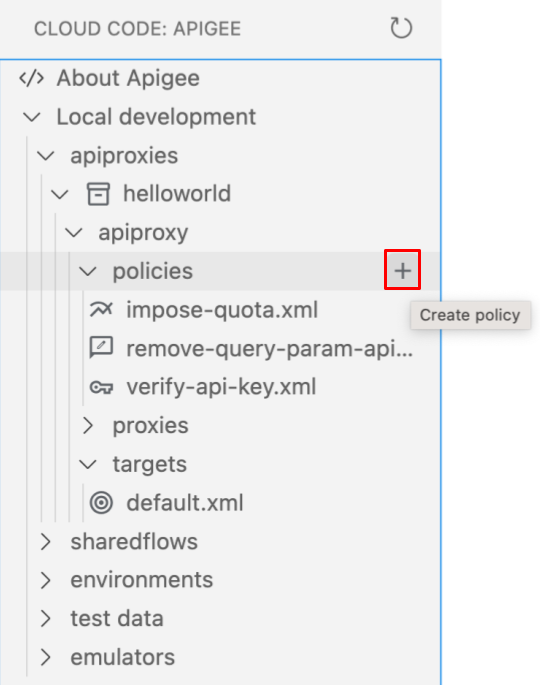
The **Create policy** wizard opens.
2. Select **Mediation** as the policy category.
3. Select **XML to JSON** as the policy type.
4. Enter **XMLtoJSON** as the policy name and click **Enter** .
The policy is added to the `/policies` folder for the API proxy and opened in the editor.
5. Click `XMLtoJSON.xml` to edit the policy. Set the `` and `` elements to `response` and save your changes.
> [!NOTE]
> **Note** : You'll attach the policy to the **response** flow in the API proxy PreFlow in the next step.
```
XMLtoJSONyahooresponseresponse
```
2. Attach the policy to the default proxy endpoint.
1. Expand the **proxies** folder in the **helloworld** API proxy bundle and click **default.xml** to open the file in the editor.
2. Add a `` element that references the **XMLtoJSON** policy to the `` flow in the API proxy ``:
```
verify-api-keyremove-query-param-apikeyimpose-quotaXMLtoJSON
...
```
3. Save your changes to the file.
3. To redeploy the environment, position your cursor over the **dev** environment folder and click .
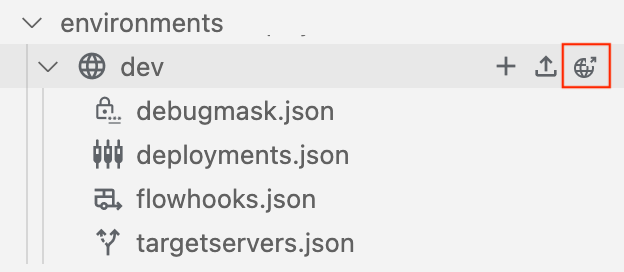
4. When prompted to select a test bundle to export, click **Deploy without a test bundle** because the test bundle has already been exported.

5. Call your API in the **Terminal** tab.
```
curl 0:8998/helloworld?apikey=ZQA5euYtNeJ7ZCGCJMpvd6F2BZOmxOzY
```
The XML response is converted to JSON, as follows:
```
{
"root": {
"city": "San Jose",
"firstName": "John",
"lastName": "Doe",
"state": "CA"
}
}
```
**Congratulations!** You've successfully attached the XMLtoJSON policy to your API proxy!
Next, you will deploy your API as an archive to an Apigee environment for integration testing and production release.
[1](https://docs.cloud.google.com/apigee/docs/api-platform/local-development/vscode/tutorial-create-workspace.md.txt)
[2](https://docs.cloud.google.com/apigee/docs/api-platform/local-development/vscode/tutorial-create-proxy.md.txt)
[3](https://docs.cloud.google.com/apigee/docs/api-platform/local-development/vscode/tutorial-deploy.md.txt)
[4](https://docs.cloud.google.com/apigee/docs/api-platform/local-development/vscode/tutorial-test.md.txt)
[5](https://docs.cloud.google.com/apigee/docs/api-platform/local-development/vscode/tutorial-change-target-endpoint.md.txt)
[6](https://docs.cloud.google.com/apigee/docs/api-platform/local-development/vscode/tutorial-attach-policy.md.txt)
[(NEXT) Step 7: Deploy to an Apigee environment](https://docs.cloud.google.com/apigee/docs/api-platform/local-development/vscode/tutorial-deploy-apigee.md.txt)
[8](https://docs.cloud.google.com/apigee/docs/api-platform/local-development/vscode/tutorial-promote.md.txt)