*This page
applies to **Apigee** and **Apigee hybrid**.*
*View [Apigee Edge](https://docs.apigee.com/api-platform/get-started/what-apigee-edge) documentation.*

> [!NOTE]
> **Note:** In environments enabled for [archive deployments](https://docs.cloud.google.com/apigee/docs/api-platform/fundamentals/environments-overview.md.txt#deployment-types), you cannot manage shared flows using the Apigee UI, API, or gcloud. To manage shared flows for archive deployments using Apigee in VS Code, see also [Developing shared flows](https://docs.cloud.google.com/apigee/docs/api-platform/local-development/vscode/develop-sharedflows.md.txt) using Apigee in VS Code.
Combine policies and resources into a *shared flow* that you can consume from
multiple API proxies, and even from other shared flows. Although it's like a proxy, a shared flow
has no endpoint. It can be used only from an API proxy or shared flow that's in the same
organization as the shared flow itself.
By capturing in one place functionality that's useful in multiple places, a shared flow helps
you ensure consistency, shorten development time, and more easily manage code.
> [!NOTE]
> **Note:** This video was recorded with a previous version of the Apigee UI; however, the concepts are still valid.
The following video demonstrates how to create and debug a shared flow in the Apigee UI.
You can call a shared flow using the [FlowCallout policy](https://docs.cloud.google.com/apigee/docs/api-platform/reference/policies/flow-callout-policy.md.txt). Also, by attaching a shared flow to
a *flow hook*, you can have the shared flow execute before a proxy or target request, or
after a proxy or target response.
For reference on the `FlowCallout` policy, see [FlowCallout policy](https://docs.cloud.google.com/apigee/docs/api-platform/reference/policies/flow-callout-policy.md.txt). For more on
flow hooks, see [Attaching a shared flow
using a flow hook](https://docs.cloud.google.com/apigee/docs/api-platform/fundamentals/flow-hooks).
For example, imagine you have areas of functionality that are either used in multiple places
or must be standardized across APIs in your organization. You could have a shared flow for each
category, including:
- **Security**, with authorization code using OAuth and API key verification, as well as threat protection code.
- **Logging**, for generating standard error messages.
- **Mediation**, for transforming between XML and JSON message formats.
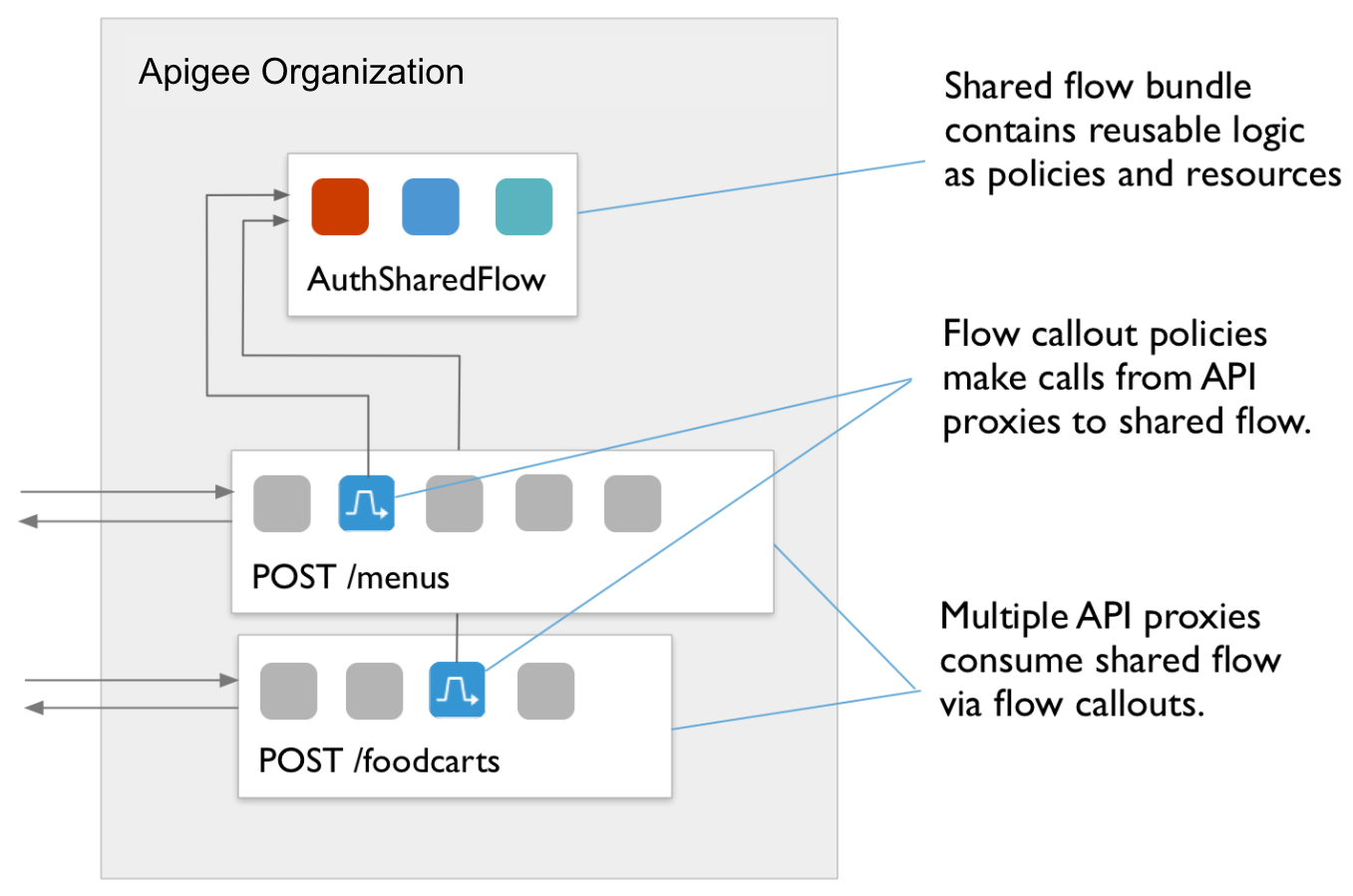
In the following illustration, two API proxies call out (with a `FlowCallout` policy) to a
shared flow to authenticate incoming user requests. The `AuthSharedFlow` has been deployed
separately to the organization before the proxies so that it is available to support requests from the
proxies. A shared flow can be developed and managed by a team responsible for broad company
policies, then consumed in proxies by line-of-business teams building more specialized apps.
## Developing a shared flow
> [!NOTE]
> **Note:** Handle faults from within the API proxy that's calling your shared flow, rather than within the shared flow itself. For more information, see [Handling faults](https://docs.cloud.google.com/apigee/docs/api-platform/fundamentals/fault-handling.md.txt).
When developing a shared flow, you must always test it with calls sent to an API proxy. In
other words, you can't send requests directly to a shared flow as you would an API proxy.
Instead, you send requests to an API proxy which is, in turn, calling out to the shared flow.
Here are the high-level steps for developing a shared flow:
1. Figure out what the **shared set of features** should be.
For example, you might want to combine traffic management features, including suppressing
traffic spikes. That way, you can manage their configuration outside the workflow of those
implementing line-of-business logic.
2. **Develop a shared flow** by implementing policies and supporting resources, just as you would when developing an API proxy.
A shared flow is a sequence of conditional steps. So developing one is like developing an
API proxy. You can include policies and resources you might include in a proxy.
For example, as part of your traffic management support, you might implement a Spike
Arrest policy to allow only 30 requests per second, as in the following example:
```
Spike Arrest30ps
```
Then, to a shared flow for traffic management, you could attach the Spike Arrest policy as
a step. The policy would execute for any API proxy that calls the shared flow.
```
Spike-Arrest
```
For information on how to get a shared flow started in the management console, see
[Creating a shared flow in the Apigee UI](https://docs.cloud.google.com/apigee/docs/api-platform/fundamentals/shared-flows.md.txt#creating-a-shared-flow).
As with API proxies, you can import a zip file containing your shared flow source
artifacts using the [Create shared flow API](https://docs.cloud.google.com/apigee/docs/reference/apis/apigee/rest/v1/organizations.sharedflows/create.md.txt). The following illustrates how to import a
shared flow with the Apigee API:
```
curl "https://apigee.googleapis.com/v1/organizations/$ORG/sharedflows?action=import&name=mySharedFlow" \
-X POST \
-F "file=@sharedflow.zip" \
-H "Authorization: Bearer $TOKEN"
```
Where `$TOKEN` is set to your OAuth 2.0 access token, as described in
[Obtaining an OAuth 2.0 access token](https://docs.cloud.google.com/apigee/docs/api-platform/get-started/api-get-started.md.txt#oauth20). For information about the `curl` options used in this example, see
[Using curl](https://docs.cloud.google.com/apigee/docs/api-platform/get-started/api-get-started.md.txt#curl). For a description of environment variables you can use, see
[Setting
environment variables for Apigee API requests](https://docs.cloud.google.com/apigee/docs/api-platform/get-started/api-get-started#api-environment-variables).
3. **Deploy the shared flow** to the environment before deploying proxies or shared flows that will consume it. You deploy a shared flow in the same way you deploy an API proxy. (For more, see [Deployment
overview](https://docs.cloud.google.com/apigee/docs/api-platform/deploy/ui-deploy-overview).)
A shared flow must be in the same organization and deployed to the same environment as the API
proxies and other shared flows that consume it. Deploying the shared flow before the proxies
makes it possible to resolve the proxy's dependency on the shared flow at deploy time.
You can deploy a shared flow with an Apigee API call such as the following:
```
curl https://apigee.googleapis.com/v1/organizations/$ORG/environments/$ENV/sharedflows/$SHAREDFLOW/revisions/$REV/deployments \
-X POST \
-H "Authorization: Bearer $TOKEN"
```
Similar to API proxies, all successful shared flow deployments to Apigee are
[zero-downtime deployments](https://docs.cloud.google.com/apigee/docs/api-platform/deploy/ui-deploy-overview.md.txt#zero-downtime-deployment).
4. **Develop the consuming API proxy** so that it can call the shared flow as part of its own flow.
From an API proxy, you call a shared flow with a [FlowCallout policy](https://docs.cloud.google.com/apigee/docs/api-platform/reference/policies/flow-callout-policy.md.txt). (You can
also attach the shared flow to the proxy using a
[flow hook](https://docs.cloud.google.com/apigee/docs/api-platform/fundamentals/flow-hooks.md.txt).)
To consume a shared flow, you add a `FlowCallout` policy to the proxy or shared flow that
will consume it. Like a Service Callout policy, with which you call out to another service, a
`FlowCallout` calls out to the shared flow. The consuming API proxy must be deployed
*after* the shared flow and to the same environment as the shared flow. The
shared flow has to be in place when you want to test a call to it using the `FlowCallout` policy.
In the following code, a `FlowCallout` policy calls out to a shared flow called
`traffic-management-shared`.
```
Traffic Management FlowCallouttraffic-management-shared
```
For more, see [Calling a shared flow from an API proxy or
shared flow](https://docs.cloud.google.com/apigee/docs/api-platform/fundamentals/shared-flows#calling-a-shared-flow)
5. **Deploy the consuming API proxy** to begin using the shared flow. (For more on deployment in general, see [Deployment
overview](https://docs.cloud.google.com/apigee/docs/api-platform/deploy/ui-deploy-overview).)
6. **Develop iteratively by debugging, as you would with an API proxy.**
As with an API proxy, you develop a shared flow by iteratively invoking and debugging until
you have the logic the way you want it. In this case, because the shared flow doesn't run on
its own, you invoke a proxy endpoint and debug the proxy.
Before starting the following steps, ensure that both the shared flow and the API proxy calling it with a `FlowCallout`
policy are in the same organization and deployed to the same environment.
1. On the **Debug** tab of the API proxy, begin debugging the API proxy.
2. Send a request to a proxy endpoint in the API proxy. The flow from the endpoint must include the `FlowCallout` policy that calls out to the shared flow.
3. On the **Debug** tab, examine the flow from the API proxy to the shared flow. (For more on debugging, see [Debug tool](https://docs.cloud.google.com/apigee/docs/api-platform/debug/trace-overview.md.txt).)
## Creating a shared flow in the Apigee UI
When you use the Apigee API to create a shared flow, you can either create one from
scratch or by importing existing flow sources as a flow bundle zip file.
Access the **Shared Flows** page, as described below. On the **Shared Flows** page,
you can view a list of shared flows in the organization, and edit or delete flows in the list.
To create a shared flow in the Apigee UI:
1. In the Google Cloud console, go to the **Apigee \> Proxy development \> Shared flows** page.
[Go to Shared flows](https://console.cloud.google.com/apigee/sharedflows)
2. Select the organization containing your shared flow. See [Switching between your
organizations](https://docs.cloud.google.com/apigee/docs/api-platform/get-started/switch-org).
The shared flow will be available to any API proxies and shared flows deployed to an
environment from this organization. It won't be available from outside this
organization.
3. Create or upload a shared flow:
- Click **Create** to create a new flow from scratch. You'll be able to configure policies and resources as steps in the flow.
The **Create a Shared Flow** dialog displays.
1. Enter the name of the shared flow. This will be the name that API proxies and other shared flows
use to reference this shared flow. The name should be descriptive to developers
consuming the flow.
2. Enter a description to provide more information about what the flow does.
3. If your organization has Apigee Spaces enabled, you can associate the shared flow with a Space selected from the list of available options. For more information, see [Apigee Spaces overview](https://docs.cloud.google.com/apigee/docs/api-platform/system-administration/spaces/apigee-spaces-overview.md.txt).
4. Click **Create** .
The shared flow is created.
5. Next, you can develop the shared flow features and deploy it to the desired environment.
- Click **Upload bundle** to create a shared flow from existing sources by uploading a flow bundle.
A shared flow bundle contains the source artifacts of a shared flow. For example,
if you were to download a shared flow from the Apigee console, you'd have a zip
file with the flow bundle.
The **Create a Shared Flow** dialog displays.
1. Select the zip file containing the artifacts you want in the new flow.
2. Click **Open**.
3. Enter a name for the imported shared flow. This will
be the name that API proxies and other shared flows use to reference this shared flow.
The name should be descriptive to developers consuming the flow.
4. Click **Create** .
The shared flow is created from the bundle.
5. Next, you can develop the shared flow features and deploy it to the desired environment.
## Calling a shared flow from an API proxy or shared flow
You can call a shared flow from a proxy or from another shared flow by using the
[FlowCallout policy](https://docs.cloud.google.com/apigee/docs/api-platform/reference/policies/flow-callout-policy.md.txt).
1. Do one of the following:
- In the Google Cloud console, go to the **Apigee \> Proxy development \> API proxies** page.
[Go to API proxies](https://console.cloud.google.com/apigee/proxies)
- In the Google Cloud console, go to the **Apigee \> Proxy development \> Shared flows** page.
[Go to Shared flows](https://console.cloud.google.com/apigee/sharedflows)
2. Click the name of the proxy or shared flow you want to modify.
3. Click the **Develop** tab.
4. In the navigation pane, next to **Policies** , click .
5. In the list of policies, under **Extension** , select **FlowCallout**.
6. Enter the display name and name (unique identifier), then select the shared flow that this policy will call.
7. Click **Create**.
8. Click next to **Save** and click **Save as new revision**.
## See also
[Chaining API proxies together](https://docs.cloud.google.com/apigee/docs/api-platform/fundamentals/connecting-proxies-other-proxies.md.txt)