*This page
applies to **Apigee** and **Apigee hybrid**.*
*View [Apigee Edge](https://docs.apigee.com/api-platform/get-started/what-apigee-edge) documentation.*

In a conditional flow,
policies are executed only if the flow's condition evaluates to
`true` (as opposed to policies attached to the PreFlow or PostFlow,
which are always executed). This section describes how to create a conditional flow.
## About conditional flows
During the processing of a request and response, only one conditional flow is executed per
segment---the first flow whose condition evaluates to `true`.
You can create conditions that include `||`(OR) and `&&`(AND) operators. However, by default, the `||` operator has higher precedence than the `&&` operator. For example, a condition written as ` A && B || C && D` is evaluated as `A && (B || C) && D`. Make sure to parenthesize the expression if you want to change the precedence when using these operators.
The following examples illustrate some ways to use conditional flows.
### Example 1
The following ProxyEndpoint definition shows a conditional flow that is executed
by the ProxyEndpoint on any `HTTP GET` request to the API proxy:
```
request.verb="GET"
...
```
Notice that the condition references the `request.verb`
[*flow
variable*](https://docs.cloud.google.com/apigee/docs/api-platform/fundamentals/introduction-flow-variables). A flow variable is named references that hold state information associated
with an API transaction processed by Apigee. Apigee defines many state variables that you can
reference.
### Example 2
If your
service backend provides weather reports and weather forecasts, your API might define two
conditional flows that map to those API
resources: `/reports` and `/forecasts`. When an API call
includes one of those resources in the URL, the condition evaluates to true and the logic
attached to the conditional flow is executed.
App developers then access your resources by making requests to a URL in the form:
```
http://myAPIs.myCo.com/weather/reports
```
or:
```
http://myAPIs.myCo.com/weather/forecasts
```
In an API proxy, you can define a conditional flow that corresponds to a specific
resource:
```
(proxy.pathsuffix MatchesPath "/reports")
(proxy.pathsuffix MatchesPath "/forecasts")
...
```
In this example, you reference the `proxy.pathsuffix` flow variable,
which contains the suffix portion of the URL used to access the API proxy. You can then attach
different policies to the conditional flow for each resource.
## Example: Creating a conditional flow
The next example:
- Creates a conditional flow that executes only when the request message is an HTTP `GET`.
- Adds a policy to the new flow.
### Adding a conditional flow
To add a conditional flow:
1. Select the **Develop** tab in the Proxy Editor.
2. Select **Proxy endpoints \> default** in the left-hand pane.
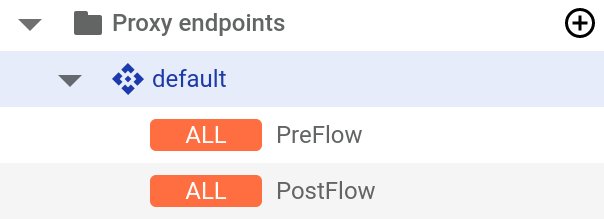
**Note:** You may need to expand the visual editor in the right-hand pane to see all the
elements.
To do so, click and drag the divider between the visual editor and the text editor
down a little.
3. Click the **+** button above the **Response** pane.

4. In the **Add conditional flow** dialog, select **Path and verb** , and in the **Path** field, enter the path suffix that you want to be in the request path in order for the conditional flow to execute. See [Example 2](https://docs.cloud.google.com/apigee/docs/api-platform/fundamentals/flow-configurations.md.txt#example-2) above.
> [!NOTE]
> **Note:** If you don't want to include a path condition, simply enter **/** in the **Path** field, as shown below. This will be matched for any request.

The conditional flow only executes if the request is
a `GET` request (but not for `PUT`, `POST`, etc.).
The new flow, called `Flow-1`, now appears in the **Proxy Endpoint** pane.

5. The XML code for the new conditional flow is displayed in the text editor.

You can edit the **Condition** element if you wish. See
[Adding logic
to flows](https://docs.cloud.google.com/apigee/docs/api-platform/fundamentals/what-are-flows#addinglogictoflows).
### Attaching a policy to the flow
Now that you have created the conditional flow, you can attach a policy to it. The next example
adds a Quota policy, which restricts the number of request messages that an API proxy allows over
a period of time, to the flow:
1. In the left-hand pane, click the **+** button to the right of **Policies**.
2. In the **Create policy** dialog, click in the **Select policy type** field and scroll down to **Traffic Management** and select **Quota**.
3. Click **Create** to create the policy.
4. Click the **+** button next to **Flow-1** in the **Request** pane.

5. In the **Add policy step** dialog, click in the **Select existing policy** field and select **Quota-1**.
6. Click **Add**.
The **Request** pane now displays the flow and attached policy, **Quota-1**.

The text editor now displays a step containing the **Quota-1** policy in the
**Flow-1** element of the XML:

With this configuration, the Quota policy will be enforced for `GET` requests.
Requests of other types will not contribute to the maximum number of requests in the Quota policy.
## Next steps
The following topics provide more detail about constructing conditions and using
variables:
- [Using flow variables](https://docs.cloud.google.com/apigee/docs/api-platform/fundamentals/introduction-flow-variables.md.txt)
- [Conditions with flow variables](https://docs.cloud.google.com/apigee/docs/api-platform/fundamentals/flow-variables-and-conditions.md.txt)