*This page
applies to **Apigee** , but not to **Apigee hybrid**.*
*View [Apigee Edge](https://docs.apigee.com/api-platform/get-started/what-apigee-edge) documentation.*

This document explains how to use [Private Service Connect](https://cloud.google.com/vpc/docs/private-service-connect) to create a private connection between Apigee and backend target services. Note that API proxy
traffic that flows between Apigee and a backend target service is referred to
as "southbound" traffic.
The southbound networking configuration steps described in this document apply to both
[VPC-peered and non-VPC peered
Apigee instances](https://docs.cloud.google.com/apigee/docs/api-platform/get-started/networking-options).
> [!NOTE]
> **Pricing information:** For information on how Private Service Connect is metered and billed, see [Private Service Connect](https://cloud.google.com/vpc/pricing#psc-forwarding-rules) on the Virtual Private Cloud pricing page.
## Privately connecting Apigee to backend targets
To privately connect Apigee to a backend target, you must create two entities: a
[service attachment](https://cloud.google.com/vpc/docs/private-service-connect#service-attachments)
in the VPC network where the target is deployed and an [endpoint attachment](https://docs.cloud.google.com/apigee/docs/reference/apis/apigee/rest/v1/organizations.endpointAttachments/create.md.txt) in the Apigee VPC. These
two entities allow Apigee to connect to the target service.
> [!NOTE]
> **Note:** Global access is enabled by default on all endpoints. This means that the Apigee instance and the endpoint attachment can be in different regions, and the Apigee instance should be able to reach the cross-regional endpoint attachment. For example, if your Apigee instance is in region `us-west1`, it can connect to services in `us-east2` or any other available region. See Figure 1.
> [!NOTE]
> **Note:** By default, Apigee instances support global access on southbound Private Service Connect endpoints. However, the type of Producer load balancer used will determine when global access can be enabled. If you're using a Regional internal Application Load Balancer or a Regional internal proxy Network Load Balancer as a producer load balancer, global access must be enabled before you create Private Service Connect endpoints for your Apigee instance. If global access was not enabled prior to creating these endpoints, existing Private Service Connect endpoints must be deleted and recreated for the Apigee instance to enable global access. See [Private Service Connect
> Consumer Configuration](https://docs.cloud.google.com/vpc/docs/about-accessing-vpc-hosted-services-endpoints#consumer-configuration-endpoints) for more details.
Figure 1 illustrates the Apigee networking architecture that supports global access for southbound
connections across multiple regions with Private Service Connect:
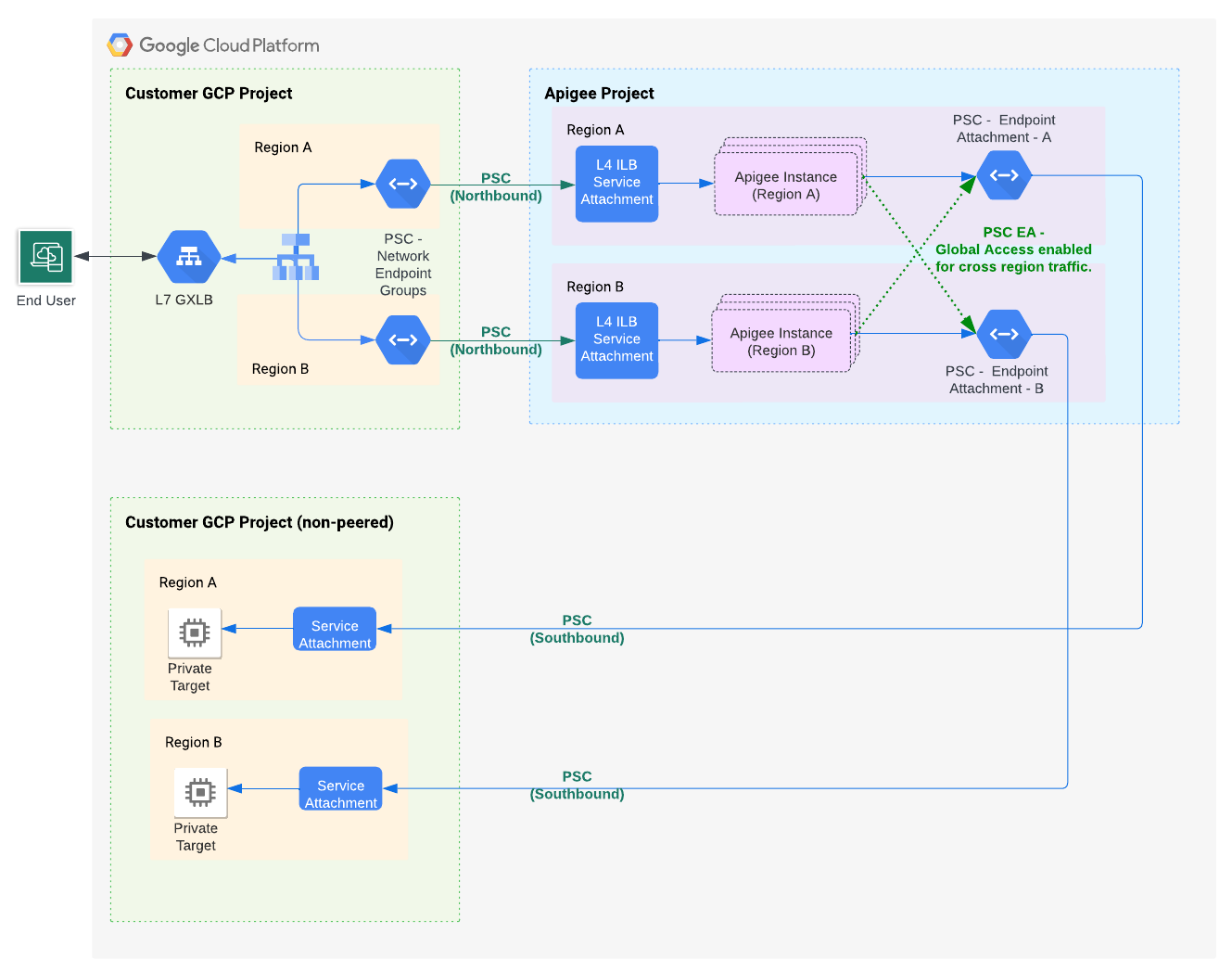 **Figure 1**: Apigee southbound networking architecture.
## Limitations
In an Apigee organization, one endpoint attachment is allowed for a given service attachment.
For example, assume you have 10 service attachments that expose target services. You can create
10 endpoint attachments in your Apigee organization, one for each service attachment.
## Example: Exposing a target service to Apigee with Private Service Connect
This example shows how to use Private Service Connect to enable Apigee to communicate with a target service running
in a VPC network that is not directly peered with Apigee. The steps in this example use `gcloud`
and Apigee API calls to set up and configure a service attachment in the VPC network where
the target is deployed and an endpoint attachment in the Apigee VPC.
### Example scenario
This example considers a case where you have an Apache web server deployed on a Managed Instance Group
(MIG) running in your VPC. To be able to communicate with Apigee in this context, we expose the services through
an ingress gateway.
### Set up a load balancer
Set up a load balancer in your VPC where the microservices
you wish to expose are located:
1. Create these environment variables:
export PROJECT_ID=YOUR_PROJECT_ID
export IMAGE_PROJECT=debian-cloud
export IMAGE_FAMILY=debian-12
export BACKEND=foo
export REGION=us-west1
export ZONE=us-west1-a
export NETWORK=default
export SUBNET_NAME=default
2. Create an [instance template](https://cloud.google.com/compute/docs/instance-templates):
gcloud compute instance-templates create "$BACKEND" \
--tags=psc-demo,http-server,https-server \
--image-family "$IMAGE_FAMILY" --image-project "$IMAGE_PROJECT" \
--network "$NETWORK" --subnet "$SUBNET_NAME" --region "$REGION" \
--project "$PROJECT_ID" \
--metadata startup-script="#! /bin/bash
sudo apt-get update
sudo apt-get install apache2 -y
sudo service apache2 restart
echo 'foo[/]: '\`/bin/hostname\`'
' | sudo tee /var/www/html/index.html
sudo mkdir /var/www/html/foo
echo 'foo[/foo]: '\`/bin/hostname\`'
' | sudo tee /var/www/html/foo/index.html"
3. Create a [managed instance group](https://cloud.google.com/compute/docs/instance-groups):
```
gcloud compute instance-groups managed create $BACKEND \
--project $PROJECT_ID --base-instance-name $BACKEND \
--size 1 --template $BACKEND --region $REGION
```
4. Create a [health check](https://cloud.google.com/load-balancing/docs/health-checks):
```
gcloud compute instance-groups managed set-named-ports $BACKEND \
--project $PROJECT_ID --region $REGION --named-ports http:80
```
```
gcloud compute health-checks create tcp hc-tcp-$BACKEND \
--region=$REGION \
--description="health check for psc backend" \
--port-name=http --project=$PROJECT_ID
```
5. Create a load balancer:
1. Create a [backend service](https://cloud.google.com/load-balancing/docs/backend-service):
```
gcloud compute backend-services create be-ilb \
--load-balancing-scheme=internal \
--protocol=tcp \
--region=$REGION \
--network=$NETWORK \
--health-checks=hc-tcp-$BACKEND \
--health-checks-region=$REGION \
--project=$PROJECT_ID
```
2. Add the managed instance group to the backend service:
```
gcloud compute backend-services add-backend be-ilb \
--region=$REGION \
--instance-group=$BACKEND \
--instance-group-zone=$ZONE \
--project=$PROJECT_ID
```
3. Create a [forwarding rule](https://cloud.google.com/load-balancing/docs/forwarding-rule-concepts):
```
gcloud compute forwarding-rules create fr-ilb \
--region=$REGION \
--load-balancing-scheme=internal \
--network=$NETWORK \
--subnet=$SUBNET_NAME \
--ip-protocol=TCP \
--ports=80 \
--backend-service=be-ilb \
--backend-service-region=$REGION \
--project=$PROJECT_ID
```
> [!NOTE]
> **Note:** If your Apigee instance is in a different region than this load balancer, create or update the forwarding rule with the `--allow-global-access` flag. For an existing forwarding rule, run `gcloud compute forwarding-rules update
> FORWARDING_RULE --region=REGION
> --allow-global-access`. See [--allow-global-access](https://docs.cloud.google.com/sdk/gcloud/reference/compute/forwarding-rules/create.md.txt#--allow-global-access).
### Create a service attachment
Create a Private Service Connect service attachment in the VPC network where the target services are deployed.
1. To perform this task, you must have the `compute.subnetworks.create` permission or the [Compute Network Admin](https://cloud.google.com/iam/docs/roles-permissions/compute#compute.networkAdmin) IAM role (`roles/compute.networkAdmin`).
2. Create a Private Service Connect subnet with the `purpose` parameter set to `PRIVATE_SERVICE_CONNECT`:
```
gcloud compute networks subnets create Private Service Connect_SUBNET_NAME \
--network NETWORK --region=REGION --purpose=PRIVATE_SERVICE_CONNECT --range=RANGE
```
```
gcloud compute --project=$PROJECT_ID firewall-rules create allow-psc-nat-80 \
--direction=INGRESS --priority=1000 --network NETWORK --action=ALLOW --rules=tcp:80 \
--source-ranges=RANGE --target-tags=psc-demo
```
For a detailed description of the command parameters, see the [Google Cloud CLI reference](https://cloud.google.com/sdk/gcloud/reference/compute/networks/subnets/create).
You can also perform this step in the [Console or with an API](https://cloud.google.com/vpc/docs/configure-private-service-connect-producer#add-subnet-psc).
For example:
```
gcloud compute networks subnets create psc-subnet --network default \
--region=us-west1 --purpose=PRIVATE_SERVICE_CONNECT --range=10.100.0.0/28
```
> [!NOTE]
> **Note:** For information on Private Service Connect capacity planning, see [Private Service Connect subnet capacity](https://cloud.google.com/vpc/docs/private-service-connect#subnet-capacity).
3. Create a service attachment in your VPC network:
1. Get the [forwarding rule](https://cloud.google.com/load-balancing/docs/forwarding-rule-concepts) of the [internal load balancer](https://cloud.google.com/vpc/docs/vpc-peering#internal_load_balancing). You will use this rule in a later step:
```
gcloud compute forwarding-rules list --project=PROJECT_ID
```
Where PROJECT_ID is a Google Cloud project ID. For example:
Example output:
```
NAME REGION IP_ADDRESS IP_PROTOCOL TARGET
k8s2-tcp-e61tta3j-apps-istio-ingressgateway-0kl92frk us-west1 10.138.0.53 TCP
```
2. Create the service attachment:
```
gcloud compute service-attachments create PSC_NAME \
--region=REGION --producer-forwarding-rule=PRODUCER_FORWARDING_RULE \
--connection-preference=ACCEPT_AUTOMATIC --nat-subnets=PSC_SUBNET_NAME --project=PROJECT_ID
```
The PSC_NAME parameter must be a string 1-63 characters long,
consisting of lowercase letters, numbers and hyphens only. It cannot have leading
numbers and hyphens. Also, it cannot have trailing hyphens. For a detailed description
of the parameters for this command, see the
[Google Cloud CLI reference](https://cloud.google.com/sdk/gcloud/reference/alpha/compute/service-attachments/create).
For example:
```
gcloud compute service-attachments create gkebackend \
--region=us-west1 --producer-forwarding-rule=k8s2-tcp-e62tta1j-apps-istio-ingressgateway-0kl92frk \
--connection-preference=ACCEPT_AUTOMATIC --nat-subnets=psc-subnet --project=my-project
```
You can also perform this step in the Console UI. See, for example,
[Publish a service with automatic project approval](https://cloud.google.com/vpc/docs/configure-private-service-connect-producer#publish-service-auto).
### Create an endpoint attachment
Create an endpoint attachment in the Apigee organization. You can perform this step from the command line or the
Apigee Endpoint attachment UI.
**Prerequisite:** Before you create an endpoint attachment, you must publish the services
you wish to expose using (Private Service Connect) by creating a load balancer and a service
attachment, as explained previously in this example. For more information on exposing services
with Private Service Connect, see [Publish managed services using Private
Service Connect](https://cloud.google.com/vpc/docs/configure-private-service-connect-producer). Note that the service attachment must be configured to accept new connections.
### Command line
Create an endpoint attachment in the Apigee VPC from the command line:
> [!NOTE]
> To perform this task, you must have the [Apigee
> Organization Admin](https://cloud.google.com/iam/docs/roles-permissions/apigee) role (`roles/apigee.admin`).
1. Get the service attachment resource:
```
gcloud compute service-attachments list
```
The command returns the service attachment information. You will use this information
in the next step. For example:
```
NAME REGION TARGET_SERVICE CONNECTION_PREFERENCE
gkebackend us-west1 k8s2-tcp-tgysilgj-apps-istio-ingressgateway-fzdhwstg ACCEPT_AUTOMATIC
```
2. Get the authentication token for the Apigee API:
```
TOKEN="$(gcloud auth print-access-token)"
```
3. Use this [Apigee API](https://docs.cloud.google.com/apigee/docs/reference/apis/apigee/rest/v1/organizations.endpointAttachments/create.md.txt) to create the endpoint attachment. Use values returned from the `gcloud compute service-attachments list` command in the body of the request:
```
curl -X POST -H "Authorization: Bearer $TOKEN" -H "Content-Type:application/json" \
"https://apigee.googleapis.com/v1/organizations/ORGANIZATION/endpointAttachments?endpointAttachmentId=EA_NAME" \
-d '{
"location": "REGION",
"serviceAttachment": "projects/PROJECT_ID/regions/REGION/serviceAttachments/SA_NAME"
}'
```
**Important usage note for data residency:** To support data residency, when provisioning or using Apigee you must use a regional endpoint. For more information, see [Use regional
endpoints for data residency](https://docs.cloud.google.com/apigee/docs/api-platform/get-started/drz-concepts#drz-regional-endpoint).
Where:
- REGION is the region of the service attachment. For example: `us-west1`
- ORGANIZATION is your Apigee organization name.
- PROJECT_ID is the Google Cloud project where the service attachment was created.
- EA_NAME is the name of the endpoint attachment. The name must be unique. There can be no other endpoint attachments with the same name, and you cannot change the name later. The name must start with a lowercase letter followed by up to 31 lowercase letters, numbers, or hyphens, but it cannot end with a hyphen. The minimum length is 2.
- SA_NAME is the name of the service attachment. If you need to support data residency, specify a service attachment that is consistent with your resource location policy; otherwise, the request will fail. See [Use organization
policy constraints with data residency](https://docs.cloud.google.com/apigee/docs/api-platform/get-started/drz-concepts#drz-org-policy).
Apigee starts a long-running operation. When the operation is complete, you will see a response
similar to the following:
```console
{
"name": "organizations/my-organization/operations/6e249895-e78e-48f0-a28f-7140e15e1676",
"metadata": {
"@type": "type.googleapis.com/google.cloud.apigee.v1.OperationMetadata",
"operationType": "INSERT",
"targetResourceName": "organizations/my-organization/endpointAttachments/gkebackend",
"state": "FINISHED"
},
"done": true,
"response": {
"@type": "type.googleapis.com/google.cloud.apigee.v1.EndpointAttachment",
"name": "organizations/my-organization/endpointAttachments/gkebackend",
"location": "us-west1",
"host": "7.0.3.4",
"serviceAttachment": "projects/my-project/regions/us-west1/serviceAttachments/gkebackend"
}
}
```
4. To check if the new endpoint is active:
```
curl -X GET -H "Authorization: Bearer $TOKEN" \
"https://apigee.googleapis.com/v1/organizations/ORGANIZATION/endpointAttachments/EA_NAME"
```
Look for `"state": "ACTIVE"` in the response.
To connect to the services behind the service attachment, you can use the IP address returned
in the response (in the `host` field), or you can use a DNS record that you have created in your private DNS zone.
For more information, see the following sections.
5.
### Use the IP address
You can use the IP Address `7.0.3.4` returned in the response to connect
to the services behind the service attachment, as shown in the next step. Note that `7.0.3.4` is a
privately used public IP (PUPI) assigned by Apigee to the ingress gateway. It is
not advertised on the internet and no Google services use IPs in this range internally.
Use the service attachment host IP as the [target of an API proxy](https://docs.cloud.google.com/apigee/docs/api-platform/reference/endpoint-properties-reference.md.txt#targetendpointtransportproperties). For example:
```console
http://7.0.3.4/orders
```
### Use a DNS record
If you configured a private DNS zone in your Google Cloud project, you can use a DNS record to connect to the services
behind the service attachment. The basic steps are as follows.
1. As a prerequisite, DNS peering must be configured in your Google Cloud project, as explained in [Connecting with private DNS peering zones](https://docs.cloud.google.com/apigee/docs/api-platform/architecture/southbound-networking-patterns-endpoints.md.txt#connecting-with-private-dns-peering-zones).
2. Create a DNS record (A record ) for the Private Service Connect endpoint attachment IP in your private DNS zone.
3. Configure your Apigee API proxy to use the Private Service Connect endpoint DNS record as the target of the API proxy. For example:
```
http://my-private-dns-zone.example.com/orders
```
### Apigee UI
Create an endpoint attachment in the Apigee organization in the Apigee UI:
> [!NOTE]
> To perform this task, you must have the [Apigee
> Organization Admin](https://cloud.google.com/iam/docs/roles-permissions/apigee) role (`roles/apigee.admin`).
1. In the Google Cloud console, go to the **Apigee \> Management \> Endpoint attachments** page.
[Go to Endpoint attachments](https://console.cloud.google.com/apigee/endpointAttachments)
**Important usage note:** When using the Apigee UI with advanced data residency, you must use the jurisdictional Google Cloud console. For more information, see [Use the jurisdictional console](https://docs.cloud.google.com/apigee/docs/api-platform/get-started/drz-concepts.md.txt#jurisdictional-console). You can use the jurisdictional console with data residency (at rest only) if your control data location is set to one of the [supported locations](https://docs.cloud.google.com/apigee/docs/api-platform/get-started/drz-provision.md.txt#locations).
2. Click **+ Endpoint Attachment**. The Endpoint attachment dialog appears.
3. Enter a name for the endpoint attachment. The name must be unique. There can be no other endpoint attachments with the same name, and you cannot change the name later. The name must start with a lowercase letter followed by up to 31 lowercase letters, numbers, or hyphens, but it cannot end with a hyphen. The minimum length is 2.
4. Click **Next**.
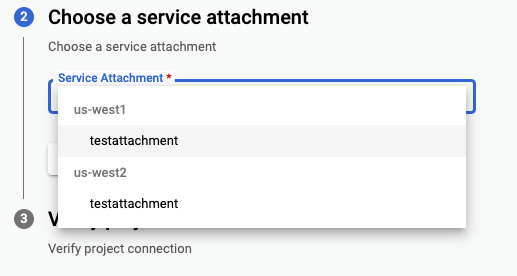
5. From the **Service Attachment** dropdown list, choose the service attachment to connect to.
> [!NOTE]
> **Note:** You must choose a service attachment that does not already have an endpoint attachment.
>
> If you are using the jurisdictional console, the list of service attachments
> is filtered to only show service attachments that are consistent with your resource location policy. See
> [Use organization
> policy constraints with data residency](https://docs.cloud.google.com/apigee/docs/api-platform/get-started/drz-concepts#drz-org-policy).
The behavior of the UI depends on your permissions. If you have permission to list
regions and service attachments, you can simply select your service attachment from the
dropdown list. If you do not have permission to list regions, then a static list of regions
is shown, and you can select from the list. If you do not have permission to list service
attachments, you have to enter the name manually.
located and the name of the service attachment. Note that if you do not have permission
to list regions, a static list of regions will be displayed for you to choose from.
6. Verify that the service endpoint can accept connections. For steps, see [Check and manage attachment connectivity](https://docs.cloud.google.com/apigee/docs/api-platform/architecture/southbound-networking-patterns-endpoints.md.txt#check-and-manage-attachment-connectivity).
7. Click **Next**.
8. Click **Create**. The operation typically takes one or two minutes to complete.
9. To check the current creation status, click **Refresh** in the list page.
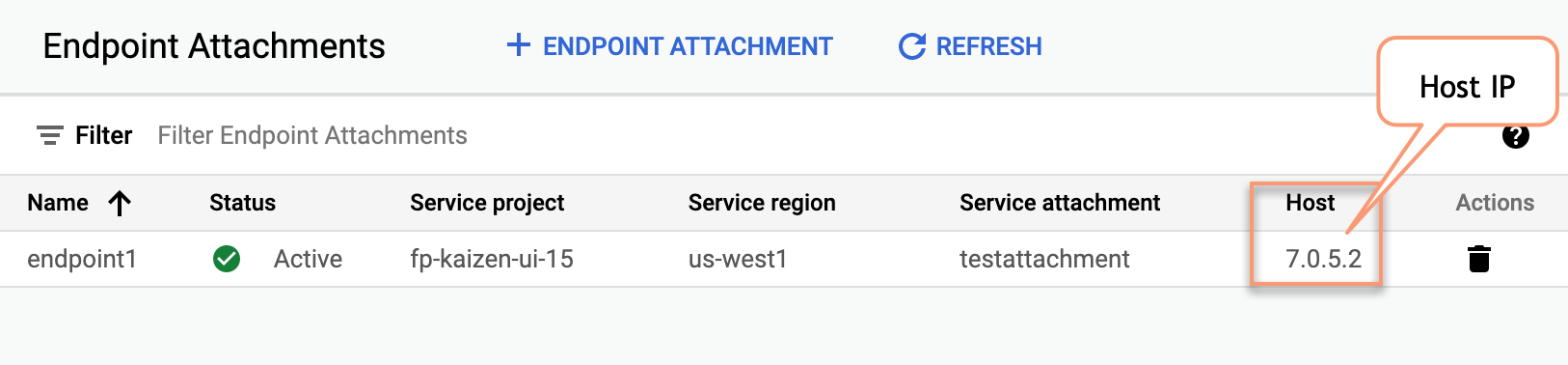
10. Use the service attachment host IP as the [target of an API proxy](https://docs.cloud.google.com/apigee/docs/api-platform/reference/endpoint-properties-reference.md.txt#targetendpointtransportproperties). The host IP appears in the Endpoint Attachments UI when the creation process completes, as shown in the following screenshot:
For example:
```
http://7.0.5.2/orders
```
## Check and manage attachment connectivity
This section explains how to verify that a service attachment can access an endpoint
attachment in your Apigee project, and how to change the connection preference if you wish to
change it.
> [!NOTE]
> **Note:** To do the following steps, you must have permission to view and edit the service attachment. If you do not have permission, you either need to obtain permission or ask someone who has permission to perform the verification steps.
1. Follow the steps in [List published services](https://docs.cloud.google.com/vpc/docs/configure-private-service-connect-producer.md.txt#attachment-details) to view the list of service attachments in your project.
2. Select the service attachment you wish to connect to as explained in [View details for a published service]().
3. Choose a connection preference for your published service attachment. Private Service Connect offers two options described below. If you wish to change the current connection preference, follow the steps in [Change the connection preference for a published service](https://docs.cloud.google.com/vpc/docs/manage-private-service-connect-services.md.txt#connection-pref).
- **Automatically accept all connections**: The service attachment accepts endpoint attachments from any project. If you choose this option, the service attachment will be able to accept a connection from an endpoint attachment in the Apigee project. No further configuration is required.
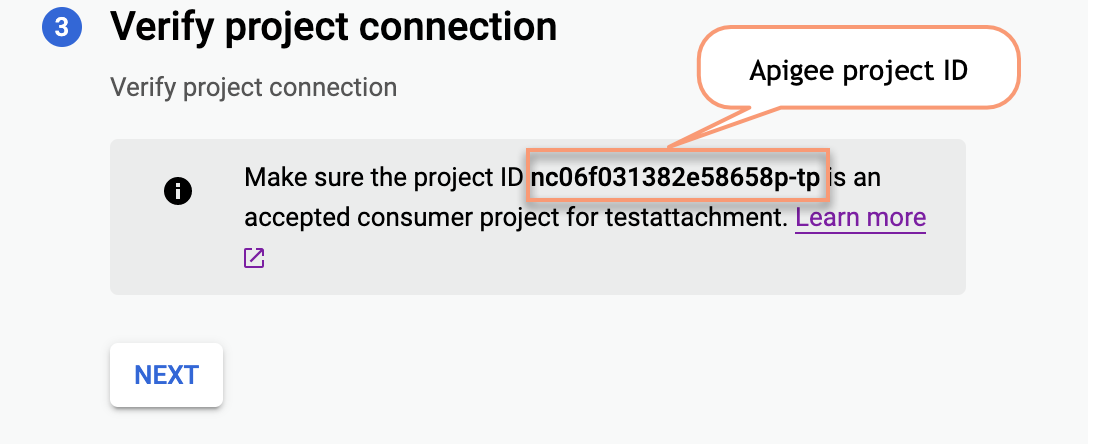
- **Accept connections from selected projects** : You specify the projects from which the service attachment will accept connections. If you choose this option, you must add the project ID of the Apigee project to the service attachment. You can find the Apigee project ID in the **Verify project connection** step in the **Endpoint attachment** UI, as shown in this screenshot:
You can also retrieve the Apigee project ID using the
[Apigee
Organizations API](https://docs.cloud.google.com/apigee/docs/reference/apis/apigee/rest/v1/organizations#Organization), which returns the ID in a field named `apigeeProjectId`.
4. If you made changes to the connection preferences, save your changes.
5. In the Google Cloud console, go to the **Apigee \> Management \> Endpoint attachments** page.
[Go to Endpoint attachments](https://console.cloud.google.com/apigee/endpointAttachments)
You can also list the endpoint attachments with the [Apigee Endpoints API](https://cloud.google.com/apigee/docs/reference/apis/apigee/rest/v1/organizations.endpointAttachments).
6. In the list of attachments, verify the Private Service Connect Connection Status is now `ACCEPTED`. If the field shows a status other than `ACCEPTED`, see [Troubleshooting Private Service Connect connection state issues](https://docs.cloud.google.com/apigee/docs/api-platform/architecture/southbound-networking-patterns-endpoints.md.txt#troubleshooting).
## Managing endpoint attachments
The Apigee [endpointAttachments API](https://docs.cloud.google.com/apigee/docs/reference/apis/apigee/rest/v1/organizations.endpointAttachments.md.txt) provides methods
to create, delete, get, and list endpoint attachments.
> [!NOTE]
> **Note:** Although this situation is not common, you cannot create or delete an endpoint attachment while an Apigee instance operation is running. For example, new instance creation is a long-running operation that can take up to 20 minutes to complete. If you want to check to see if an instance operation is running, you can do so in the Instance manager UI or the Apigee Instances API. See [Managing instances](https://docs.cloud.google.com/apigee/docs/api-platform/system-administration/instances.md.txt).
### Listing endpoint attachments
You can see a list of endpoint attachments in the Apigee Endpoint attachment UI or by
calling the [Apigee Endpoints API](https://docs.cloud.google.com/apigee/docs/reference/apis/apigee/rest/v1/organizations.endpointAttachments.md.txt).
To list an endpoint attachment in the Apigee UI:
1. In the Google Cloud console, go to the **Management \> Endpoint attachments** page.
[Go to Endpoint attachments](https://console.cloud.google.com/apigee/endpointAttachments)
2. View the list of endpoint attachments.
### Creating an endpoint attachment
To create an endpoint attachment in the UI or with the
[Apigee Endpoints API](https://docs.cloud.google.com/apigee/docs/reference/apis/apigee/rest/v1/organizations.endpointAttachments.md.txt), see [Create an endpoint attachment](https://docs.cloud.google.com/apigee/docs/api-platform/architecture/southbound-networking-patterns-endpoints.md.txt#create-an-endpoint-attachment).
### Deleting an endpoint attachment
To delete an endpoint using the Apigee UI:
> [!NOTE]
> **Note:** Before deleting an endpoint, be sure to remove any references to the endpoint in your API proxies. For example, after an endpoint is removed, any TargetEndpoints that reference the endpoint's Host IP will no longer work.
1. In the Google Cloud console, go to the **Management \> Endpoint attachments** page.
[Go to Endpoint attachments](https://console.cloud.google.com/apigee/endpointAttachments)
2. Select the Endpoint Attachment to delete.
3. Click **Delete Endpoint Attachment**.
You can also use the [Apigee Endpoints API](https://docs.cloud.google.com/apigee/docs/reference/apis/apigee/rest/v1/organizations.endpointAttachments.md.txt) to list, create, and delete endpoint attachments.
## Connecting with private DNS peering zones
A peering zone is a Cloud DNS private zone that lets you send DNS requests between Cloud
DNS zones in different VPC networks.
To provide DNS peering, you must create a Cloud DNS private
peering zone and configure it to perform DNS lookups in a VPC network where the records for that
zone's namespace are available. The VPC network where the DNS peering zone performs lookups is
called the DNS producer network. For more information, see [Peering zones](https://docs.cloud.google.com/dns/docs/zones/zones-overview.md.txt#peering_zones).
You can configure Apigee to resolve private DNS zones in a DNS producer network.
This configuration allows Apigee to resolve target endpoints in a project that uses private
domain names.
We explore two primary use cases in this section, where Apigee is configured with or without
VPC peering enabled:
- [Configuring private DNS peering with VPC peering enabled](https://docs.cloud.google.com/apigee/docs/api-platform/architecture/southbound-networking-patterns-endpoints.md.txt#peering-enabled)
- [Configuring private DNS peering when VPC peering is not enabled](https://docs.cloud.google.com/apigee/docs/api-platform/architecture/southbound-networking-patterns-endpoints.md.txt#peering-disabled)
### Overview
To do its job, Apigee needs to connect to backend targets that you manage. These targets may be resolvable through a public or
private DNS. If the target is publicly resolvable, then there's no problem, the Apigee backend target points to the public
address of the service. Private endpoints can be static IP addresses or resolvable DNS names that
you host and manage. To resolve private target endpoints, it is common to maintain a [private
DNS zone](https://docs.cloud.google.com/dns/docs/zones/zones-overview#peering_zones) hosted in your Google Cloud project. By default, these private DNS names cannot be resolved
by Apigee.
> [!NOTE]
> **Note:** Name resolution through the private DNS peering zone only works if the target network is present. For instance, if the target network is deleted, the peering zone resources are automatically updated to reflect the disconnect, and all the DNS queries that match the peering zone will fail.
### Configuring private DNS peering with VPC peering enabled
If you have a Cloud DNS private zone hosted in the Cloud project that is peered with Apigee, you can
configure DNS peering to allow Apigee to resolve names in your private zone. By default, private zones are private to the VPC network in which they
are hosted. For steps to configure
DNS peering between a private DNS zone and Apigee (the service producer), see [Share private DNS zones with service producers](https://docs.cloud.google.com/vpc/docs/configure-private-services-access.md.txt#dns-peering).
### Configuring private DNS peering when VPC peering is not enabled
This section explains how to configure Apigee to resolve private DNS names
in your project where VPC peering is not enabled. Figure 2 shows the configuration, where a
DNS peering zone in Apigee
resolves private domain names in a private DNS zone hosted in your Google Cloud project.
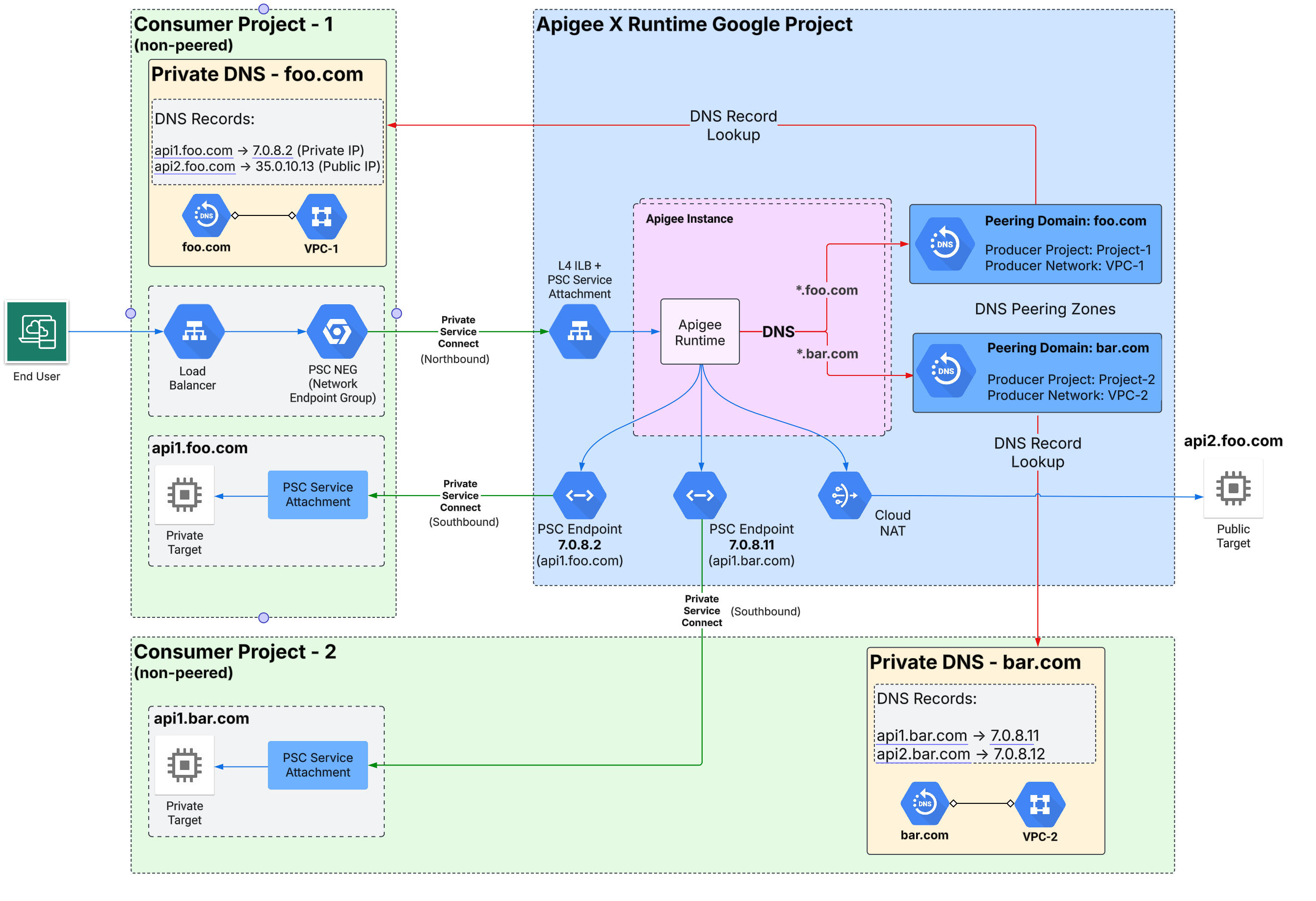 **Figure 2**: Private DNS peering zone configuration with Apigee.
1. As a prerequisite, Apigee must be [provisioned without VPC peering](https://docs.cloud.google.com/apigee/docs/api-platform/get-started/networking-options.md.txt#non-vpc-peering-architecture-overview). To check if VPC peering is enabled or not, execute this Apigee API call. You must have the `apigee.admin` permission to execute this call:
```
curl -X GET -H "Authorization: Bearer $(gcloud auth print-access-token)" \
"https://apigee.googleapis.com/v1/organizations/ORGANIZATION"
```
**Important usage note for data residency:** To support data residency, when provisioning or using Apigee you must use a regional endpoint. For more information, see [Use regional
endpoints for data residency](https://docs.cloud.google.com/apigee/docs/api-platform/get-started/drz-concepts#drz-regional-endpoint).
Where:
- `ORGANIZATION` is the name of your Apigee organization.
If the response contains `"disableVpcPeering": "true"`, then VPC peering is not enabled.
2. Get the Apigee project number:
```
gcloud projects describe APIGEE_PROJECT_ID --format="value(projectNumber)"
```
Where:
- `APIGEE_PROJECT_ID` is the project ID of your Apigee project. Typically, this is the name of your Apigee organization.
3. Grant the Apigee per-project service account (P4SA) the `dns.networks.targetWithPeeringZone` permission on the project that contains the producer VPC network. To get this permission you can add the `dns.peer` role to the Apigee P4SA, as follows:
```
gcloud projects add-iam-policy-binding PRODUCER_PROJECT_ID \
--member=serviceAccount:SERVICE_ACCOUNT \
--role=roles/dns.peer
```
Where:
- `PRODUCER_PROJECT_ID` is the project ID of the project that contains the producer VPC network.
- `SERVICE_ACCOUNT` is the Apigee P4SA. For example: `service-APIGEE_CONSUMER_PROJECT_NUMBER@gcp-sa-apigee.iam.gserviceaccount.com`.
Where `APIGEE_CONSUMER_PROJECT_NUMBER` is the Apigee project number you retrieved in the previous step.
4. Create a DNS peering zone with the private DNS zone in your project:
```
curl -X POST -H "Authorization: Bearer $(gcloud auth print-access-token)" -H "Content-Type:application/json" \
"https://apigee.googleapis.com/v1/organizations/ORGANIZATION/dnsZones?dnsZoneId=DNS_ZONE_ID" \
-d '{
"domain": "DOMAIN",
"description": "DESCRIPTION",
"peeringConfig": {
"targetProjectId": "PRODUCER_PROJECT_ID",
"targetNetworkId": "PRODUCER_VPC_NETWORK"
}
}'
```
**Important usage note for data residency:** To support data residency, when provisioning or using Apigee you must use a regional endpoint. For more information, see [Use regional
endpoints for data residency](https://docs.cloud.google.com/apigee/docs/api-platform/get-started/drz-concepts#drz-regional-endpoint).
Where:
- `ORGANIZATION` is the name of your Apigee organization.
- `DNS_ZONE_ID` is the name of the DNS zone you want to create.
- `DOMAIN` is the DNS name of this managed zone, for instance `example.com`.
- `DESCRIPTION` is a brief description of the DNS zone. Maximum characters: 1024
- `PRODUCER_PROJECT_ID` is the project that contains the producer VPC network.
- `PRODUCER_VPC_NETWORK` is the VPC network in the customer project.
> [!NOTE]
> **Note:** In a Shared VPC setup, the host project's network is shared with service projects. Therefore, if a service project's private DNS zone relies on this shared network, the `PRODUCER_PROJECT_ID` and the `PRODUCER_VPC_NETWORK` referenced in the DNS configuration will both correspond to the host project.
5. Validate that the peering was successfully created:
```
curl -X GET -H "Authorization: Bearer $(gcloud auth print-access-token)" \
"https://apigee.googleapis.com/v1/organizations/ORGANIZATION/dnsZones/DNS_ZONE_ID"
```
Where:
- ORGANIZATION is the name of your Apigee organization.
- DNS_ZONE_ID is the name of the DNS zone you created.
On success, the response includes this status code: `"state": "ACTIVE"`
6. With peering complete, you can create a DNS record in the private zone and refer to it in an endpoint attachment configuration. See [Create an endpoint attachment](https://docs.cloud.google.com/apigee/docs/api-platform/architecture/southbound-networking-patterns-endpoints.md.txt#create-an-endpoint-attachment).
### Limitations
See [DNS peering limitations and key points](https://docs.cloud.google.com/dns/docs/zones/zones-overview.md.txt#dns_peering_limitations_and_key_points).
## Troubleshooting
### Private Service Connect connection state issues
This section describes possible solutions when an endpoint attachment has been provisioned and
the status is **Active** , but the connection
state is not **Accepted**. Some possible connection states are shown in Figure 3.
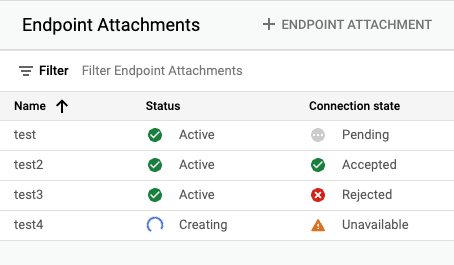
**Figure 3: Endpoint attachment state details**
The state given can help point to the likely cause, as
described in the following table:
| Connection state | Possible cause | Recommended solution |
|---|---|---|
| **ACCEPTED** | The service attachment has accepted the connection from the connection endpoint. | N/A |
| **PENDING** | The [Apigee project ID](https://docs.cloud.google.com/apigee/docs/api-platform/architecture/southbound-networking-patterns-endpoints.md.txt#check-and-manage-attachment-connectivity) may not be in the consumer accepted projects list nor in the rejected list. | Add the Apigee project ID to the consumer accept list on the service attachment. See [Change the connection preference for a published service](https://docs.cloud.google.com/vpc/docs/configure-private-service-connect-producer.md.txt#connection-pref). |
| **REJECTED** | The [Apigee project ID](https://docs.cloud.google.com/apigee/docs/api-platform/architecture/southbound-networking-patterns-endpoints.md.txt#check-and-manage-attachment-connectivity) is in the consumer reject list. | Remove the Apigee project ID from the consumer reject list and add it to the consumer accept list on the service attachment. See [Manage requests for access to a published service](https://docs.cloud.google.com/vpc/docs/configure-private-service-connect-producer.md.txt#access). |
| **FROZEN** | The service attachment for this endpoint attachment has been suspended or disabled. | Describe the service attachment for details. See [View details for a published service](https://docs.cloud.google.com/vpc/docs/configure-private-service-connect-producer.md.txt#attachment-details). |
| **CLOSED** | The service attachment for this endpoint attachment has been deleted. | Recreate the service attachment and endpoint attachment. |
| **NEEDS_ATTENTION** | The endpoint attachment has been accepted by the service attachment, however there is an issue with the service attachment. | Describe the service attachment for more details. See [View details for a published service](https://docs.cloud.google.com/vpc/docs/configure-private-service-connect-producer.md.txt#attachment-details). |
| **UNAVAILABLE** | The connectivity state is unavailable, which can occur during provisioning. | Wait a few minutes to see if the status changes. |
### Private Service Connect configuration with Apigee
See the
[Apigee connectivity issues with southbound Private Service Connect targets](https://docs.cloud.google.com/apigee/docs/api-platform/troubleshoot/playbooks/network-configuration/connectivity-with-sb-psc-targets.md.txt) playbook.