*This page
applies to **Apigee** and **Apigee hybrid**.*
*View [Apigee Edge](https://docs.apigee.com/api-platform/get-started/what-apigee-edge) documentation.*

Apigee Analytics collects and analyzes a broad spectrum of data that flows across your APIs and provides visualization tools, including interactive dashboards, custom reports, and other tools that identify trends in API proxy performance.
Now, you can unlock this rich content by exporting analytics data from Apigee Analytics to your own data repository, such as Google Cloud Storage or Google BigQuery. You can then take advantage of the powerful query and machine learning capabilities offered by Google BigQuery and TensorFlow to perform your own data analysis. You can also combine the exported analytics data with other data, such as web logs, to gain new insights into your users, APIs, and applications.
> [!NOTE]
> **Note:** Free and trial accounts cannot export analytics data. For more information, see [Apigee pricing plans](https://apigee.com/api-management/#/pricing).
>
> If you are a Pay-as-you-go customer, you must enable the Apigee API Analytics add-on in your eligible environments in order to use this API. If the Apigee API Analytics add-on is not enabled, or was disabled more than 30 days before using the API, you will see an error that you are unable to access the API. For more information, see [Manage the Apigee API Analytics add-on](https://docs.cloud.google.com/apigee/docs/api-platform/reference/manage-analytics-add-on.md.txt).
## What export data formats are supported?
Export analytics data to one of the following formats:
- Comma-separated values (CSV)
The default delimiter is a comma (,) character. Supported delimiter characters include comma (,), pipe (\|), and tab (\\t). Configure the value using the `csvDelimiter` property, as described in [Export request property reference](https://docs.cloud.google.com/apigee/docs/api-platform/analytics/export-data.md.txt#export-property-reference) .
- JSON (newline delimited)
Allows the newline character to be used as a delimiter.
The exported data includes all the analytics metrics and dimensions built into Apigee, and
any custom analytics data that you add. For a description of the exported data,
see [Analytics metrics, dimensions, and filters reference](https://docs.cloud.google.com/apigee/docs/api-platform/analytics/analytics-reference.md.txt).
You can export analytics data to the following data repositories:
- [Google Cloud Storage](https://cloud.google.com/storage)
- [Google BigQuery](https://cloud.google.com/bigquery/)
## Steps to export your analytics data
The following steps summarize the process used to export your analytics data:
> [!NOTE]
> **Note:** You must have **Apigee Analytics Editor** and **Apigee Org Administrator** permissions to manage datastores and export data. See [Understanding roles](https://docs.cloud.google.com/iam/docs/roles-permissions/apigee.md.txt).
1. [Configure your data repository](https://docs.cloud.google.com/apigee/docs/api-platform/analytics/export-data.md.txt#configure-data-repository) (Cloud Storage or BigQuery) for data export. You must ensure that your data repository has been configured correctly, and that the Apigee Service Agent service account used to write data to the data repository has the correct permissions.
2. [Create a datastore](https://docs.cloud.google.com/apigee/docs/api-platform/analytics/export-data.md.txt#create-data-store) that defines the properties of the data repository (Cloud Storage or BigQuery) where you export your data.
3. [Export your analytics data](https://docs.cloud.google.com/apigee/docs/api-platform/analytics/export-data.md.txt#export-analytics-data). The data export runs asynchronously in the background.
4. [View the status of the export request](https://docs.cloud.google.com/apigee/docs/api-platform/analytics/export-data.md.txt#view-export-request) to determine when the export completes.
5. When the export is complete, access the exported data in your data repository.
The following sections describe these steps in more detail.
## Configuring your data repository
Configure Cloud Storage or BigQuery to enable access by analytics data export.
### Configuring Google Cloud Storage
Before you can export data to Google Cloud Storage you need to do the following:
- Create a [Google Cloud storage bucket](https://cloud.google.com/storage/docs/creating-buckets).
- Ensure that the **BigQuery API** is enabled in your Google Cloud Platform project. Apigee uses the BigQuery API to leverage BigQuery export features when exporting to Cloud Storage.
See [Enabling APIs](https://docs.cloud.google.com/apis/docs/getting-started.md.txt#enabling_apis) for instructions.
- Ensure that the **Apigee Service Agent** service account with email address `service-project-number@gcp-sa-apigee.iam.gserviceaccount.com` is assigned to the following roles:
- BigQuery Job User
- Storage Admin
> [!NOTE]
> **Note:** If the service account already exists, you don't need to create a new account---simply change the roles for the existing account if necessary.
The project-number is listed on the project home page, as shown below.
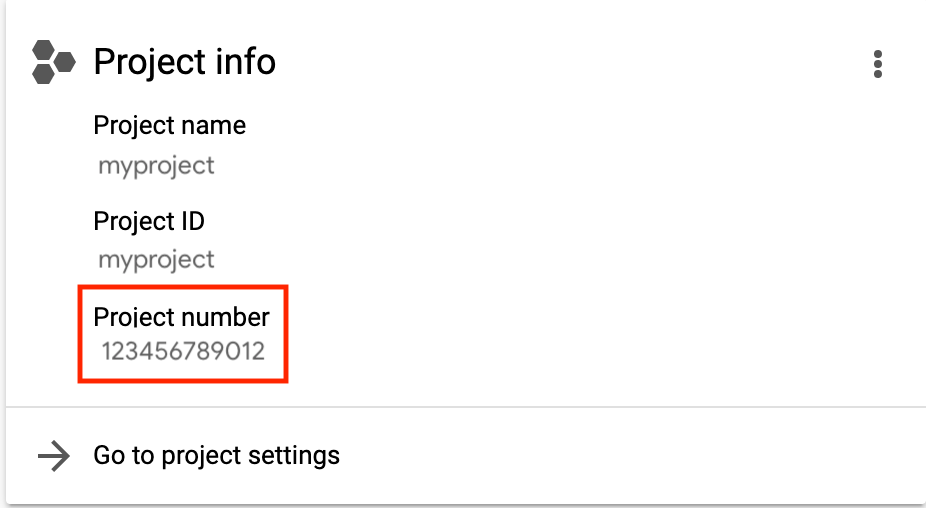
See [Granting, changing, and revoking access to resources](https://cloud.google.com/iam/docs/granting-changing-revoking-access#grant-single-role).
Alternatively, if you want to modify an existing role, or create a custom role, add the following permissions to the role:
- `bigquery.jobs.create`
- `storage.objects.create`
- `storage.objects.delete`
- `storage.objects.list`
> [!NOTE]
> **Note:**After changing the roles of a service account you have to wait for a minute or more for the change to take effect.
### Configuring Google BigQuery
> [!NOTE]
> **Note:** Analytics data for the US or EU is stored
> in either the US or EU multi-region.
> If you export the data to BigQuery, the
> **Data location** for the BigQuery dataset must be the same multi-region:
>
> - If the region is part of the US, set **Data location** to **us (multiple regions in United States)**.
> - If the analytics region is part of the EU, set **Data location** to **eu (multiple regions in European Union**.
>
> You cannot export the data directly to an individual region in the US or EU.
> See [Exporting data to BigQuery for an individual region in the US or EU](https://docs.cloud.google.com/apigee/docs/api-platform/analytics/export-data.md.txt#exporting-data-to-bigquery-for-an-individual-region-in-the-us-or-eu) for
> a workaround.
Before you can export data to Google BigQuery:
- Ensure that you have enabled BigQuery in your Google Cloud Platform project.
- Ensure that the **BigQuery API** is enabled in your Google Cloud Platform project. See [Enabling APIs](https://docs.cloud.google.com/apis/docs/getting-started.md.txt#enabling_apis) for instructions.
- Ensure that the **Apigee Service Agent** service account with email address `service-project-number@gcp-sa-apigee.iam.gserviceaccount.com` is assigned to the following roles:
- BigQuery Job User
- BigQuery Data Editor
> [!NOTE]
> **Note:** If the service account already exists, you don't need to create a new account---simply change the roles for the existing account if necessary.
The project-number is listed on the project home page, as shown below.

See [Granting, changing, and revoking access to resources](https://cloud.google.com/iam/docs/granting-changing-revoking-access#grant-single-role).
If you want to modify an existing role, or create a custom role, add the following permissions to the role:
- `bigquery.datasets.create`
- `bigquery.datasets.get`
- `bigquery.jobs.create`
- `bigquery.tables.create`
- `bigquery.tables.get`
- `bigquery.tables.updateData`
> [!NOTE]
> **Note:**After changing the roles of a service account you have to wait for a minute or more for the change to take effect.
- Create a [BigQuery dataset](https://cloud.google.com/bigquery/docs/datasets).
### Exporting data to BigQuery for an individual region in the US or EU
Since analytics data for the US or EU is stored
in either the US or EU multi-region, you cannot export the data directly to
an individual US or EU region in BigQuery. As a workaround, you can first
export the data to Google Cloud Storage, and then transfer it to BigQuery as
follows:
1. Create a [Cloud Storage bucket](https://cloud.google.com/storage/docs/creating-buckets), and set **Location** to the individual region in the US or EU that you want associated to your data in BigQuery.
2. Create a [Cloud Storage datastore](https://docs.cloud.google.com/apigee/docs/api-platform/analytics/export-data.md.txt#example-datastore-cloud-storage), using the storage bucket created in the previous step.
3. Export the data to Cloud Storage. See [Example 1: Export data to Cloud Storage](https://docs.cloud.google.com/apigee/docs/api-platform/analytics/export-data.md.txt#example-1-export-cloud-storage) below for an example.
4. Load the data to BigQuery, as described in the following sections:
- [Loading CSV data from Cloud Storage](https://cloud.google.com/bigquery/docs/loading-data-cloud-storage-csv)
- [Loading JSON data from Cloud Storage](https://cloud.google.com/bigquery/docs/loading-data-cloud-storage-json)
## Managing datastores
The *datastore* defines the connection to your export data repository (Cloud Storage, BigQuery).
The following sections describe how to create and manage your datastores. Before you create a datastore, it is recommended that you [test the data repository configuration](https://docs.cloud.google.com/apigee/docs/api-platform/analytics/export-data.md.txt#test-data-store).
### Testing the data repository configuration
When you create the data repository, Apigee does not test or validate that the configuration is valid. That means you can create the datastore (in the next step) and not detect any errors until you run your first data export.
Because a data export process can take a long time to execute, you can detect errors sooner by testing the data repository configuration to ensure it is valid, and fixing any errors before creating the datastore.
To test the data repository configuration, issue a POST request to the
`/organizations/{org}/analytics/datastores:test` API. Pass the following information in the request body:
- Display name
- Datastore type
- Configuration details based on the datastore type, as described in [Datastore request property reference](https://docs.cloud.google.com/apigee/docs/api-platform/analytics/export-data.md.txt#datastore-property-reference).
> [!NOTE]
> **Note:** This is the same information that you will pass when you [create a datastore](https://docs.cloud.google.com/apigee/docs/api-platform/analytics/export-data.md.txt#create-data-store).
For example, the following tests a Cloud Storage data repository configuration:
```
curl "https://apigee.googleapis.com/v1/organizations/myorg/analytics/datastores:test" \
-X POST \
-H "Content-type:application/json" \
-H "Authorization: Bearer $TOKEN" \
-d \
'{
"displayName": "My Cloud Storage datastore",
"targetType": "gcs",
"datastoreConfig": {
"projectId": "my-project",
"bucketName": "my-bucket",
"path": "my/analytics/path"
}
}'
```
The following provides an example of the response if the test is successful:
{
"state": "completed",
}
The following provides an example of the response if the test failed:
{
"state": "failed",
"error": ""
}
In this case, address the issues raised in the error message and re-test the data repository configuration. After a successful test, create the datastore, as described in the next section.
### Creating a datastore
To create a datastore, issue a POST request to the
`/organizations/{org}/analytics/datastores` API. Pass the following information in the request body:
- Display name
- Datastore type
- Configuration details based on the datastore type, as described in [Datastore request property reference](https://docs.cloud.google.com/apigee/docs/api-platform/analytics/export-data.md.txt#datastore-property-reference).
Examples are provided below for each datastore type.
The following provides an example of the response for a Cloud Storage data repository:
{
"self": "/organizations/myorg/analytics/datastores/c7d3b5aq-1c64-3389-9c43-b211b60de35b",
"displayName": "My Cloud Storage datastore",
"org": "myorg",
"targetType": "gcs",
"createTime": "1535411583949",
"lastUpdateTime": "1535411634291",
"datastoreConfig": {
"projectId": "my-project",
"bucketName": "my-bucket",
"path": "my/analytics/path"
}
}
Use the URL returned in the `self` property to view the datastore details, as described in [Viewing the details of a datastore](https://docs.cloud.google.com/apigee/docs/api-platform/analytics/export-data.md.txt#view-data-store).
For more information, see the [Create data store API](https://docs.cloud.google.com/apigee/docs/reference/apis/apigee/rest/v1/organizations.analytics.datastores/create.md.txt).
#### Example 1: Create a Cloud Storage datastore
The following request creates a Cloud Storage datastore:
```
curl "https://apigee.googleapis.com/v1/organizations/myorg/analytics/datastores" \
-X POST \
-H "Content-type:application/json" \
-H "Authorization: Bearer $TOKEN" \
-d \
'{
"displayName": "My Cloud Storage datastore",
"targetType": "gcs",
"datastoreConfig": {
"projectId": "my-project",
"bucketName": "my-bucket",
"path": "my/analytics/path"
}
}'
```
Where `$TOKEN` is set to your OAuth 2.0 access token, as described in
[Obtaining an OAuth 2.0 access token](https://docs.cloud.google.com/apigee/docs/api-platform/get-started/api-get-started.md.txt#oauth20). For information about the `curl` options used in this example, see
[Using curl](https://docs.cloud.google.com/apigee/docs/api-platform/get-started/api-get-started.md.txt#curl). For a description of environment variables you can use, see
[Setting
environment variables for Apigee API requests](https://docs.cloud.google.com/apigee/docs/api-platform/get-started/api-get-started#api-environment-variables).
#### Example 2: Create a BigQuery datastore
The following request creates a BigQuery datastore:
```
curl "https://apigee.googleapis.com/v1/organizations/myorg/analytics/datastores" \
-X POST \
-H "Content-type:application/json" \
-H "Authorization: Bearer $TOKEN" \
-d \
'{
"displayName": "My BigQuery datastore",
"targetType": "bigquery",
"datastoreConfig": {
"projectId": "my-project",
"datasetName": "mybigquery",
"tablePrefix": "bqprefix"
}
}'
```
Where `$TOKEN` is set to your OAuth 2.0 access token, as described in
[Obtaining an OAuth 2.0 access token](https://docs.cloud.google.com/apigee/docs/api-platform/get-started/api-get-started.md.txt#oauth20). For information about the `curl` options used in this example, see
[Using curl](https://docs.cloud.google.com/apigee/docs/api-platform/get-started/api-get-started.md.txt#curl). For a description of environment variables you can use, see
[Setting
environment variables for Apigee API requests](https://docs.cloud.google.com/apigee/docs/api-platform/get-started/api-get-started#api-environment-variables).
### Viewing all datastores
To view all datastores for your organization, issue a GET request to the
`/organizations/{org}/analytics/datastores` API.
For example:
```
curl "https://apigee.googleapis.com/v1/organizations/myorg/analytics/datastores" \
-X GET \
-H "Authorization: Bearer $TOKEN"
```
Where `$TOKEN` is set to your OAuth 2.0 access token, as described in
[Obtaining an OAuth 2.0 access token](https://docs.cloud.google.com/apigee/docs/api-platform/get-started/api-get-started.md.txt#oauth20). For information about the `curl` options used in this example, see
[Using curl](https://docs.cloud.google.com/apigee/docs/api-platform/get-started/api-get-started.md.txt#curl). For a description of environment variables you can use, see
[Setting
environment variables for Apigee API requests](https://docs.cloud.google.com/apigee/docs/api-platform/get-started/api-get-started#api-environment-variables).
The following provides an example of the response:
{
"datastores": [
{
"self": "/organizations/myorg/analytics/datastores/c7d3b5aq-1c64-3389-9c43-b211b60de35b",
"displayName": "My Cloud Storage datastore",
"org": "myorg",
"targetType": "gcs",
"createTime": "1535411583949",
"lastUpdateTime": "1535411634291",
"datastoreConfig": {
"projectId": "my-project",
"bucketName": "my-bucket",
"path": "my/analytics/path"
}
},
{
"self": "/organizations/myorg/analytics/datastores/g8c3f0mk-1f78-8837-9c67-k222b60ce30b",
"displayName": "My BigQuery datastore",
"org": "myorg",
"targetType": "bigquery",
"createTime": "1535411583949",
"lastUpdateTime": "1535411634291",
"datastoreConfig": {
"projectId": "my-project",
"datasetName": "mybigquery",
"tablePrefix": "bqprefix"
}
}
]
}
For more information, see the [List data stores API](https://docs.cloud.google.com/apigee/docs/reference/apis/apigee/rest/v1/organizations.analytics.datastores/list.md.txt).
### Viewing the details for a datastore
To view the details for a datastore, issue a GET request to the
`/organizations/{org}/analytics/datastores/{datastore}` API.
For example:
```
curl "https://apigee.googleapis.com/v1/organizations/myorg/analytics/datastores/c7d3b5aq-1c64-3389-9c43-b211b60de35b" \
-X GET \
-H "Authorization: Bearer $TOKEN"
```
Where `$TOKEN` is set to your OAuth 2.0 access token, as described in
[Obtaining an OAuth 2.0 access token](https://docs.cloud.google.com/apigee/docs/api-platform/get-started/api-get-started.md.txt#oauth20). For information about the `curl` options used in this example, see
[Using curl](https://docs.cloud.google.com/apigee/docs/api-platform/get-started/api-get-started.md.txt#curl). For a description of environment variables you can use, see
[Setting
environment variables for Apigee API requests](https://docs.cloud.google.com/apigee/docs/api-platform/get-started/api-get-started#api-environment-variables).
The following provides an example of the response for a Cloud Storage datastore:
{
"self": "/organizations/myorg/analytics/datastores/c7d3b5aq-1c64-3389-9c43-b211b60de35b",
"displayName": "My Cloud Storage datastore",
"org": "myorg",
"targetType": "gcs",
"createTime": "1535411583949",
"lastUpdateTime": "1535411634291",
"datastoreConfig": {
"projectId": "my-project",
"bucketName": "my-bucket",
"path": "my/analytics/path"
}
}
For more information, see [Get data store API](https://docs.cloud.google.com/apigee/docs/reference/apis/apigee/rest/v1/organizations.analytics.datastores/get.md.txt).
### Modifying a datastore
To modify a datastore, issue a PUT request to the
`/organizations/{org}/analytics/datastores/{datastore}` API. Pass all or a subset of the following information in the request body:
- Datastore display name
- Configuration details based on the datastore type, as described in [Datastore request property reference](https://docs.cloud.google.com/apigee/docs/api-platform/analytics/export-data.md.txt#datastore-property-reference).
For example, to update a Cloud Storage datastore:
```
curl "https://apigee.googleapis.com/v1/organizations/myorg/analytics/datastores/c7d3b5aq-1c64-3389-9c43-b211b60de35b" \
-X PUT \
-H "Content-type:application/json" \
-H "Authorization: Bearer $TOKEN" \
-d \
'{
"displayName": "My Cloud Storage datastore",
"datastoreConfig": {
"projectId": "my-project",
"bucketName": "my-bucket",
"path": "my/analytics/path"
}
}'
```
Where `$TOKEN` is set to your OAuth 2.0 access token, as described in
[Obtaining an OAuth 2.0 access token](https://docs.cloud.google.com/apigee/docs/api-platform/get-started/api-get-started.md.txt#oauth20). For information about the `curl` options used in this example, see
[Using curl](https://docs.cloud.google.com/apigee/docs/api-platform/get-started/api-get-started.md.txt#curl). For a description of environment variables you can use, see
[Setting
environment variables for Apigee API requests](https://docs.cloud.google.com/apigee/docs/api-platform/get-started/api-get-started#api-environment-variables).
The following provides an example of the response for a Cloud Storage datastore:
{
"self": "/organizations/myorg/analytics/datastores/c7d3b5aq-1c64-3389-9c43-b211b60de35b",
"displayName": "My Cloud Storage datastore",
"org": "myorg",
"targetType": "gcs",
"createTime": "1535411583949",
"lastUpdateTime": "1535411634291",
"datastoreConfig": {
"projectId": "my-project",
"bucketName": "my-bucket",
"path": "my/analytics/path"
}
}
For more information, see the [Update data store API](https://docs.cloud.google.com/apigee/docs/reference/apis/apigee/rest/v1/organizations.analytics.datastores/update.md.txt).
### Deleting a datastore
To delete a datastore, issue a DELETE request to the
`/organizations/{org}/analytics/datastores/{datastore}` API.
For example:
```
curl "https://apigee.googleapis.com/v1/organizations/myorg/analytics/datastores/c7d3b5aq-1c64-3389-9c43-b211b60de35b" \
-X DELETE \
-H "Authorization: Bearer $TOKEN"
```
Where `$TOKEN` is set to your OAuth 2.0 access token, as described in
[Obtaining an OAuth 2.0 access token](https://docs.cloud.google.com/apigee/docs/api-platform/get-started/api-get-started.md.txt#oauth20). For information about the `curl` options used in this example, see
[Using curl](https://docs.cloud.google.com/apigee/docs/api-platform/get-started/api-get-started.md.txt#curl). For a description of environment variables you can use, see
[Setting
environment variables for Apigee API requests](https://docs.cloud.google.com/apigee/docs/api-platform/get-started/api-get-started#api-environment-variables).
The following provides an example of the response:
{}
For more information, see the [Delete data store API](https://docs.cloud.google.com/apigee/docs/reference/apis/apigee/rest/v1/organizations.analytics.datastores/delete.md.txt).
## Exporting analytics data
To export analytics data, issue a POST request to the
`/organizations/{org}/environments/{env}/analytics/exports` API. Pass the following information in the request body:
- Name and description of the export request
- Date range of exported data (value can only span one day)
- Format of exported data
- Datastore name
> [!NOTE]
> **Note:** You must be an organization administrator to use the API.
Examples of export requests are provided below. For a complete description of the request body properties, see [Export request property reference](https://docs.cloud.google.com/apigee/docs/api-platform/analytics/export-data.md.txt#export-property-reference).
The response from the POST is in the form:
{
"self": "/organizations/myorg/environments/test/analytics/exports/a7c2f0dd-1b53-4917-9c42-a211b60ce35b",
"created": "2017-09-28T12:39:35Z",
"state": "enqueued"
}
Note that the `state` property in the response is set to `enqueued`. The POST request works asynchronously. That means it continues to run in the background after the request returns a response. Possible values for `state` include: `enqueued`, `running`, `completed`, `failed`.
Use the URL returned in the `self` property to view the status of the data export request, as described in [Viewing the status of an analytics export request](https://docs.cloud.google.com/apigee/docs/api-platform/analytics/export-data.md.txt#view-export-request). When the request completes, the value of the `state` property in the response is set to `completed`. You can then access the analytics data in your datastore.
For more information, see the [Create data export API](https://docs.cloud.google.com/apigee/docs/reference/apis/apigee/rest/v1/organizations.environments.analytics.exports/create.md.txt).
### Example 1: Export data to Cloud Storage
The following example exports a complete set of raw data for the last 24 hours
from the **test** environment in the **myorg** organization.
The content is exported to Cloud Storage in JSON:
```
curl "https://apigee.googleapis.com/v1/organizations/myorg/environments/test/analytics/exports" \
-X POST \
-H "Content-type:application/json" \
-H "Authorization: Bearer $TOKEN" \
-d \
'{
"name": "Export raw results to Cloud Storage",
"description": "Export raw results to Cloud Storage for last 24 hours",
"dateRange": {
"start": "2020-06-08",
"end": "2020-06-09"
},
"outputFormat": "json",
"datastoreName": "My Cloud Storage data repository"
}'
```
Where `$TOKEN` is set to your OAuth 2.0 access token, as described in
[Obtaining an OAuth 2.0 access token](https://docs.cloud.google.com/apigee/docs/api-platform/get-started/api-get-started.md.txt#oauth20). For information about the `curl` options used in this example, see
[Using curl](https://docs.cloud.google.com/apigee/docs/api-platform/get-started/api-get-started.md.txt#curl). For a description of environment variables you can use, see
[Setting
environment variables for Apigee API requests](https://docs.cloud.google.com/apigee/docs/api-platform/get-started/api-get-started#api-environment-variables).
Use the URI specified by the `self` property to monitor the job status as described
in [Viewing the status of an analytics export request](https://docs.cloud.google.com/apigee/docs/api-platform/analytics/export-data.md.txt#view-export-request).
### Example 2: Export data to BigQuery
> [!NOTE]
> **Note:** The **Data location** for the BigQuery dataset must be the same as the `analytics_location`. For analytics regions in the US or EU:
>
>
>
>
>
> - If the region is part of the US, set **Data location** to **us (multiple regions in United States)**.
> - If the analytics region is part of the EU, set **Data location** to **eu (multiple regions in European Union)**.
> [!NOTE]
> **Note:** Exporting over 100 GBs of data to BigQuery may take up to 3 to 4 minutes to complete.
The following example exports a comma-delimited CSV file to BigQuery:
```
curl "https://apigee.googleapis.com/v1/organizations/myorg/environments/test/analytics/exports" \
-X POST \
-H "Content-type:application/json" \
-H "Authorization: Bearer $TOKEN" \
-d \
'{
"name": "Export query results to BigQuery",
"description": "One-time export to BigQuery",
"dateRange": {
"start": "2018-06-08",
"end": "2018-06-09"
},
"outputFormat": "csv",
"csvDelimiter": ",",
"datastoreName": "My BigQuery data repository"
}'
```
Where `$TOKEN` is set to your OAuth 2.0 access token, as described in
[Obtaining an OAuth 2.0 access token](https://docs.cloud.google.com/apigee/docs/api-platform/get-started/api-get-started.md.txt#oauth20). For information about the `curl` options used in this example, see
[Using curl](https://docs.cloud.google.com/apigee/docs/api-platform/get-started/api-get-started.md.txt#curl). For a description of environment variables you can use, see
[Setting
environment variables for Apigee API requests](https://docs.cloud.google.com/apigee/docs/api-platform/get-started/api-get-started#api-environment-variables).
**Note:** The exported CSV file creates a BigQuery table with the following prefix:
```
__api__from__to_
```
Use the URI specified by the `self` property to monitor the job status as described in [Viewing the status of an analytics export request](https://docs.cloud.google.com/apigee/docs/api-platform/analytics/export-data.md.txt#view-export-request).
### About export API quotas
To prevent overuse of expensive data export API calls,
Apigee enforces a quota of 500 calls per day per organization on calls to the `organizations/{org}/environments/{env}/analytics/exports` API.
If you exceed the call quota, the API returns an HTTP 429 response.
### Viewing the status of all analytics export requests
To view the status for all analytics export requests, issue a `GET` request to
`/organizations/{org}/environments/{env}/analytics/exports`.
For example, the following request returns the status of all analytics export requests for the `test` environment in the `myorg` organization:
```
curl "https://apigee.googleapis.com/v1/organizations/myorg/environments/test/analytics/exports" \
-X GET \
-H "Authorization: Bearer $TOKEN"
```
Where `$TOKEN` is set to your OAuth 2.0 access token, as described in
[Obtaining an OAuth 2.0 access token](https://docs.cloud.google.com/apigee/docs/api-platform/get-started/api-get-started.md.txt#oauth20). For information about the `curl` options used in this example, see
[Using curl](https://docs.cloud.google.com/apigee/docs/api-platform/get-started/api-get-started.md.txt#curl). For a description of environment variables you can use, see
[Setting
environment variables for Apigee API requests](https://docs.cloud.google.com/apigee/docs/api-platform/get-started/api-get-started#api-environment-variables).
The following provides an example of the response listing two export requests, one enqueued (created and in the queue) and one completed:
[
{
"self":
"/v1/organizations/myorg/environments/test/analytics/exports/e8b8db22-fe03-4364-aaf2-6d4f110444ba",
"name": "Export results To Cloud Storage",
"description": "One-time export to Cloud Storage",
"userId": "my@email.com",
"datastoreName": "My datastore",
"executionTime": "36 seconds",
"created": "2018-09-28T12:39:35Z",
"updated": "2018-09-28T12:39:42Z",
"state": "enqueued"
},
{
"self":
"/v1/organizations/myorg/environments/test/analytics/exports/9870987089fe03-4364-aaf2-6d4f110444ba"
"name": "Export raw results to BigQuery",
"description": "One-time export to BigQuery",
...
}
]
For more information, see [List data exports API](https://docs.cloud.google.com/apigee/docs/reference/apis/apigee/rest/v1/organizations.environments.analytics.exports/list.md.txt).
### Viewing the status of an analytics export request
To view the status of a specific analytics export request, issue a `GET` request to
`/organizations/{org}/environments/{env}/analytics/exports/{exportId}`,
where `{exportId}` is the ID associated with the analytics export request.
> [!NOTE]
> **Note:** The URL to check the status of a request is returned in the `self` property when you submit an export request. To get the ID for an analytics export request, view a list of all analytics export requests and their associated IDs, as described in [Viewing the status of all analytics export requests](https://docs.cloud.google.com/apigee/docs/api-platform/analytics/export-data.md.txt#view-all-export-requests).
For example, the following request returns the status of the analytics export request with the ID `4d6d94ad-a33b-4572-8dba-8677c9c4bd98`.
```
curl "https://apigee.googleapis.com/v1/organizations/myorg/environments/test/analytics/exports/4d6d94ad-a33b-4572-8dba-8677c9c4bd98" \
-X GET \
-H "Authorization: Bearer $TOKEN"
```
The following provides an example of the response:
{
"self":
"/v1/organizations/myorg/environments/test/analytics/exports/4d6d94ad-a33b-4572-8dba-8677c9c4bd98",
"name": "Export results to Cloud Storage",
"description": "One-time export to Cloud Storage",
"userId": "my@email.com",
"datastoreName": "My datastore",
"executionTime": "36 seconds",
"created": "2018-09-28T12:39:35Z",
"updated": "2018-09-28T12:39:42Z",
"state": "enqueued"
}
For more information, see [Get data export API](https://docs.cloud.google.com/apigee/docs/reference/apis/apigee/rest/v1/organizations.environments.analytics.exports/get.md.txt).
If the analytics export returns no analytics data, then `executionTime` is set to "0 seconds".
## Datastore request property reference
The following table describes the properties that you can pass in the request body in JSON format when creating a datastore based on the datastore type.
**For Google Cloud Storage**:
| Property | Description | Required? |
|---|---|---|
| Project ID | Google Cloud Platform project ID. To create a Google Cloud Platform project, see [Creating and Managing Projects](https://cloud.google.com/resource-manager/docs/creating-managing-projects) in the Google Cloud Platform documentation. | Yes |
| Bucket Name | Name of the bucket in Cloud Storage to which you want to export analytics data. **Note:** The bucket must exist before you perform a data export. To create a Cloud Storage bucket, see [Create buckets](https://cloud.google.com/storage/docs/creating-buckets) in the Google Cloud Platform documentation. | Yes |
| Path | Directory in which to store the analytics data in the Cloud Storage bucket. | Yes |
**For BigQuery**:
| Property | Description | Required? |
|---|---|---|
| Project ID | Google Cloud Platform project ID. To create a Google Cloud Platform project, see [Creating and managing projects](https://cloud.google.com/resource-manager/docs/creating-managing-projects) in the Google Cloud Platform documentation. | Yes |
| Dataset Name | Name of the BigQuery dataset to which you want to export analytics data. Ensure that the dataset is created before requesting data export. To create a BigQuery dataset, see [Creating and using datasets](https://cloud.google.com/bigquery/docs/datasets) in the Google Cloud Platform documentation. | Yes |
| Table Prefix | The prefix for the names of the tables created for the analytics data in the BigQuery dataset. | Yes |
## Export request property reference
The following table describes the properties that you can pass in the request body in JSON format when exporting analytics data.
| Property | Description | Required? |
|---|---|---|
| `description` | Description of the export request. | No |
| `name` | Name of the export request. | Yes |
| `dateRange` | Specify the `start` and `end` date of the data to export, in the format `yyyy-mm-dd`. For example: ``` "dateRange": { "start": "2018-07-29", "end": "2018-07-30" } ``` The `dateRange` value can only span one day. The date range begins at 00:00:00 UTC on the `start` date and ends at 00:00:00 UTC on the `end` date. **Note:** To ensure all data is captured from the previous day, you may need to delay the start time of the export request (for example, 00:05:00 AM UTC). | Yes |
| `outputFormat` | Specify as either `json` or `csv`. | Yes |
| `csvDelimiter` | Delimiter used in the CSV output file, if `outputFormat` is set to `csv`. Defaults to the , (comma) character. Supported delimiter characters include comma (,), pipe (\|), and tab (\\t). | No |
| `datastoreName` | The name of the datastore containing the definition of your datastore. | Yes |
For example:
{
"name": "Export raw results to Cloud Storage",
"description": "Export raw results to Cloud Storage for last 24 hours",
"datastoreName": "My Cloud Storage datastore"
}