# Get started with API Gateway and API hub
This tutorial shows you how to connect API Gateway with API hub to enable seamless publishing of API metadata from your API Gateway project to API hub.
In this tutorial, you'll use the Google Cloud console.
## Task List
Use the following task list as you work through the tutorial. All tasks are required to connect API Gateway with API hub.
1. Perform the prerequisite steps described in [Before you begin](https://docs.cloud.google.com/api-gateway/docs/get-started-api-hub#prerequisite-steps).
2. [Deploy an API to API Gateway](https://docs.cloud.google.com/api-gateway/docs/get-started-api-hub#deploy-api).
3. [Attach your API Gateway project to API hub](https://docs.cloud.google.com/api-gateway/docs/get-started-api-hub#attach).
4. [View your API Gateway API in API hub](https://docs.cloud.google.com/api-gateway/docs/get-started-api-hub#view).
5. [View your MCP Gateway in API hub](https://docs.cloud.google.com/api-gateway/docs/get-started-api-hub#view-mcp).
6. Avoid incurring charges to your Google Cloud account. See [Clean up](https://docs.cloud.google.com/api-gateway/docs/get-started-api-hub#clean).
## Before you begin
Before you begin, ensure that you have completed the following prerequisite steps:
1. [Set up API Gateway in your project](https://docs.cloud.google.com/api-gateway/docs/get-started-api-hub#set-up-api-gateway).
2. [Set up API hub in your host project](https://docs.cloud.google.com/api-gateway/docs/get-started-api-hub#set-up-api-hub).
### Set up API Gateway in your project
To set up API Gateway in your project, do the following:
1. In the Google Cloud console, go to the **API Gateway** page.
[Go to API Gateway](https://console.cloud.google.com/api-gateway/gateway)
> [!NOTE]
> **Note:** If you don't plan to keep the resources you create in this tutorial, create a new project instead of selecting an existing project. After you finish these steps, you can delete the project, removing all resources associated with the project.
2. API Gateway requires that you enable the following Google services:
| Name | Title |
|---|---|
| `apigateway.googleapis.com` | API Gateway API |
| `servicemanagement.googleapis.com` | Service Management API |
| `servicecontrol.googleapis.com` | Service Control API |
If you have not previously enabled these services for the project you select, you are prompted to do so.
3. Confirm that billing is enabled for your project.
[Learn how to enable billing](https://docs.cloud.google.com/billing/docs/how-to/modify-project)
### Set up API hub in your host project
1. Create or select a Google Cloud project to use as your host project.
A *host project* is a Google Cloud project in your Google Cloud organization that you designate as the consumer project for all API hub resources. A single API hub instance can be provisioned per host project.
To provide centralized discovery of APIs across all of your API Gateways, we recommend using one **dedicated host project** for the API hub instance and attaching multiple API Gateway projects, referred to as *runtime projects*, to the API hub instance.
> [!TIP]
> If an instance of API hub is already provisioned in your Google Cloud organization or folder, we recommend that you skip this step and [attach your API Gateway project to the existing API hub instance](https://docs.cloud.google.com/api-gateway/docs/get-started-api-hub#attach).
2. [Grant Identity and Access Management (IAM) roles](https://docs.cloud.google.com/api-gateway/docs/api-hub-connect#before_you_begin_grant_roles) required to connect API Gateway with API hub.
3. [Provision API hub](https://docs.cloud.google.com/api-gateway/docs/api-hub-connect#provision-api-hub) in your host project.
## Deploy an API to API Gateway
Complete the [API Gateway quickstart](https://docs.cloud.google.com/api-gateway/docs/secure-traffic-console) to deploy a "hello world" Cloud Run service and create a gateway that points to that service.
For example, the **helloworld** API is deployed to the **helloworld-gateway** API Gateway, as shown on the Gateways page in Google Cloud console.

## Attach your API Gateway project to API hub
To attach your API Gateway project to API hub, do the following:
1. In the Google Cloud console, go to the **API hub** page.
[Go to API hub](https://console.cloud.google.com/apigee/api-hub)
2. Select your API hub host project in the drop-down.
3. Click **Settings** from the left navigation menu to open the **Settings** page.
4. Go to the **Project associations** tab.
5. Click **Attach runtime project** .
This displays the **Select a resource** pane.
6. Click the Google Cloud project where API Gateway is provisioned.
7. In the **Project association settings** pane, select **API Gateway** and any other API assets you want to automatically import.
8. Click **Save**.
Your runtime project is attached and displayed in the list of attached runtime projects in the Google Cloud console.
For example:

> [!IMPORTANT]
> To enable real-time data ingestion, API hub creates an API Gateway [plugin instance](https://docs.cloud.google.com/apigee/docs/apihub/plugins) for the attached runtime project when you select to import API Gateway assets. You can view this plugin instance in the **Associated plugins** column on the **Project associations** page.
## View your API Gateway API in API hub
To view your API Gateway API in API hub, do the following:
1. In the Google Cloud console, go to the **APIs** page in **API hub** .
[Go to API hub](https://console.cloud.google.com/apigee/api-hub/apis)
2. Locate the "hello world" API you deployed to API Gateway. If necessary, select **Gateway: API Gateway** in the **Filter** drop-down to display only the API Gateway APIs.
For example:
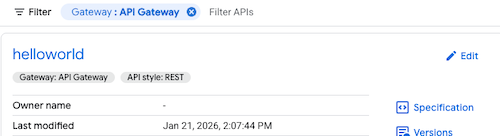
3. Click the API to view more details, including the [API metadata](https://docs.cloud.google.com/api-gateway/docs/api-hub-view-apis#api-metadata).
## View your MCP Gateway in API hub
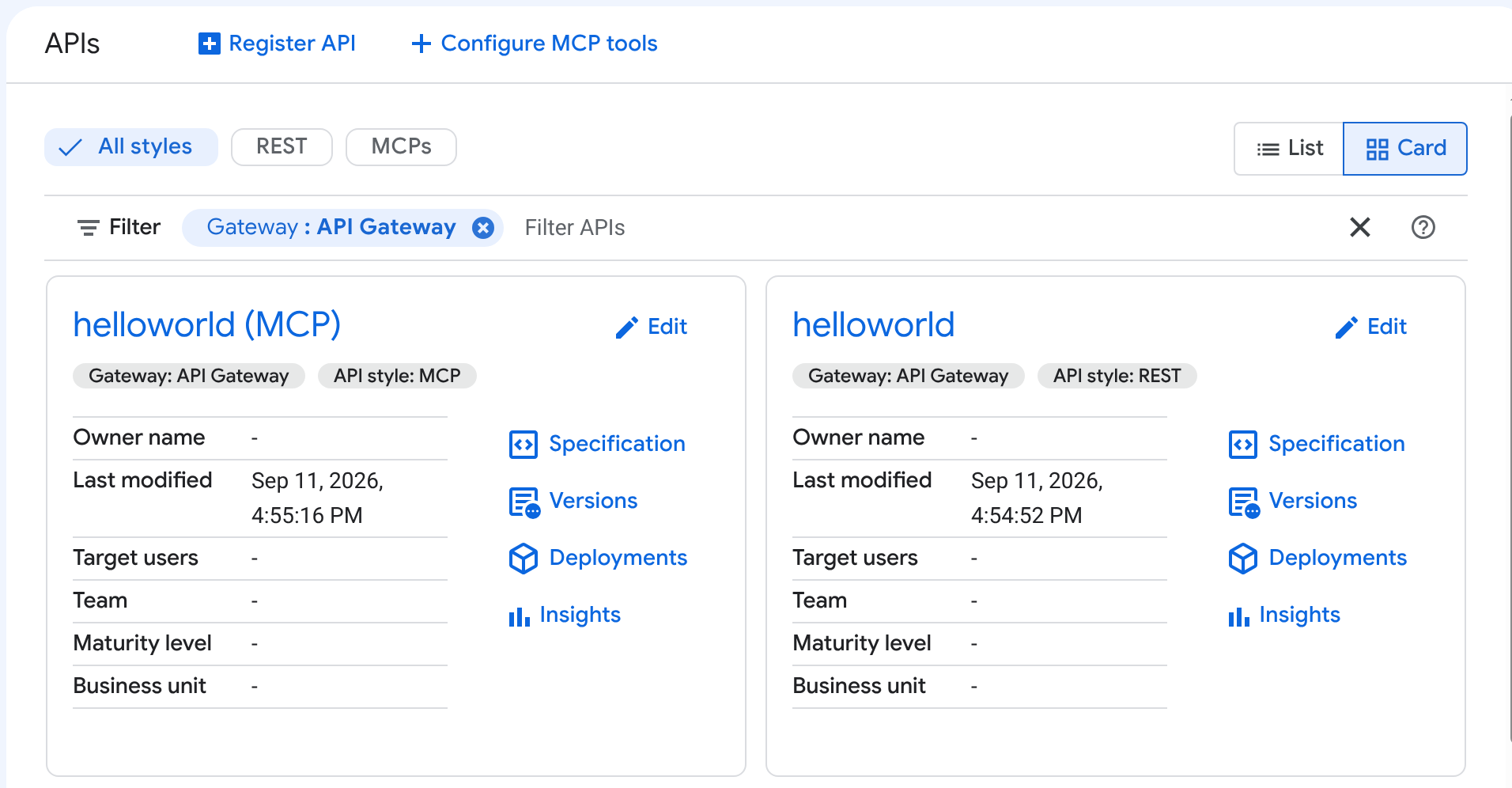
If your API Gateway API is configured as a Model Context Protocol (MCP) server, API hub adds a second entry for it, named ` (MCP)`. See [Discovery through API hub and Agent Registry](https://docs.cloud.google.com/api-gateway/docs/mcp-overview#discovery) in the MCP overview.
Only gateways that have MCP enabled will display these additional entries in API hub.
To view your MCP Gateway details in API hub:
1. In the Google Cloud console, go to the **APIs** page in **API hub**.
2. Locate the entry named ` (MCP)`.
3. Click the API to view its details, including MCP-specific metadata and tools.
For example, the **helloworld (MCP)** API is displayed alongside the standard **helloworld** API in API hub:
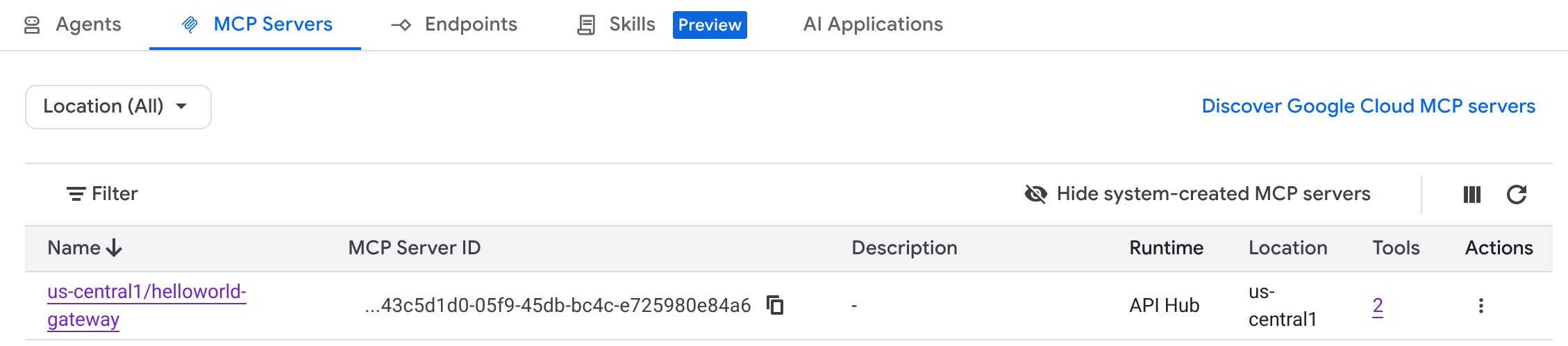
You can also view this MCP server in Agent Registry. Agents can discover the server and its tools through either catalog automatically.
For example, the MCP server is displayed in the **MCP Servers** tab in Agent Registry:
## Clean up
To avoid incurring charges to your Google Cloud account for the resources used in this tutorial, you can:
- [Delete your gateway](https://docs.cloud.google.com/api-gateway/docs/deploying-api#deleting_a_gateway)
- [Delete your API](https://docs.cloud.google.com/api-gateway/docs/creating-api#delete-api)
Alternatively, you can also delete the Google Cloud projects used for this tutorial.
## What's next
- Learn more [about API Gateway](https://docs.cloud.google.com/api-gateway/docs/about-api-gateway)
- Learn more about how to [centralize your APIs using API hub](https://docs.cloud.google.com/api-gateway/docs/api-hub-overview)