- [Latest version](https://docs.cloud.google.com/anthos/clusters/docs/on-prem/latest/how-to/connect-to-cluster-console)
- [Version 1.16](https://docs.cloud.google.com/anthos/clusters/docs/on-prem/1.16/how-to/connect-to-cluster-console.md.txt)
- [Earlier versions (unsupported)](https://docs.cloud.google.com/anthos/clusters/docs/on-prem/latest/version-history#expandable-1)
This document explains how to make Google Distributed Cloud available for
management in the Google Cloud console. This includes basic management such as being
able to log in to clusters and view their workloads, as well as how to enable
cluster lifecycle management so that you can upgrade, update, and delete
clusters.
## Fleet members and the console
All Google Distributed Cloud must be members of a
[fleet](https://docs.cloud.google.com/anthos/fleet-management/docs)---a unified way to view
and manage multiple clusters and their workloads. Each fleet of clusters
is associated with a
[fleet host project](https://docs.cloud.google.com/anthos/clusters/docs/on-prem/1.14/how-to/multiple-gcp-projects.md.txt#fleet_host_project).
In Google Distributed Cloud, an admin cluster is registered to a fleet at creation
time by specifying your fleet host project in the `gkeConnect` section of the
cluster configuration file. Google Distributed Cloud uses that information to
register your cluster to the specified fleet project. If the registration
failed, you can re-attempt the registration by running `gkectl update credentials register`.
Note that when re-attempting the registration, you don't need to update the
[connect-register service account key](https://docs.cloud.google.com/anthos/clusters/docs/on-prem/1.14/how-to/service-accounts.md.txt#connect_register_service_account).
In other words, you can continue using your original connect-register service
account. For more information about the command, see [Rotatiing service account keys](https://docs.cloud.google.com/anthos/clusters/docs/on-prem/1.14/how-to/rotating-service-account-keys.md.txt).
In Google Distributed Cloud, a user cluster is registered to a fleet at creation
time:
- When you create a user cluster using `gkectl`, you specify your fleet host project
in the `gkeConnect` section of the cluster configuration file.
Google Distributed Cloud uses that information to register your cluster to the
specified fleet project.
- When you create a user cluster in the console, the cluster
automatically becomes a fleet member in the project selected in the
console.
Fleet members outside of Google Cloud like Google Distributed Cloud are displayed
in the console in your fleet host project, along with other
fleet clusters such as GKE on Google Cloud. The extent to
which you can manage Google Distributed Cloud from the console
depends on the following:
- If you have [set up authentication](https://docs.cloud.google.com/anthos/clusters/docs/on-prem/1.14/how-to/connect-to-cluster-console.md.txt#set_up_authentication), you can
log in to your clusters and view their workloads and other details.
- If you have
[enabled cluster lifecycle management](https://docs.cloud.google.com/anthos/clusters/docs/on-prem/1.14/how-to/connect-to-cluster-console.md.txt#enable_cluster_lifecycle_management_in_the_console)
for the cluster, you can also upgrade, update, or delete user clusters by
using the console. To do this, the cluster must be managed by a
service called the Anthos On-Prem API. For user clusters created in the
console, cluster lifecycle management is enabled at cluster
creation time, or you can enable this feature later for user clusters created
using `gkectl`. If this feature is not enabled, you can only manage cluster
lifecycle using `gkectl` on your admin workstation.
## View registered clusters
All your fleet clusters are displayed on the
[GKE Enterprise Clusters](https://console.cloud.google.com/anthos/clusters/)
and the
[GKE Clusters](https://console.cloud.google.com/kubernetes/list)
pages in the console. This both gives you an overview of your
entire fleet and, for Google Distributed Cloud, lets you see which clusters are
managed by the Anthos On-Prem API.
To view your fleet clusters:
1. In the console, go to the GKE Enterprise clusters page.
[Go to the GKE Enterprise clusters page](https://console.cloud.google.com/anthos/clusters)
2. Select the Google Cloud project.
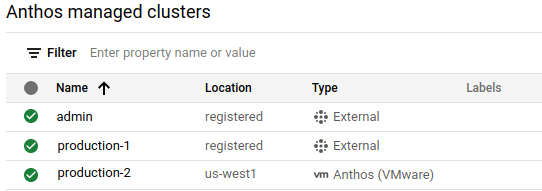
- If **vm Anthos (VMware)** is displayed in the **Type** column, the cluster
is managed by the Anthos On-Prem API.
- If **External** is displayed in the **Type** column, the cluster isn't
managed by the Anthos On-Prem API.
To see more details about a cluster, users need to log in and authenticate to
the cluster. To do this, you need to:
- [Set up an authentication method](https://docs.cloud.google.com/anthos/clusters/docs/on-prem/1.14/how-to/connect-to-cluster-console.md.txt#set_up_authentication)
- [Grant users specific Identity and Access Management roles](https://docs.cloud.google.com/anthos/clusters/docs/on-prem/1.14/how-to/connect-to-cluster-console.md.txt#grant_required_roles)
### Set up authentication
As described above, all fleet clusters appear in the GKE and
GKE Enterprise clusters lists in the console. However, to
see more details such as nodes and workloads (and to perform cluster lifecycle
management tasks if the feature is enabled), users need to log in and
authenticate to the cluster. To do this, your registered clusters must be set up
with one of the following authentication methods:
- **Google identity**: This option lets users log in using their
Google Cloud identity, which is the email address associated with your
Google Cloud account. Use this option if users already have access to
Google Cloud with their Google identity. If you created the cluster in
the console, you can log in to the cluster using your Google
identity, but you will need to configure authentication for other users.
Login with Google identity is the simplest approach to authentication in the
console, particularly if you are trying out
Google Distributed Cloud with a minimal installation, and so we have described
how to set this up in more detail below in
[Set up Google identity authentication](https://docs.cloud.google.com/anthos/clusters/docs/on-prem/1.14/how-to/connect-to-cluster-console.md.txt#set_up_google_identity_authentication).
- **OpenID Connect (OIDC)**: This option lets users log in to clusters from the
console using their identity from a third-party OIDC identity
provider such as Okta or Microsoft AD FS. You might want to use this option if
your users have existing usernames, passwords, and security group memberships
from your provider. You can find out how to set up third-party OIDC
authentication for your clusters in the following guides:
- [Configure clusters for GKE Identity Service with OIDC](https://docs.cloud.google.com/anthos/identity/setup/per-cluster):
This guide shows you how to set up OIDC authentication on a cluster by
cluster basis.
- [Set up GKE Identity Service for a fleet](https://docs.cloud.google.com/anthos/identity/setup/fleet):
This option lets you set up OIDC at the fleet level.
- **Bearer token** : If the preceding Google-provided solutions aren't suitable for
your organization, you can set up authentication using a Kubernetes service
account and using its bearer token to log in. For details,
see [Set up using a bearer token](https://docs.cloud.google.com/anthos/identity/setup/bearer-token-auth).
### Grant required roles
Access to the console is controlled by Google Cloud
IAM. These IAM roles are required no matter which
authentication method you choose. To manage the cluster lifecycle in the
console you need to grant some IAM roles.
- To let users access the console, at a minimum, you need to
grant the following roles:
- `roles/container.viewer`. This role lets users view the GKE
Clusters page and other container resources in the console.
For details about the permissions included in this role, or to grant a
role with read/write permissions, see
[Kubernetes Engine roles](https://docs.cloud.google.com/iam/docs/roles-permissions/container.md.txt)
in the IAM documentation.
- `roles/gkehub.viewer`. This role lets users view clusters outside
Google Cloud in the console. For details about the
permissions included in this role, or to grant a role with read/write
permissions, see
[GKE Hub roles](https://docs.cloud.google.com/iam/docs/roles-permissions/gkehub.md.txt) in the
IAM documentation.
- To let users manage the cluster lifecycle in the console,
grant the `roles/gkeonprem.admin` IAM role. The
`roles/gkeonprem.admin` role gives users administrative access to the
Anthos On-Prem API, which the console uses to manage the
cluster lifecycle. For details on the permissions included in this role, see
[GKE on-prem roles](https://docs.cloud.google.com/iam/docs/roles-permissions/gkeonprem.md.txt)
in the IAM documentation.
The following commands shows how to grant the minimal roles needed to manage
cluster lifecycle in the console:
```
gcloud projects add-iam-policy-binding FLEET_HOST_PROJECT_ID \
--member=MEMBER \
--role=roles/container.viewer
gcloud projects add-iam-policy-binding FLEET_HOST_PROJECT_ID \
--member=MEMBER \
--role=roles/gkehub.viewer
gcloud projects add-iam-policy-binding FLEET_HOST_PROJECT_ID \
--member=MEMBER \
--role=roles/gkeonprem.admin
```
where:
- `FLEET_HOST_PROJECT_ID` is the fleet host project. For clusters
created using `gkectl`, this is the project that you configured in the
`gkeConnect` section of the user cluster's configuration file. For
clusters created in the console, this is the project
that you chose when the cluster was created.
- `MEMBER` is the user's email address in the format
`user:emailID`, for example: `user:alice@example.com`
### Enable cluster lifecycle management in the console
User clusters created in the console are automatically managed by
the Anthos On-Prem API, and let you perform cluster lifecycle management tasks
in the console. If you want to enable this feature for user
clusters created using `gkectl`, follow the steps in
[Configure a user cluster to be managed by the Anthos On-Prem API](https://docs.cloud.google.com/anthos/clusters/docs/on-prem/1.14/how-to/enroll-user-cluster).
When cluster lifecycle management is enabled, you can do the following tasks
from the console:
- [Upgrade user clusters](https://docs.cloud.google.com/anthos/clusters/docs/on-prem/1.14/how-to/upgrading.md.txt)
- [Resize user clusters](https://docs.cloud.google.com/anthos/clusters/docs/on-prem/1.14/how-to/resizing-a-user-cluster.md.txt)
- [Create and manage node pools](https://docs.cloud.google.com/anthos/clusters/docs/on-prem/1.14/how-to/managing-node-pools.md.txt)
- [Delete user clusters](https://docs.cloud.google.com/anthos/clusters/docs/on-prem/1.14/how-to/deleting-a-user-cluster.md.txt)
> [!NOTE]
> **Note:** If you prefer not to manage cluster lifecycle from Google Cloud, the same tasks can all be performed by using the admin workstation and `gkectl`.
## Set up Google identity authentication
To let users log in to the cluster using their Google identity, you need to
configure the following:
- Users need [specific Identity and Access Management (IAM) roles](https://docs.cloud.google.com/anthos/clusters/docs/on-prem/1.14/how-to/connect-to-cluster-console.md.txt#grant_required_roles)
to be able to see and interact with clusters in the console on
the
[GKE Clusters list](https://console.cloud.google.com/kubernetes/list)
and the
[GKE Enterprise Clusters list](https://console.cloud.google.com/anthos/clusters)
pages.
- Users need to be added to the Kubernetes role-based access control (RBAC)
policies that the [Connect gateway](https://docs.cloud.google.com/anthos/multicluster-management/gateway)
needs to access the cluster's Kubernetes API server via the
[Connect agent](https://docs.cloud.google.com/anthos/fleet-management/docs/connect-agent).
### Configure RBAC authorization
Each cluster's Kubernetes API server needs to be able to authorize requests that
come from the console. To configure authorization, you need to
configure Kubernetes role-based access control (RBAC) policies on each cluster.
If you created the cluster in the console, the
Anthos On-Prem API adds your user account as an administrator and creates
appropriate RBAC policies that grant you full administrative access to the
cluster.
If you created the cluster in the console, and later you use
`gcloud` to configure the RBAC policies, the user email addresses won't be
visible in the **Cluster Details** section in the console.
### gcloud CLI
1. Run the following commands to log in with your Google account and update
components:
gcloud auth login
gcloud components update
2. Generate and apply the RBAC policies to your cluster for users and service
accounts:
gcloud container fleet memberships generate-gateway-rbac \
--membership=MEMBERSHIP_NAME \
--role=ROLE \
--users=USERS \
--project=FLEET_HOST_PROJECT_ID \
--kubeconfig=KUBECONFIG_PATH \
--context=KUBECONFIG_CONTEXT \
--apply
Replace the following:
- MEMBERSHIP_NAME: the name used to uniquely represent the cluster in its fleet. In Google Distributed Cloud, the membership name and the cluster name are the same.
- ROLE: the Kubernetes role you want to grant to the users on the cluster. To grant users full access to every resource in the cluster in all namespaces, specify `clusterrole/cluster-admin`. To restrict access, create a custom role, for example: `role/mynamespace/namespace-reader`. The custom role must already exist before you run the command.
- USERS: the email addresses of the users (user accounts or service accounts) to whom you want to grant the permissions, as a comma-separated list. For example: `--users=foo@example.com,test-acct@test-project.iam.gserviceaccount.com`.
- FLEET_HOST_PROJECT_ID: the project ID of the fleet host project.
- KUBECONFIG_PATH: the local filepath where your kubeconfig containing an entry for the cluster is stored.
- KUBECONFIG_CONTEXT: the context of the cluster as it appears in
the kubeconfig file. You can get the current context from the command line
by running `kubectl config current-context`. Whether you use the current
context or not, make sure that it works for accessing the cluster by
running a simple command such as:
```
kubectl get namespaces \
--kubeconfig=KUBECONFIG_PATH \
--context=KUBECONFIG_CONTEXT
```
After running `gcloud container fleet memberships generate-gateway-rbac`,
you see something like the following at the end of the output, which is
truncated for readability:
Validating input arguments.
Specified Cluster Role is: clusterrole/cluster-admin
Generated RBAC policy is:
---
...
Applying the generate RBAC policy to cluster with kubeconfig: /usr/local/google/home/foo/.kube/config, context: kind-kind
Writing RBAC policy for user: foo@example.com to cluster.
Successfully applied the RBAC policy to cluster.
This is the context for accessing the cluster through the
[Connect gateway](https://docs.cloud.google.com/anthos/multicluster-management/gateway).
For more details on the `generate-gateway-rbac` command, see the
[gcloud CLI reference guide](https://docs.cloud.google.com/sdk/gcloud/reference/container/fleet/memberships/generate-gateway-rbac).
### Console
To apply the RBAC policies to users, do the following steps in the
console:
1. In the console, go to the GKE Enterprise clusters page.
[Go to the GKE Enterprise clusters page](https://console.cloud.google.com/anthos/clusters)
2. Select the Google Cloud project that the user cluster is in.
3. In the cluster list, click the name of the cluster, and then click
**More details** in the **Details** panel.
4. In the **Authorization section** , click the **Cluster admin users** field
and enter the email address of each user.
5. When you are finished adding users, click **Done**.
> [!NOTE]
> **Note:** When you add admin users, the Anthos On-Prem API applies the Kubernetes RBAC policies to the cluster to grant the users the same administrative access that you were granted when you created the cluster. These policies grant users the Kubernetes `clusterrole/cluster-admin` role, which provides full access to every resource in the cluster in all namespaces.
## More information
- [Fleet management overview](https://docs.cloud.google.com/anthos/fleet-management/docs/fleet-concepts)
- [Work with clusters from the Google Cloud console](https://docs.cloud.google.com/anthos/fleet-management/docs/console)
- [Connect overview](https://docs.cloud.google.com/anthos/multicluster-management/gateway)
- [Connect Agent overview](https://docs.cloud.google.com/anthos/fleet-management/docs/connect-agent)