- [Latest version](https://docs.cloud.google.com/anthos/clusters/docs/on-prem/latest/how-to/install-overview)
- [Version 1.16](https://docs.cloud.google.com/anthos/clusters/docs/on-prem/1.16/how-to/install-overview.md.txt)
- [Earlier versions (unsupported)](https://docs.cloud.google.com/anthos/clusters/docs/on-prem/latest/version-history#expandable-1)
This document describes the planning process and the steps for installing
Google Distributed Cloud. This is a multi-stage process, during which
you need to make decisions about the type of configuration that will meet your
organizational needs. You might need to get help from others, such as your
network administrator, to set up a vSphere infrastructure and provide you with
information you need to complete configuration files.
## Before you begin
Before you read this document, you should be familiar with the following:
- Kubernetes
- [Kubernetes cluster](https://kubernetes.io/docs/concepts/overview/components)
- [Cluster node](https://kubernetes.io/docs/concepts/architecture/nodes/)
- [Google Kubernetes Engine](https://docs.cloud.google.com/kubernetes-engine/docs.md.txt)
- VMware
- [vCenter Server](https://www.vmware.com/products/vcenter-server.html)
- [vSphere](https://www.vmware.com/products/vsphere.html)
- [data center](https://docs.vmware.com/en/VMware-vSphere/7.0/com.vmware.vsphere.vcenterhost.doc/GUID-8BE2902F-AF5D-4493-95E3-B93A8A862192.html)
- [host](https://docs.vmware.com/en/VMware-vSphere/index.html)
- [vSphere Cluster](https://docs.vmware.com/en/VMware-vSphere/7.0/com.vmware.vsphere.resmgmt.doc/GUID-487C09CE-8BE2-4B89-BA30-0E4F7E3C66F7.html)
- [resource pool](https://docs.vmware.com/en/VMware-vSphere/7.0/com.vmware.vsphere.resmgmt.doc/GUID-60077B40-66FF-4625-934A-641703ED7601.html)
- [datastore](https://docs.vmware.com/en/VMware-vSphere/7.0/com.vmware.vsphere.storage.doc/GUID-D5AB2BAD-C69A-4B8D-B468-25D86B8D39CE.html)
## Overview of installation steps
These are the primary steps involved in an installation of
Google Distributed Cloud:
1. Plan your installation.
2. Set up your vSphere environment.
3. Set up Cloud resources, including a Google Cloud project and a service
account.
4. Create an admin workstation. The admin workstation is a VM that has the tools
you need to create clusters.
5. From your admin workstation, create an admin cluster. An admin cluster is a
point of management for a set of user clusters that run your workloads.
6. From your admin workstation, create one or more user clusters.
7. Deploy a workload on a user cluster.
## 1. Plan your installation
Google Distributed Cloud provides a way for you to create
[Google Kubernetes Engine (GKE)](https://docs.cloud.google.com/kubernetes-engine/docs/concepts/kubernetes-engine-overview.md.txt)
clusters in a
[vSphere environment](https://docs.vmware.com/en/VMware-vSphere/index.html)
on your own premises.
Your workloads run on user clusters, and user clusters are managed by an
admin cluster. The following diagram shows an admin cluster that manages two
user clusters. User cluster 1 has four nodes, and user cluster 2 has five nodes.
[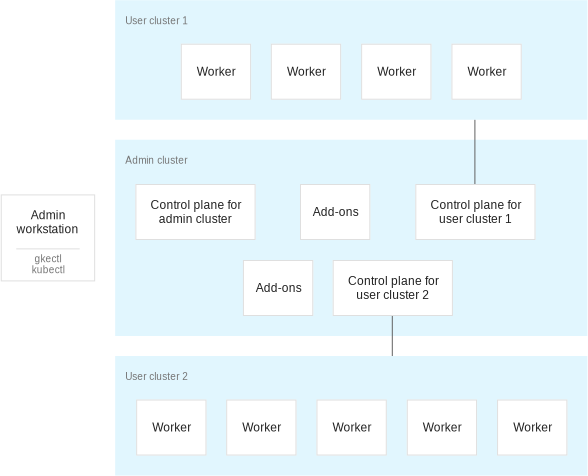](https://docs.cloud.google.com/static/anthos/clusters/docs/on-prem/1.11/images/diagram-install-overview.svg) Google Distributed Cloud architecture with two user clusters (Click to enlarge)
The preceding diagram illustrates these points:
- Each node in a user cluster is called a *worker node*.
- The Kubernetes control-plane components for a user cluster run on a node in
the admin cluster.
- The admin workstation is a VM that is separate from the clusters.
- The admin workstation is where you run the `gkectl` command-line tool to
create and manage clusters. This is also where you run the `kubectl`
command-line tool to manage workloads on your user clusters.
### Plan your user clusters
Think ahead about how many user clusters you intend to create and how many nodes
you want each user cluster to have. For example, you might want to create
separate clusters for different departments in your organization. Certain
clusters might need to support heavy customer traffic, and other clusters might
need to support only light internal traffic.
Think about which of your workloads need to be highly available. Then decide
which of your user clusters need to have a high availability (HA) control plane
and which clusters would function adequately with a non-HA control plane. An HA
control plane requires three nodes in the admin cluster, and a non-HA control
plane requires only one node in the admin cluster.
### Plan your network and load balancing
Read about the
[load balancing options](https://docs.cloud.google.com/anthos/clusters/docs/on-prem/1.11/how-to/setup-load-balance.md.txt)
for your installation and decide which kind of load balancer would work best
for you. Depending on which option you choose, you might have to set up your
load balancer before you create your clusters.
Read about the options for
[connecting to Google](https://docs.cloud.google.com/anthos/clusters/docs/on-prem/1.11/concepts/connect-on-prem-gcp.md.txt),
and decide which kind of connection is best for you.
## 2. Set up your vSphere environment
Obtain the
[required vSphere licenses](https://docs.cloud.google.com/anthos/clusters/docs/on-prem/1.11/how-to/vsphere-requirements.md.txt#license_requirements).
Set up a physical network that has a machine to run
[vCenter
Server](https://www.vmware.com/products/vcenter-server.html)
and several machines to run the
[ESXi hypervisor](https://www.vmware.com/products/esxi-and-esx.html).
Install vCenter Server on a physical machine, and install ESXi on several
physical machines. These physical machines are called *hosts*.
Set up physical
[storage](https://docs.vmware.com/en/VMware-vSphere/7.0/com.vmware.vsphere.storage.doc/GUID-8AE88758-20C1-4873-99C7-181EF9ACFA70.html)
for your vSphere environment.
### Plan your IP addresses
Decide how you want your cluster nodes to get their IP addresses. The options
are:
- From a DHCP server that you provide.
- From a list of static IP addresses that you provide.
In either case, ensure that enough IP addresses are available for your cluster
nodes and virtual IP addresses (VIPs) that need to be configured on your load
balancer. For more information, see
[Plan your IP addresses](https://docs.cloud.google.com/anthos/clusters/docs/on-prem/1.11/how-to/plan-ip-addresses.md.txt).
### Set up your vSphere object hierarchy
Use your instance of vCenter Server to create one or more
[vSphere data centers](https://docs.vmware.com/en/VMware-vSphere/7.0/com.vmware.vsphere.vcenterhost.doc/GUID-7FDFBDBE-F8AC-4D00-AE5E-3F14D7472FAF.html).
Recall that a vSphere data center is not the same as a physical building.
Sometimes a vSphere data center is called a *virtual data center* .
Use your instance of vCenter Server to add vSphere inventory objects to your
data centers. These inventory objects include
[cluster](https://docs.vmware.com/en/VMware-vSphere/7.0/com.vmware.vsphere.resmgmt.doc/GUID-487C09CE-8BE2-4B89-BA30-0E4F7E3C66F7.html),
[resource pool](https://docs.vmware.com/en/VMware-vSphere/7.0/com.vmware.vsphere.resmgmt.doc/GUID-60077B40-66FF-4625-934A-641703ED7601.html),
[network](https://docs.vmware.com/en/VMware-vSphere/7.0/com.vmware.vsphere.networking.doc/GUID-35B40B0B-0C13-43B2-BC85-18C9C91BE2D4.html),
[datastore](https://docs.vmware.com/en/VMware-vSphere/7.0/com.vmware.vsphere.storage.doc/GUID-3CC7078E-9C30-402C-B2E1-2542BEE67E8F.html),
and
[folder](https://docs.vmware.com/en/VMware-vSphere/7.0/com.vmware.vsphere.vcenterhost.doc/GUID-031BDB12-D3B2-4E2D-80E6-604F304B4D0C.html).
> [!NOTE]
> **Note:** that the word *cluster* has two meanings. In some contexts, it refers to a vSphere cluster, which is a vSphere inventory object. In other contexts, it refers to a GKE cluster. When you create a GKE cluster in Google Distributed Cloud, it is sometimes called an *GKE Enterprise
> cluster on VMware*.
#### Using separate vSphere clusters (Preview)
Think about whether you want your GKE clusters to be in the same
vSphere cluster or in separate vSphere clusters. For example, you could have
your admin cluster in one vSphere cluster and your user clusters in a different
vSphere cluster. Or you could have each user cluster in its own vSphere
cluster.
The following diagram illustrates a vSphere setup you could use if you want
to put an admin cluster in one vSphere cluster and a user cluster in a different
vSphere cluster:
[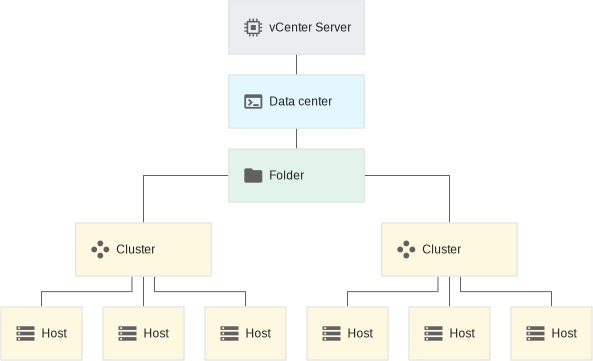](https://docs.cloud.google.com/static/anthos/clusters/docs/on-prem/1.11/images/one-data-center-two-clusters.svg) vSphere setup with one data center and two vSphere clusters (Click to enlarge)
#### Using separate data centers (Preview)
Another option is to have your GKE clusters in separate data
centers.
The following diagram illustrates a vSphere setup you could use if you want to
put an admin cluster in one data center and a user cluster in a different data
center:
[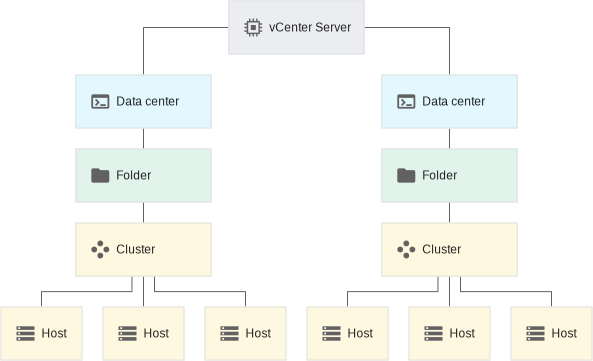](https://docs.cloud.google.com/static/anthos/clusters/docs/on-prem/1.11/images/two-data-centers.svg) vSphere setup with two data centers (Click to enlarge)
For more information about setting up your vSphere environment, see:
- [vSphere requirements](https://docs.cloud.google.com/anthos/clusters/docs/on-prem/1.11/how-to/vsphere-requirements.md.txt)
- [CPU, RAM, and storage requirements](https://docs.cloud.google.com/anthos/clusters/docs/on-prem/1.11/how-to/cpu-ram-storage.md.txt)
- [Proxy and firewall rules](https://docs.cloud.google.com/anthos/clusters/docs/on-prem/1.11/how-to/firewall-rules.md.txt)
## 3. Set up Google Cloud resources
Before you create your admin workstation, you need to install the
Google Cloud CLI, create a Google Cloud project, and create a service account.
In some cases, you might want to create more than one Google Cloud project and
more than one service account. For instructions, see:
- [Install the Google Cloud CLI](https://docs.cloud.google.com/anthos/clusters/docs/on-prem/1.11/how-to/cloud-sdk.md.txt).
The Google Cloud CLI is a set of tools to create and manage Google Cloud
resources.
- [Create Google Cloud projects](https://docs.cloud.google.com/anthos/clusters/docs/on-prem/1.11/how-to/multiple-gcp-projects.md.txt)
A Google Cloud project provides a way of organizing your Google Cloud
resources. You must have at least one Google Cloud project. When you create
a user cluster, you must register the cluster to a
[fleet](https://docs.cloud.google.com/anthos/fleet-management/docs),
which requires that you specify a fleet host project.
- [Create service accounts](https://docs.cloud.google.com/anthos/clusters/docs/on-prem/1.11/how-to/service-accounts.md.txt).
Google Distributed Cloud uses Google Cloud
[service accounts](https://docs.cloud.google.com/iam/docs/understanding-service-accounts)
with specific permissions to download cluster components from Google Cloud,
register clusters to a fleet, and perform other tasks.
## 4. Create an admin workstation
The admin workstation is a VM that you create in your vSphere environment.
Then you get an SSH connection to your admin workstation, and from there you
run commands to create an admin cluster.
For instructions on how to create an admin workstation, see
[Create an admin workstation](https://docs.cloud.google.com/anthos/clusters/docs/on-prem/1.11/how-to/create-admin-workstation.md.txt).
## 5. Create an admin cluster
The admin cluster runs the Kubernetes control plane for itself and any
associated user clusters. You must create an admin cluster before you create
user clusters to run your workloads. To create an admin cluster, get an SSH
connection to your admin workstation, and follow the instructions in
[Create an admin cluster](https://docs.cloud.google.com/anthos/clusters/docs/on-prem/1.11/how-to/create-admin-cluster.md.txt).
## 6. Create user clusters
After you create an admin cluster, you can create one or more user clusters.
To create a user cluster, get an SSH connection to your admin workstation,
and follow the instructions in
[Create a user cluster](https://docs.cloud.google.com/anthos/clusters/docs/on-prem/1.11/how-to/create-user-cluster.md.txt).
## 7. Deploy a workload on a user cluster
To learn how to create a Deployment, a Service and an Ingress on a user cluster,
see:
- [Deploy an application](https://docs.cloud.google.com/anthos/clusters/docs/on-prem/1.11/how-to/deploy-first-app.md.txt)
- [Create a Service and an Ingress](https://docs.cloud.google.com/anthos/clusters/docs/on-prem/1.11/how-to/create-service-ingress.md.txt)
## What's next?
Start the installation process by
[setting up your on-premises infrastructure](https://docs.cloud.google.com/anthos/clusters/docs/on-prem/1.11/how-to/vsphere-requirements.md.txt).