Select a documentation version:
- [Current (18.4.0)](https://docs.cloud.google.com/alloydb/omni/linux/current/docs/automatic-memory-management.md.txt)
- [18.4.0](https://docs.cloud.google.com/alloydb/omni/linux/18.4.0/docs/automatic-memory-management.md.txt)
- [18.3.0](https://docs.cloud.google.com/alloydb/omni/linux/18.3.0/docs/automatic-memory-management.md.txt)
- [18.1.1](https://docs.cloud.google.com/alloydb/omni/linux/18.1.1/docs/automatic-memory-management.md.txt)
- [18.1.0](https://docs.cloud.google.com/alloydb/omni/linux/18.1.0/docs/automatic-memory-management.md.txt)
AlloyDB Omni uses adaptive algorithms for memory management.
You can decide the upper limit of the shared buffer on starting AlloyDB Omni. If you don't set the upper limit, AlloyDB Omni automatically sets the shared buffer backing size to 80% of system memory. The initial backing size of the shared buffer can be different from the upper limit.
AlloyDB Omni consists of an intelligent memory worker which constantly monitors the memory status, and tunes shared buffer backing size for best performance when caching data.
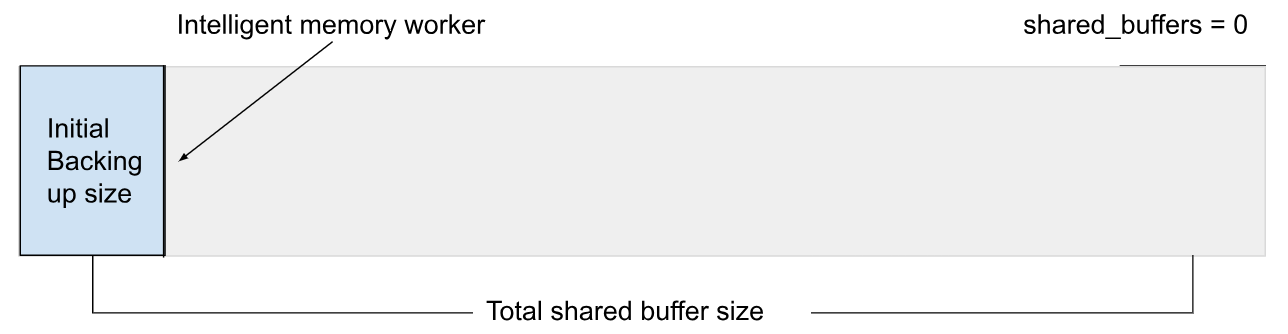
By default the `shared_buffers` parameter is set to `0`, which is a special value that sets the upper limit of the size of the `shared buffers` cache to 80% of system memory. AlloyDB Omni starts at 10% of the `shared_buffers` upper limit. If `shared_buffers` is overridden by a custom value, then AlloyDB Omni respects the value as the upper limit of the `shared_buffers` size, and starts with that specified custom size.
> [!NOTE]
> **Note:** The memory worker can still decide to shrink, and later grow the shared buffer backing size at runtime.
To specify a custom size, you can set `shared_buffers` to `1GB`. The method depends on your deployment type:
For Linux-based installations (including RPM), you can set the `shared_buffers` parameter using one of the following methods. After applying the change, you must restart the service.
- **Option 1: Edit the configuration file**
1. Open the `postgresql.conf` file for editing.
2. Add or modify the following line:
shared_buffers = 1GB
3. Save the file and restart the AlloyDB Omni service:
```bash
sudo systemctl restart alloydbomniMAJOR_VERSION
```
Replace `MAJOR_VERSION` with the major version of your AlloyDB Omni installation, such as
`18`.
- **Option 2: Use the `ALTER SYSTEM` command**
1. Connect to your database instance using a SQL client.
2. Run the following command:
```sql
ALTER SYSTEM SET shared_buffers = '1GB';
```
3. Restart the AlloyDB Omni service:
```bash
sudo systemctl restart alloydbomniMAJOR_VERSION
```
Replace `MAJOR_VERSION` with the major version of your AlloyDB Omni installation, such as
`18`.
## Optimize query performance
The default value of the `shared_buffers` parameter works for common scenarios.
However, you can tune the value for best performance.
If you choose to rely on the default value of `shared_buffers` to deduce the shared buffer upper limit, then use the cgroup `memory.max` value to influence the computation.
## Columnar engine memory
The dynamic `shared_buffers` is independent of the [columnar engine memory](https://docs.cloud.google.com/alloydb/omni/linux/18.1.1/docs/columnar-engine/configure.md.txt). When the columnar engine is enabled, the dynamic `shared_buffers` size can be derived by subtracting the amount of memory used by the columnar engine from 80% of the total memory available to the system or cgroup.
## Huge pages
Huge pages improve database performance. AlloyDB Omni manages huge pages explicitly if possible, otherwise it relies on the transparent huge pages (THP) feature of the operating system. If neither huge page type is supported, AlloyDB Omni falls back to 4k page, and prints a warning in the database logs with specific instructions to set up huge pages.
The warning looks similar to the following:
HINT: Please manually execute:
echo within_size | sudo tee /sys/kernel/mm/transparent_hugepage/shmem_enabled
sudo sysctl -w vm.nr_overcommit_hugepages="$(/usr/bin/awk '/MemTotal/ { printf "%.0f", $2/1024 }' /proc/meminfo)"
## Automatic memory management at runtime
AlloyDB Omni constantly monitors the system load, and adjusts its memory consumptions for better performance. Specifically, you might observe the following:
**Dynamic `shared_buffers` size change**
: AlloyDB Omni increases the dynamic `shared_buffers` size when the system memory consumption is low, and decreases the size when the system memory consumption is high. The \`g_memory\` extension is included in the AlloyDB Omni distribution. To enable it and monitor the dynamic \`shared_buffers\` size, run the following commands:
```bash
CREATE EXTENSION IF NOT EXISTS g_memory;
SELECT g_dynamic_shared_size();
```
**Termination of a PostgreSQL connection when the system is extremely low on memory**
:
When AlloyDB Omni detects that the system is extremely low on memory, it attempts to delete the most memory-consuming PostgreSQL connections until the load falls back to a reasonable level. When such an event happens, AlloyDB Omni logs an entry similar to the following example in the database logs:
```bash
WARNING: Sending SIGTERM to pid=12345 NSpid=67890 (VA size = 1024MB) (RSS size = 512MB)
```