Summarization with custom sections uses an LLM to summarize customer service conversations. The model takes in the conversations and custom sections, which are parts of text prompts defining the task the model performs, to then generate the summaries.
You can choose predefined sections and write your own summarization task definitions in custom sections.
Available regions can be found in [Regionalization and data residency](https://docs.cloud.google.com/agent-assist/docs/regionalization).
## Predefined sections
This feature provides six predefined sections, from which you can select:
- **Situation**: This is what the customer needs help with or has questions about. An option to customize a concise summary is provided and recommended.
- **Action**: Defined as what the agent does to help the customer. An option to customize a concise summary is provided and recommended.
- **Resolution**: There are four options.
- Y: Yes. All the customer issues and queries are resolved.
- P: Partial. Only some of the multiple customer issues and queries are resolved.
- N: No. None of the customer issues and queries are resolved.
- N/A: There are no specific issues or queries raised by the customer in the conversation.
- **Customer satisfaction**: The options are dissatisfied or not dissatisfied.
- D: The customer is dissatisfied or has negative feelings by the end of the conversation.
- N: The customer is neutral or has positive feelings by the end of the conversation.
- **Reason for cancellation**: Reason for cancellation if the customer requests a cancellation. N/A otherwise.
- **Entities**: The key-value pairs of important entities extracted from the conversation.
## Create a summarization generator
### Console
To create a summarization generator using the [Agent Assist console](https://agentassist.cloud.google.com), do the following:
1. In the console, go to the **Summarization** page and select **Generator**.
[Go to Summarization](https://agentassist.cloud.google.com/)
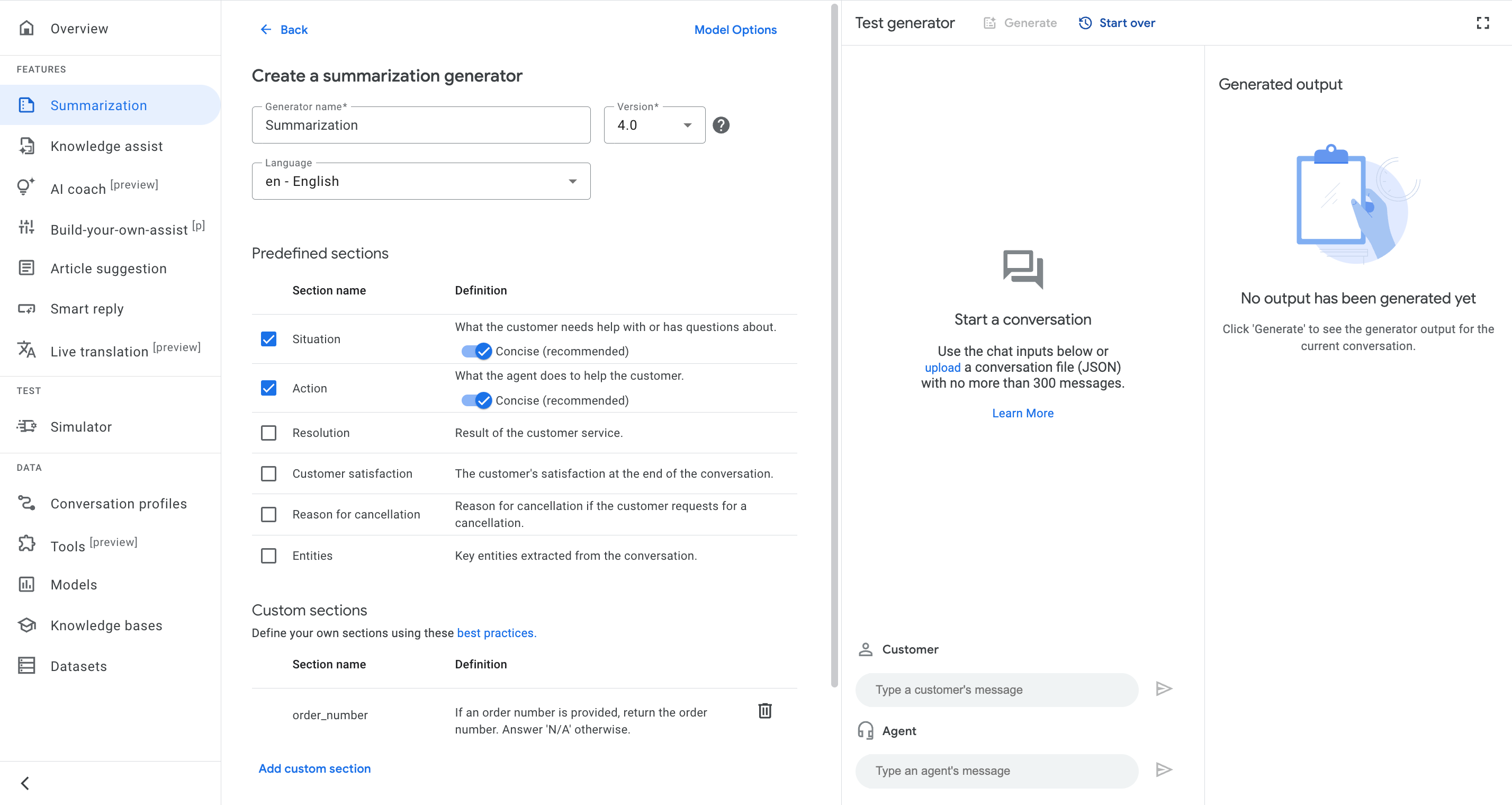
2. Enter the generator's name.
3. Select the generator's version.
4. Select output language.
5. Select the sections under **Predefined sections**.
6. Add sections under **Custom sections**: Define new summarization tasks as needed, optionally adding few-shot examples for enhancement.
7. Click **Save**.
### REST
To create a summarization generator using the API, do the following:
1. Call the `CreateGenerator` method from the Generator resource.
2. Enter the generator's name in the `description` field.
3. Enter the generator's output language code in the `output_language_code` field.
4. Enter the trigger event `MANUAL_CALL`.
5. Select predefined sections and add custom sections with few-shot examples in `SummarizationContext`.
Before using any of the request data,
make the following replacements:
- PROJECT_ID: your Cloud project ID
- LOCATION_ID: your location ID
HTTP method and URL:
```
POST https://dialogflow.googleapis.com/v2/projects/PROJECT_ID/locations/LOCATION_ID/generators
```
Request JSON body:
```
{
"parent": "projects/PROJECT_ID/locations/LOCATION_ID",
"description": "test",
"triggerEvent": "MANUAL_CALL",
"summarizationContext": {
"summarizationSections": [{
"type": "SITUATION"
}, {
"type": "ENTITIES"
}, {
"key": "custom_section",
"definition": "Describe what the customer needs help with or has questions about. If there is an order number mentioned in the conversation, INCLUDE the order number.",
"type": "CUSTOMER_DEFINED"
}],
"version": "2.1",
"outputLanguageCode": "en-US"
}
}
```
To send your request, expand one of these options:
#### curl (Linux, macOS, or Cloud Shell)
> [!NOTE]
> **Note:** The following command assumes that you have logged in to the `gcloud` CLI with your user account by running [`gcloud init`](https://docs.cloud.google.com/sdk/gcloud/reference/init) or [`gcloud auth login`](https://docs.cloud.google.com/sdk/gcloud/reference/auth/login) , or by using [Cloud Shell](https://docs.cloud.google.com/shell/docs), which automatically logs you into the `gcloud` CLI . You can check the currently active account by running [`gcloud auth list`](https://docs.cloud.google.com/sdk/gcloud/reference/auth/list).
Save the request body in a file named `request.json`,
and execute the following command:
```
curl -X POST \
-H "Authorization: Bearer $(gcloud auth print-access-token)" \
-H "x-goog-user-project: PROJECT_ID" \
-H "Content-Type: application/json; charset=utf-8" \
-d @request.json \
"https://dialogflow.googleapis.com/v2/projects/PROJECT_ID/locations/LOCATION_ID/generators"
```
#### PowerShell (Windows)
> [!NOTE]
> **Note:** The following command assumes that you have logged in to the `gcloud` CLI with your user account by running [`gcloud init`](https://docs.cloud.google.com/sdk/gcloud/reference/init) or [`gcloud auth login`](https://docs.cloud.google.com/sdk/gcloud/reference/auth/login) . You can check the currently active account by running [`gcloud auth list`](https://docs.cloud.google.com/sdk/gcloud/reference/auth/list).
Save the request body in a file named `request.json`,
and execute the following command:
```
$cred = gcloud auth print-access-token
$headers = @{ "Authorization" = "Bearer $cred"; "x-goog-user-project" = "PROJECT_ID" }
Invoke-WebRequest `
-Method POST `
-Headers $headers `
-ContentType: "application/json; charset=utf-8" `
-InFile request.json `
-Uri "https://dialogflow.googleapis.com/v2/projects/PROJECT_ID/locations/LOCATION_ID/generators" | Select-Object -Expand Content
```
You should receive a JSON response similar to the following:
```
{
"name": "projects/PROJECT_ID/locations/LOCATION_ID/generators/GENERATOR_ID",
"description": "test",
"inferenceParameter": {
"maxOutputTokens": 1024,
"temperature": 0.0,
"topK": 40,
"topP": 0.8
},
"triggerEvent": "MANUAL_CALL",
"createTime": "2024-05-11T00:28:14.790937126Z",
"updateTime": "2024-05-11T01:59:15.751724150Z",
"summarizationContext": {
"summarizationSections": [{
"type": "SITUATION"
}, {
"type": "ENTITIES"
}, {
"key": "custom_section",
"definition": "Describe what the customer needs help with or has questions about. If there is an order number mentioned in the conversation, INCLUDE the order number.",
"type": "CUSTOMER_DEFINED"
}],
"version": "2.1",
"outputLanguageCode": "en-US"
}
}
```
## Test a summarization generator
Within the console, you can test the generator in the **Test generator** section, as shown in the following image.

To test a generator in the console, do the following:
### Console
1. A transcript of the conversation. You can either manually input utterances or upload a transcript in JSON format, as shown in the following image.

2. Click **Generate** to display the summary.
## Configure a conversation profile
A *conversation profile* configures a set of parameters that control the
suggestions made to an agent during a conversation. The following steps create a
[`ConversationProfile`](https://docs.cloud.google.com/dialogflow/es/docs/reference/rest/v2/projects.conversationProfiles)
with a
[`HumanAgentAssistantConfig`](https://docs.cloud.google.com/dialogflow/es/docs/reference/rest/v2/projects.conversationProfiles#ConversationProfile.HumanAgentAssistantConfig)
object.
The following samples show how to create a conversation profile.
### Console
1. In the [Agent Assist console](https://agentassist.cloud.google.com), go to the **Conversation profiles** page.
2. Enter the display name.
3. Select **Conversation summarization (generator)** as the suggestion type.
4. Select the generator's name from the list.

### REST
1. Call the [`create` method](https://docs.cloud.google.com/dialogflow/es/docs/reference/rest/v2/projects.conversationProfiles/create) from the [conversation profile resource](https://docs.cloud.google.com/dialogflow/es/docs/reference/rest/v2/projects.conversationProfiles/create).
2. Provide a name for the new conversation profile.
3. Enter the language code.
4. Enter the generator name in human_agent_suggestion_config.
Before using any of the request data,
make the following replacements:
- PROJECT_ID: your Cloud project ID
- LOCATION_ID: your location ID
- CONVERSATION_PROFILE_ID: your conversation profile ID
- GENERATOR_ID: your generator ID
HTTP method and URL:
```
POST https://dialogflow.googleapis.com/v2/projects/PROJECT_ID/locations/LOCATION_ID/conversationProfiles
```
Request JSON body:
```
{
"name": "projects/PROJECT_ID/locations/LOCATION_ID/conversationProfiles/CONVERSATION_PROFILE_ID",
"displayName": "conversation-profile-with-generator",
"humanAgentAssistantConfig": {
"humanAgentSuggestionConfig": {
"generators": "projects/PROJECT_ID/locations/LOCATION_ID/generators/GENERATOR_ID"
}
},
"languageCode": "en-US"
}
```
To send your request, expand one of these options:
#### curl (Linux, macOS, or Cloud Shell)
> [!NOTE]
> **Note:** The following command assumes that you have logged in to the `gcloud` CLI with your user account by running [`gcloud init`](https://docs.cloud.google.com/sdk/gcloud/reference/init) or [`gcloud auth login`](https://docs.cloud.google.com/sdk/gcloud/reference/auth/login) , or by using [Cloud Shell](https://docs.cloud.google.com/shell/docs), which automatically logs you into the `gcloud` CLI . You can check the currently active account by running [`gcloud auth list`](https://docs.cloud.google.com/sdk/gcloud/reference/auth/list).
Save the request body in a file named `request.json`,
and execute the following command:
```
curl -X POST \
-H "Authorization: Bearer $(gcloud auth print-access-token)" \
-H "x-goog-user-project: PROJECT_ID" \
-H "Content-Type: application/json; charset=utf-8" \
-d @request.json \
"https://dialogflow.googleapis.com/v2/projects/PROJECT_ID/locations/LOCATION_ID/conversationProfiles"
```
#### PowerShell (Windows)
> [!NOTE]
> **Note:** The following command assumes that you have logged in to the `gcloud` CLI with your user account by running [`gcloud init`](https://docs.cloud.google.com/sdk/gcloud/reference/init) or [`gcloud auth login`](https://docs.cloud.google.com/sdk/gcloud/reference/auth/login) . You can check the currently active account by running [`gcloud auth list`](https://docs.cloud.google.com/sdk/gcloud/reference/auth/list).
Save the request body in a file named `request.json`,
and execute the following command:
```
$cred = gcloud auth print-access-token
$headers = @{ "Authorization" = "Bearer $cred"; "x-goog-user-project" = "PROJECT_ID" }
Invoke-WebRequest `
-Method POST `
-Headers $headers `
-ContentType: "application/json; charset=utf-8" `
-InFile request.json `
-Uri "https://dialogflow.googleapis.com/v2/projects/PROJECT_ID/locations/LOCATION_ID/conversationProfiles" | Select-Object -Expand Content
```
You should receive a JSON response similar to the following:
```
{
"name": "projects/PROJECT_ID/LOCATION_ID/conversationProfiles/CONVERSATION_PROFILE_ID",
"displayName": "conversation-profile-with-generator",
"humanAgentAssistantConfig": {
"humanAgentSuggestionConfig": {
"generators": "projects/PROJECT_ID/locations/LOCATION_ID/generators/GENERATOR_ID"
}
},
"languageCode": "en-US"
}
```
### Verify with the simulator
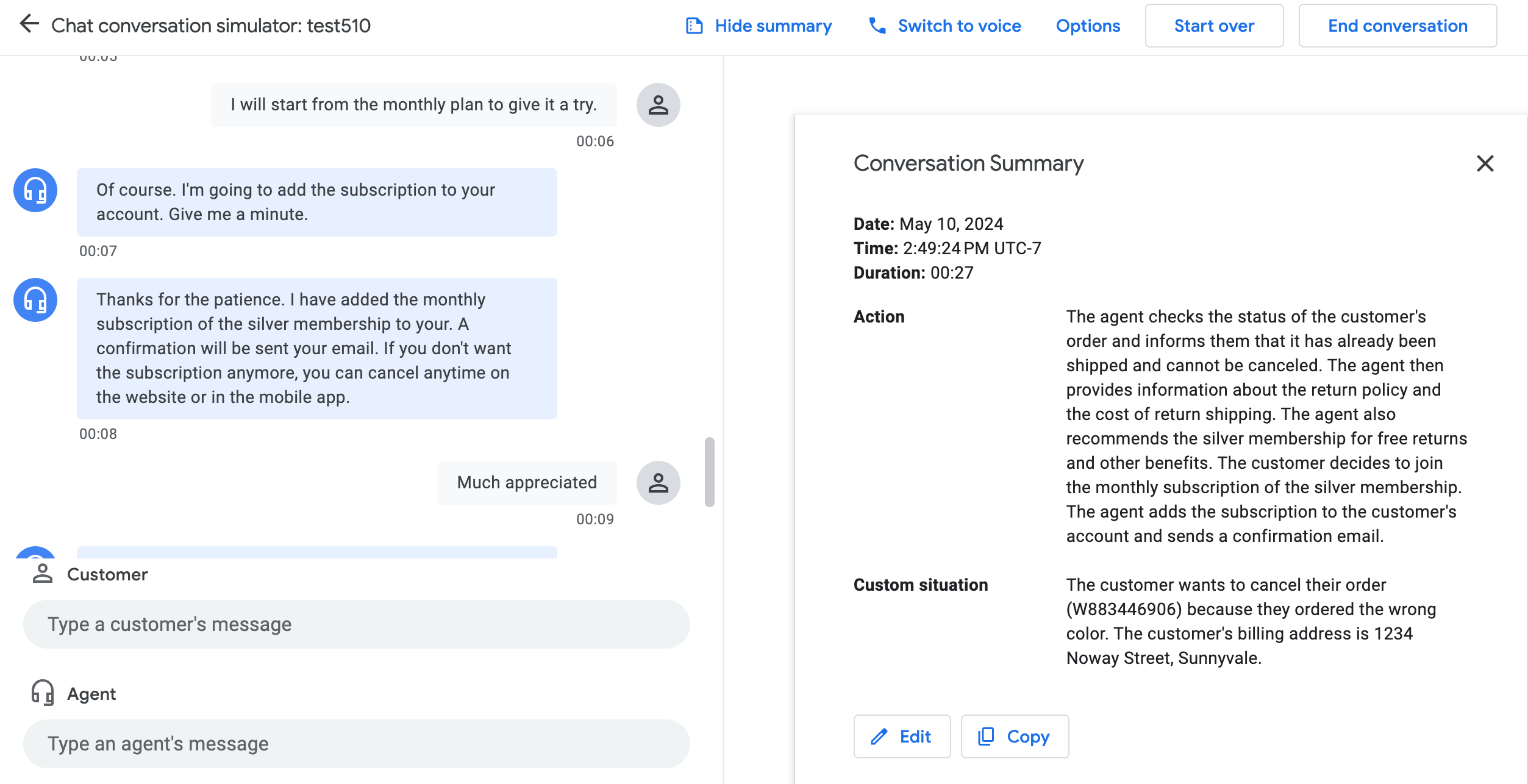
You can verify the conversation profile in the [Agent Assist simulator](https://docs.cloud.google.com/agent-assist/docs/simulator).
## Conversations at runtime
[At runtime](https://docs.cloud.google.com/agent-assist/docs/smart-reply#handle_conversations_at_runtime), when a dialog begins between a user and an agent, you create a *conversation*, which is an interaction between an agent (human or virtual) and a support customer or user. To see suggestions, create both a user-participant and an agent-participant, and add them to the conversation.
### Create a conversation
To create a conversation,
call the `create` method on the
[`Conversation`](https://docs.cloud.google.com/dialogflow/es/docs/reference/rest/v2/projects.conversations)
resource.
### REST
Before using any of the request data,
make the following replacements:
- PROJECT_ID: your Cloud project ID
- LOCATION_ID: your location ID
- CONVERSATION_PROFILE_ID: the ID you received when creating the conversation profile
HTTP method and URL:
```
POST https://dialogflow.googleapis.com/v2/projects/PROJECT_ID/locations/LOCATION_ID/conversations
```
Request JSON body:
```
{
"conversationProfile": "projects/PROJECT_ID/locations/LOCATION_ID/conversationProfiles/CONVERSATION_PROFILE_ID",
}
```
To send your request, expand one of these options:
#### curl (Linux, macOS, or Cloud Shell)
> [!NOTE]
> **Note:** The following command assumes that you have logged in to the `gcloud` CLI with your user account by running [`gcloud init`](https://docs.cloud.google.com/sdk/gcloud/reference/init) or [`gcloud auth login`](https://docs.cloud.google.com/sdk/gcloud/reference/auth/login) , or by using [Cloud Shell](https://docs.cloud.google.com/shell/docs), which automatically logs you into the `gcloud` CLI . You can check the currently active account by running [`gcloud auth list`](https://docs.cloud.google.com/sdk/gcloud/reference/auth/list).
Save the request body in a file named `request.json`,
and execute the following command:
```
curl -X POST \
-H "Authorization: Bearer $(gcloud auth print-access-token)" \
-H "x-goog-user-project: PROJECT_ID" \
-H "Content-Type: application/json; charset=utf-8" \
-d @request.json \
"https://dialogflow.googleapis.com/v2/projects/PROJECT_ID/locations/LOCATION_ID/conversations"
```
#### PowerShell (Windows)
> [!NOTE]
> **Note:** The following command assumes that you have logged in to the `gcloud` CLI with your user account by running [`gcloud init`](https://docs.cloud.google.com/sdk/gcloud/reference/init) or [`gcloud auth login`](https://docs.cloud.google.com/sdk/gcloud/reference/auth/login) . You can check the currently active account by running [`gcloud auth list`](https://docs.cloud.google.com/sdk/gcloud/reference/auth/list).
Save the request body in a file named `request.json`,
and execute the following command:
```
$cred = gcloud auth print-access-token
$headers = @{ "Authorization" = "Bearer $cred"; "x-goog-user-project" = "PROJECT_ID" }
Invoke-WebRequest `
-Method POST `
-Headers $headers `
-ContentType: "application/json; charset=utf-8" `
-InFile request.json `
-Uri "https://dialogflow.googleapis.com/v2/projects/PROJECT_ID/locations/LOCATION_ID/conversations" | Select-Object -Expand Content
```
You should receive a JSON response similar to the following:
```
{
"name": "projects/PROJECT_ID/locations/LOCATION_ID/conversations/CONVERSATION_ID",
"lifecycleState": "IN_PROGRESS",
"conversationProfile": "projects/PROJECT_ID/locations/LOCATION_ID/conversationProfiles/CONVERSATION_PROFILE_ID",
"startTime": "2018-11-05T21:05:45.622Z"
}
```
The path segment after `conversations` contains your new conversation ID.
### Create a user-participant
To create a user-participant, call the
`create` method on the
[`Participant`](https://docs.cloud.google.com/dialogflow/es/docs/reference/rest/v2/projects.conversations.participants)
resource. Provide your conversation ID and `END_USER` for the `role` field.
### REST
Before using any of the request data,
make the following replacements:
- PROJECT_ID: your Cloud project ID
- LOCATION_ID: your location ID
- CONVERSATION_ID: your conversation ID
HTTP method and URL:
```
POST https://dialogflow.googleapis.com/v2/projects/PROJECT_ID/locations/LOCATION_ID/conversations/CONVERSATION_ID/participants
```
Request JSON body:
```
{
"role": "END_USER",
}
```
To send your request, expand one of these options:
#### curl (Linux, macOS, or Cloud Shell)
> [!NOTE]
> **Note:** The following command assumes that you have logged in to the `gcloud` CLI with your user account by running [`gcloud init`](https://docs.cloud.google.com/sdk/gcloud/reference/init) or [`gcloud auth login`](https://docs.cloud.google.com/sdk/gcloud/reference/auth/login) , or by using [Cloud Shell](https://docs.cloud.google.com/shell/docs), which automatically logs you into the `gcloud` CLI . You can check the currently active account by running [`gcloud auth list`](https://docs.cloud.google.com/sdk/gcloud/reference/auth/list).
Save the request body in a file named `request.json`,
and execute the following command:
```
curl -X POST \
-H "Authorization: Bearer $(gcloud auth print-access-token)" \
-H "x-goog-user-project: PROJECT_ID" \
-H "Content-Type: application/json; charset=utf-8" \
-d @request.json \
"https://dialogflow.googleapis.com/v2/projects/PROJECT_ID/locations/LOCATION_ID/conversations/CONVERSATION_ID/participants"
```
#### PowerShell (Windows)
> [!NOTE]
> **Note:** The following command assumes that you have logged in to the `gcloud` CLI with your user account by running [`gcloud init`](https://docs.cloud.google.com/sdk/gcloud/reference/init) or [`gcloud auth login`](https://docs.cloud.google.com/sdk/gcloud/reference/auth/login) . You can check the currently active account by running [`gcloud auth list`](https://docs.cloud.google.com/sdk/gcloud/reference/auth/list).
Save the request body in a file named `request.json`,
and execute the following command:
```
$cred = gcloud auth print-access-token
$headers = @{ "Authorization" = "Bearer $cred"; "x-goog-user-project" = "PROJECT_ID" }
Invoke-WebRequest `
-Method POST `
-Headers $headers `
-ContentType: "application/json; charset=utf-8" `
-InFile request.json `
-Uri "https://dialogflow.googleapis.com/v2/projects/PROJECT_ID/locations/LOCATION_ID/conversations/CONVERSATION_ID/participants" | Select-Object -Expand Content
```
You should receive a JSON response similar to the following:
```
{
"name": "projects/PROJECT_ID/locations/LOCATION_ID/conversations/CONVERSATION_ID/participants/PARTICIPANT_ID",
"role": "END_USER"
}
```
The path segment after `participants` contains your new user-participant ID.
### Create an agent-participant
Call the `create` method on the
[`Participant`](https://docs.cloud.google.com/dialogflow/es/docs/reference/rest/v2/projects.conversations.participants)
resource. Provide your conversation ID and `HUMAN_AGENT` or `AUTOMATED_AGENT` for the `role` field.
### REST
Before using any of the request data,
make the following replacements:
- PROJECT_ID: your Cloud project ID
- LOCATION_ID: your location ID
- CONVERSATION_ID: your conversation ID
HTTP method and URL:
```
POST https://dialogflow.googleapis.com/v2/projects/PROJECT_ID/locations/LOCATION_ID/conversations/CONVERSATION_ID/participants
```
Request JSON body:
```
{
"role": "HUMAN_AGENT",
}
```
To send your request, expand one of these options:
#### curl (Linux, macOS, or Cloud Shell)
> [!NOTE]
> **Note:** The following command assumes that you have logged in to the `gcloud` CLI with your user account by running [`gcloud init`](https://docs.cloud.google.com/sdk/gcloud/reference/init) or [`gcloud auth login`](https://docs.cloud.google.com/sdk/gcloud/reference/auth/login) , or by using [Cloud Shell](https://docs.cloud.google.com/shell/docs), which automatically logs you into the `gcloud` CLI . You can check the currently active account by running [`gcloud auth list`](https://docs.cloud.google.com/sdk/gcloud/reference/auth/list).
Save the request body in a file named `request.json`,
and execute the following command:
```
curl -X POST \
-H "Authorization: Bearer $(gcloud auth print-access-token)" \
-H "x-goog-user-project: PROJECT_ID" \
-H "Content-Type: application/json; charset=utf-8" \
-d @request.json \
"https://dialogflow.googleapis.com/v2/projects/PROJECT_ID/locations/LOCATION_ID/conversations/CONVERSATION_ID/participants"
```
#### PowerShell (Windows)
> [!NOTE]
> **Note:** The following command assumes that you have logged in to the `gcloud` CLI with your user account by running [`gcloud init`](https://docs.cloud.google.com/sdk/gcloud/reference/init) or [`gcloud auth login`](https://docs.cloud.google.com/sdk/gcloud/reference/auth/login) . You can check the currently active account by running [`gcloud auth list`](https://docs.cloud.google.com/sdk/gcloud/reference/auth/list).
Save the request body in a file named `request.json`,
and execute the following command:
```
$cred = gcloud auth print-access-token
$headers = @{ "Authorization" = "Bearer $cred"; "x-goog-user-project" = "PROJECT_ID" }
Invoke-WebRequest `
-Method POST `
-Headers $headers `
-ContentType: "application/json; charset=utf-8" `
-InFile request.json `
-Uri "https://dialogflow.googleapis.com/v2/projects/PROJECT_ID/locations/LOCATION_ID/conversations/CONVERSATION_ID/participants" | Select-Object -Expand Content
```
You should receive a JSON response similar to the following:
```
{
"name": "projects/PROJECT_ID/locations/LOCATION_ID/conversations/CONVERSATION_ID/participants/PARTICIPANT_ID",
"role": "HUMAN_AGENT"
}
```
The path segment after `participants` contains your new agent-participant ID.
### Analyze message
There are two ways to analyze messages:
- **During a conversation** . To add and analyze an agent message for the conversation, call the
[`analyzeContent`](https://docs.cloud.google.com/dialogflow/es/docs/reference/rest/v2/projects.conversations.participants/analyzeContent#google.cloud.dialogflow.v2.Participants.AnalyzeContent)
method on the [`Participant`](https://docs.cloud.google.com/dialogflow/es/docs/reference/rest/v2/projects.conversations.participants) resource. Provide the conversation ID and agent-participant ID. To add and analyze a user message for the conversation, call the
`analyzeContent` method on the [`Participant`](https://docs.cloud.google.com/dialogflow/es/docs/reference/rest/v2/projects.conversations.participants)
resource. Provide the conversation ID and user-participant ID. Don't make duplicate calls to the `analyzeContent` method if it was called
for other Dialogflow features.
- **After a conversation** . You can use this option if you don't use the
[`analyzeContent`](https://docs.cloud.google.com/dialogflow/es/docs/reference/rest/v2/projects.conversations.participants/analyzeContent#google.cloud.dialogflow.v2.Participants.AnalyzeContent)
method during the conversation. Instead, you can use the [`batchCreate`](https://docs.cloud.google.com/dialogflow/es/docs/reference/rest/v2/projects.agent.entityTypes.entities/batchCreate)
method on the [`messages`](https://docs.cloud.google.com/dialogflow/es/docs/reference/rest/v2/projects.conversations.participants.suggestions) resource to ingest historical messages of the conversation.
### Generate a summary
You can get a suggestion at any time for the latest message from either
participant.
- Call the [`suggestConversationSummary`](https://docs.cloud.google.com/dialogflow/es/docs/reference/rest/v2beta1/projects.conversations.suggestions/suggestConversationSummary) method on the
`conversations.suggestions` resource. Provide the conversation ID and the latest message ID from either participant.
- Call the `generateStatelessSuggestion` method. Provide the `ConversationContext`, generator name, and trigger event, which should be `MANUAL_CALL`.
### REST
Before using any of the request data,
make the following replacements:
- PROJECT_ID: your Cloud project ID
- LOCATION_ID: your location ID
- GENERATOR_ID: your generator ID
HTTP method and URL:
```
POST https://dialogflow.googleapis.com/v2/projects/PROJECT_ID/locations/LOCATION_ID/statelessSuggestion:generate
```
Request JSON body:
```
{
"parent": "projects/PROJECT_ID/locations/LOCATION_ID",
"generatorName": "projects/PROJECT_ID/locations/LOCATION_ID/generators/GENERATOR_ID",
"conversationContext" {
"messageEntries": [{
"role": "HUMAN_AGENT",
"text": "Hi, this is ABC messaging, how can I help you today?",
"languageCode": "en-US"
}, {
"role": "END_USER",
"text": "I want to return my order, it is broken",
"languageCode": "en-US"
}]
},
"triggerEvents": [
"MANUAL_CALL"
]
}
```
To send your request, expand one of these options:
#### curl (Linux, macOS, or Cloud Shell)
> [!NOTE]
> **Note:** The following command assumes that you have logged in to the `gcloud` CLI with your user account by running [`gcloud init`](https://docs.cloud.google.com/sdk/gcloud/reference/init) or [`gcloud auth login`](https://docs.cloud.google.com/sdk/gcloud/reference/auth/login) , or by using [Cloud Shell](https://docs.cloud.google.com/shell/docs), which automatically logs you into the `gcloud` CLI . You can check the currently active account by running [`gcloud auth list`](https://docs.cloud.google.com/sdk/gcloud/reference/auth/list).
Save the request body in a file named `request.json`,
and execute the following command:
```
curl -X POST \
-H "Authorization: Bearer $(gcloud auth print-access-token)" \
-H "x-goog-user-project: PROJECT_ID" \
-H "Content-Type: application/json; charset=utf-8" \
-d @request.json \
"https://dialogflow.googleapis.com/v2/projects/PROJECT_ID/locations/LOCATION_ID/statelessSuggestion:generate"
```
#### PowerShell (Windows)
> [!NOTE]
> **Note:** The following command assumes that you have logged in to the `gcloud` CLI with your user account by running [`gcloud init`](https://docs.cloud.google.com/sdk/gcloud/reference/init) or [`gcloud auth login`](https://docs.cloud.google.com/sdk/gcloud/reference/auth/login) . You can check the currently active account by running [`gcloud auth list`](https://docs.cloud.google.com/sdk/gcloud/reference/auth/list).
Save the request body in a file named `request.json`,
and execute the following command:
```
$cred = gcloud auth print-access-token
$headers = @{ "Authorization" = "Bearer $cred"; "x-goog-user-project" = "PROJECT_ID" }
Invoke-WebRequest `
-Method POST `
-Headers $headers `
-ContentType: "application/json; charset=utf-8" `
-InFile request.json `
-Uri "https://dialogflow.googleapis.com/v2/projects/PROJECT_ID/locations/LOCATION_ID/statelessSuggestion:generate" | Select-Object -Expand Content
```
You should receive a JSON response similar to the following:
```
{
"generatorSuggestion": {
"summarySuggestion": {
"summarySections": [
{
"section": "situation",
"summary": "customer wants to return an order."
},
{
"section": "resolution",
"summary": "N"
}
]
}
}
}
```
The response contains the summary.
### Complete the conversation
> [!NOTE]
> **Note:** If using the Agent Assist `generateStatelessSuggestion` API, this step is skipped as a [conversation](https://docs.cloud.google.com/dialogflow/es/docs/reference/rest/v2/projects.conversations) is not created.
To complete the conversation, call the `complete` method on the
[`conversations`](https://docs.cloud.google.com/dialogflow/es/docs/reference/rest/v2/projects.conversations)
resource. Provide the conversation ID.
### REST
Before using any of the request data,
make the following replacements:
- PROJECT_ID: your GCP project ID
- CONVERSATION_ID: the ID you received when creating the conversation
HTTP method and URL:
```
POST https://dialogflow.googleapis.com/v2/projects/PROJECT_ID/conversations/CONVERSATION_ID:complete
```
To send your request, expand one of these options:
#### curl (Linux, macOS, or Cloud Shell)
> [!NOTE]
> **Note:** The following command assumes that you have logged in to the `gcloud` CLI with your user account by running [`gcloud init`](https://docs.cloud.google.com/sdk/gcloud/reference/init) or [`gcloud auth login`](https://docs.cloud.google.com/sdk/gcloud/reference/auth/login) , or by using [Cloud Shell](https://docs.cloud.google.com/shell/docs), which automatically logs you into the `gcloud` CLI . You can check the currently active account by running [`gcloud auth list`](https://docs.cloud.google.com/sdk/gcloud/reference/auth/list).
Execute the following command:
```
curl -X POST \
-H "Authorization: Bearer $(gcloud auth print-access-token)" \
-H "x-goog-user-project: PROJECT_ID" \
-H "Content-Type: application/json; charset=utf-8" \
-d "" \
"https://dialogflow.googleapis.com/v2/projects/PROJECT_ID/conversations/CONVERSATION_ID:complete"
```
#### PowerShell (Windows)
> [!NOTE]
> **Note:** The following command assumes that you have logged in to the `gcloud` CLI with your user account by running [`gcloud init`](https://docs.cloud.google.com/sdk/gcloud/reference/init) or [`gcloud auth login`](https://docs.cloud.google.com/sdk/gcloud/reference/auth/login) . You can check the currently active account by running [`gcloud auth list`](https://docs.cloud.google.com/sdk/gcloud/reference/auth/list).
Execute the following command:
```
$cred = gcloud auth print-access-token
$headers = @{ "Authorization" = "Bearer $cred"; "x-goog-user-project" = "PROJECT_ID" }
Invoke-WebRequest `
-Method POST `
-Headers $headers `
-Uri "https://dialogflow.googleapis.com/v2/projects/PROJECT_ID/conversations/CONVERSATION_ID:complete" | Select-Object -Expand Content
```
You should receive a JSON response similar to the following:
```
{
"name": "projects/PROJECT_ID/conversations/CONVERSATION_ID",
"lifecycleState": "COMPLETED",
"conversationProfile": "projects/PROJECT_ID/conversationProfiles/CONVERSATION_PROFILE_ID",
"startTime": "2018-11-05T21:05:45.622Z",
"endTime": "2018-11-06T03:50:26.930Z"
}
```